> ## Documentation Index
> Fetch the complete documentation index at: https://help.polygon-one.com/llms.txt
> Use this file to discover all available pages before exploring further.
# Articles
> Create, import, and manage article data
## Overview
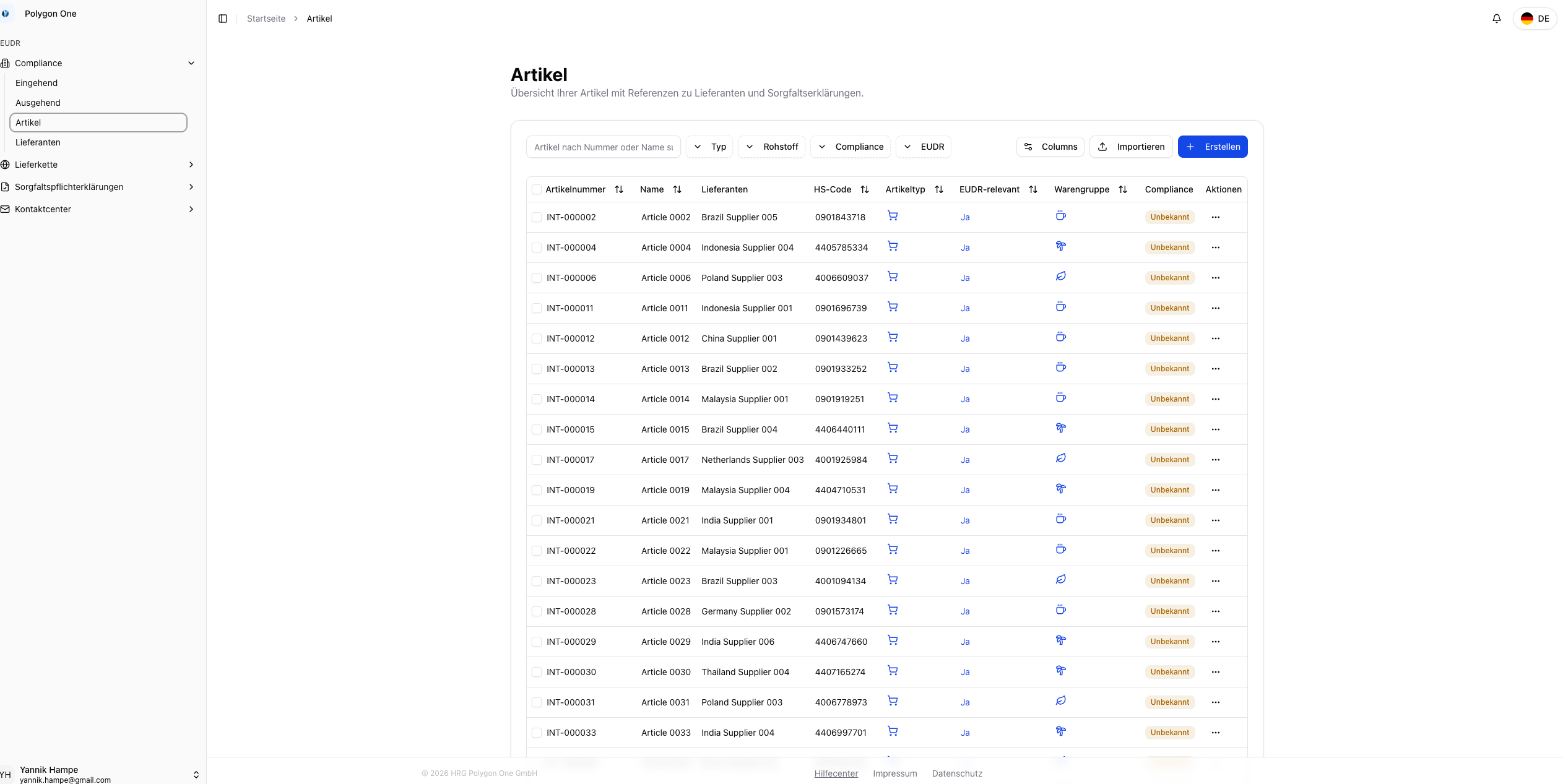
In the **Articles** area, you manage all of your company's products and raw materials. Articles are the central data foundation for the EUDR analysis and the subsequent DDS creation. Every article has an **article type**: either **purchase** (incoming goods) or **sale** (outgoing goods).
 ## Importing Articles (CSV)
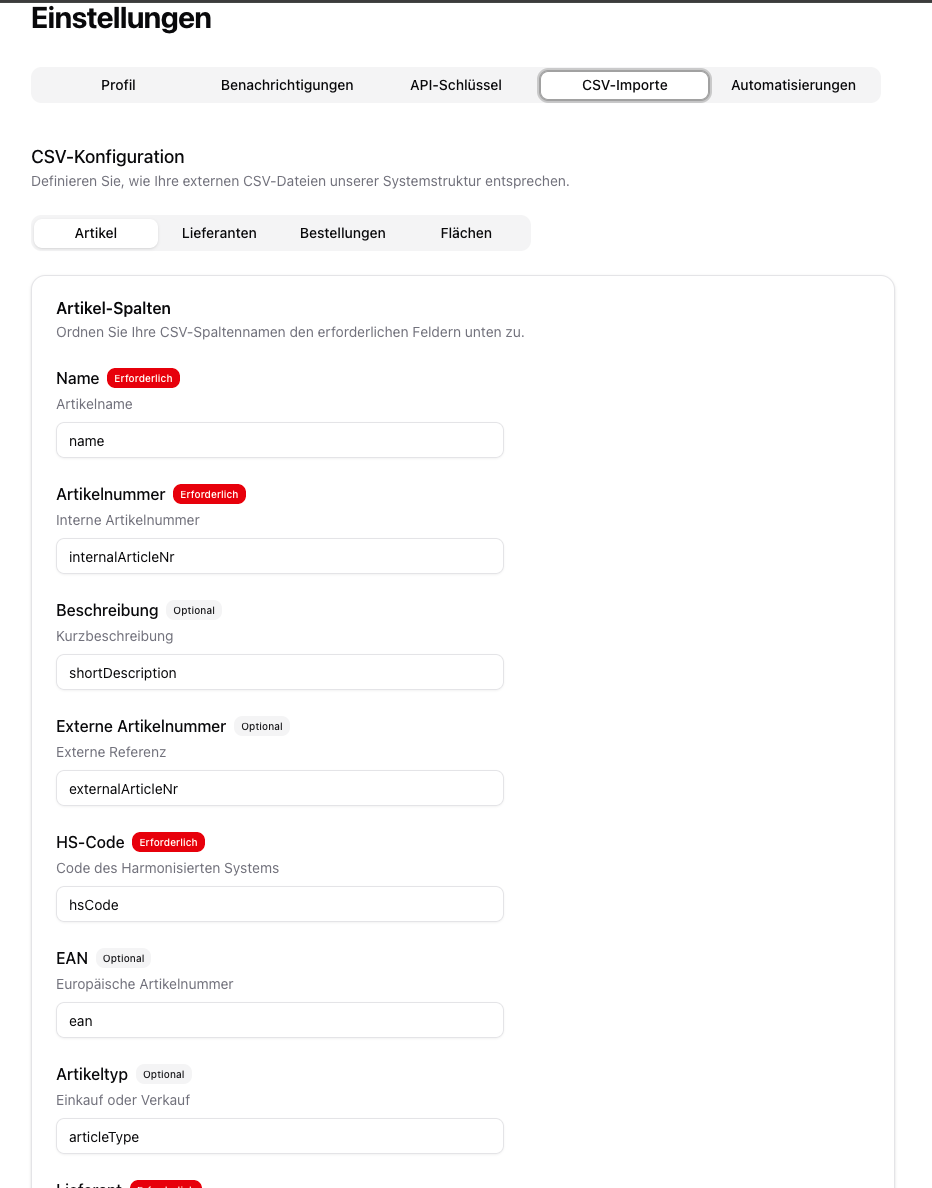
The column mapping can be pre-configured under **Settings → CSV Imports**.
### CSV Fields
| Field | Required | Description |
| --------------------------- | -------- | ----------------------------------------------------------------------- |
| **Name** | Yes | Article name |
| **Article Number** | Yes | Internal article number |
| **HS Code** | Yes | Customs tariff number — required for the automatic EUDR relevance check |
| **Supplier** | Yes | Supplier name (alternatively: External Supplier ID) |
| **Article Type** | No | `purchase` or `sale` |
| **Description** | No | Short description |
| **External Article Number** | No | External reference number |
| **EAN** | No | European Article Number |
| **Supplier Email** | No | Email of the associated supplier |
| **Supplier Country** | No | Country of the supplier |
| **Supplier Address** | No | Address of the supplier |
| **External Supplier ID** | No | External identifier (alternative to the supplier name) |
### Performing the Import
Create a CSV file containing all required fields.
Adjust the CSV import settings for articles to match your CSV file.
## Importing Articles (CSV)
The column mapping can be pre-configured under **Settings → CSV Imports**.
### CSV Fields
| Field | Required | Description |
| --------------------------- | -------- | ----------------------------------------------------------------------- |
| **Name** | Yes | Article name |
| **Article Number** | Yes | Internal article number |
| **HS Code** | Yes | Customs tariff number — required for the automatic EUDR relevance check |
| **Supplier** | Yes | Supplier name (alternatively: External Supplier ID) |
| **Article Type** | No | `purchase` or `sale` |
| **Description** | No | Short description |
| **External Article Number** | No | External reference number |
| **EAN** | No | European Article Number |
| **Supplier Email** | No | Email of the associated supplier |
| **Supplier Country** | No | Country of the supplier |
| **Supplier Address** | No | Address of the supplier |
| **External Supplier ID** | No | External identifier (alternative to the supplier name) |
### Performing the Import
Create a CSV file containing all required fields.
Adjust the CSV import settings for articles to match your CSV file.
 Navigate to your CSV file on your computer and confirm it with **Open**.
In the **preview**, review the detected rows and select the records to import. Then confirm the import.
Suppliers can be created automatically during the article import if they do not yet exist. The system recognizes suppliers based on their name or external ID.
## Creating Articles Manually
In the **Articles** area, click **Create**.
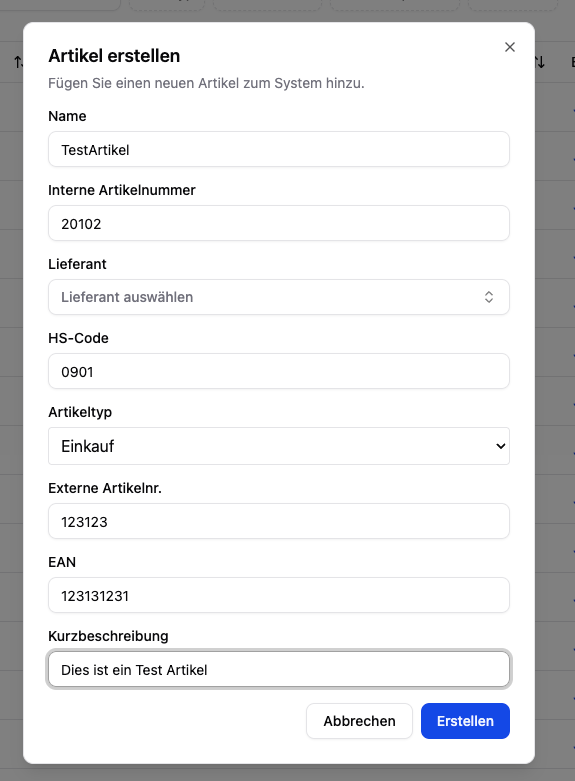
Fill in the following fields:
* **Name** (required)
* **Internal article number** (required)
* **HS code** (required)
* **Article type** — purchase or sale
* **Supplier** (required for purchase articles) — select from existing suppliers
* **Weight per piece (kg)** (optional) — lets orders use piece counts instead of kilograms
* **External article number**, **EAN**, **short description** (optional)
Navigate to your CSV file on your computer and confirm it with **Open**.
In the **preview**, review the detected rows and select the records to import. Then confirm the import.
Suppliers can be created automatically during the article import if they do not yet exist. The system recognizes suppliers based on their name or external ID.
## Creating Articles Manually
In the **Articles** area, click **Create**.
Fill in the following fields:
* **Name** (required)
* **Internal article number** (required)
* **HS code** (required)
* **Article type** — purchase or sale
* **Supplier** (required for purchase articles) — select from existing suppliers
* **Weight per piece (kg)** (optional) — lets orders use piece counts instead of kilograms
* **External article number**, **EAN**, **short description** (optional)
 Click **Create** to add the article.
## Plausibility and Duplicate Checks
When you **create an article manually**, Polygon One checks your input and points out possible issues. There are two kinds of notices:
### Soft Warnings (non-blocking)
These warnings appear after you submit the form. You can still create the article via **"Create anyway"** — or correct the input and submit again.
| Warning | Trigger |
| ----------------------- | ------------------------------------------------------------------------------------------------------------ |
| **Duplicate: name** | An active article with this name already exists (its article number is shown in the notice). |
| **Duplicate: GTIN/EAN** | An active article already uses this GTIN/EAN. |
| **HS code mismatch** | According to the automatic plausibility check, the HS code may not match the article's name and description. |
The **HS code plausibility check** compares the entered HS code against the name and description. It only runs when creating a single article manually — not during CSV import — and never blocks creation.
### Hard Block (blocking)
| Check | Behavior |
| ------------------------------------- | --------------------------------------------------------------------------------------------------------------------------------------------------------------------------------------------------------------------------------------------- |
| **Duplicate internal article number** | If an article with the same internal article number already exists, a field error appears: *"An article with this internal number already exists."* The internal article number must be unique — there is no **"Create anyway"** option here. |
Click **Create** to add the article.
## Plausibility and Duplicate Checks
When you **create an article manually**, Polygon One checks your input and points out possible issues. There are two kinds of notices:
### Soft Warnings (non-blocking)
These warnings appear after you submit the form. You can still create the article via **"Create anyway"** — or correct the input and submit again.
| Warning | Trigger |
| ----------------------- | ------------------------------------------------------------------------------------------------------------ |
| **Duplicate: name** | An active article with this name already exists (its article number is shown in the notice). |
| **Duplicate: GTIN/EAN** | An active article already uses this GTIN/EAN. |
| **HS code mismatch** | According to the automatic plausibility check, the HS code may not match the article's name and description. |
The **HS code plausibility check** compares the entered HS code against the name and description. It only runs when creating a single article manually — not during CSV import — and never blocks creation.
### Hard Block (blocking)
| Check | Behavior |
| ------------------------------------- | --------------------------------------------------------------------------------------------------------------------------------------------------------------------------------------------------------------------------------------------- |
| **Duplicate internal article number** | If an article with the same internal article number already exists, a field error appears: *"An article with this internal number already exists."* The internal article number must be unique — there is no **"Create anyway"** option here. |
 ## HS Code and EUDR Relevance
After the import, Polygon One automatically analyzes the **HS codes** of your articles and flags which products fall under the EUDR. Products containing the following raw materials are marked as EUDR-relevant:
* Cattle
* Cocoa
* Coffee
* Oil palm
* Rubber
* Soy
* Wood
The commodity group is automatically derived from the HS code and displayed in the article overview.
## HS Code and EUDR Relevance
After the import, Polygon One automatically analyzes the **HS codes** of your articles and flags which products fall under the EUDR. Products containing the following raw materials are marked as EUDR-relevant:
* Cattle
* Cocoa
* Coffee
* Oil palm
* Rubber
* Soy
* Wood
The commodity group is automatically derived from the HS code and displayed in the article overview.
 Under **Settings → CSV Imports → Articles** you can permanently map your column names to the Polygon One fields. Use the **REST API** for automatic synchronization of your article data — details in the [API reference](/en/api-reference/introduction).