> ## Documentation Index
> Fetch the complete documentation index at: https://help.polygon-one.com/llms.txt
> Use this file to discover all available pages before exploring further.
# Risk Mitigation
> Mitigate detected risks through the mitigation dialog
## Overview
When the risk assessment detects **geo risks** (deforestation, degradation) or **legal risks** for an article, these must be mitigated. For this, the **mitigation dialog** is available to you — a central tool with which you can submit evidence, link existing certificates, or request documents directly from the supplier.
## The Mitigation Dialog
When you have an open risk indicator (geo or legal), click **"Mitigate"**. The mitigation dialog opens with three options:
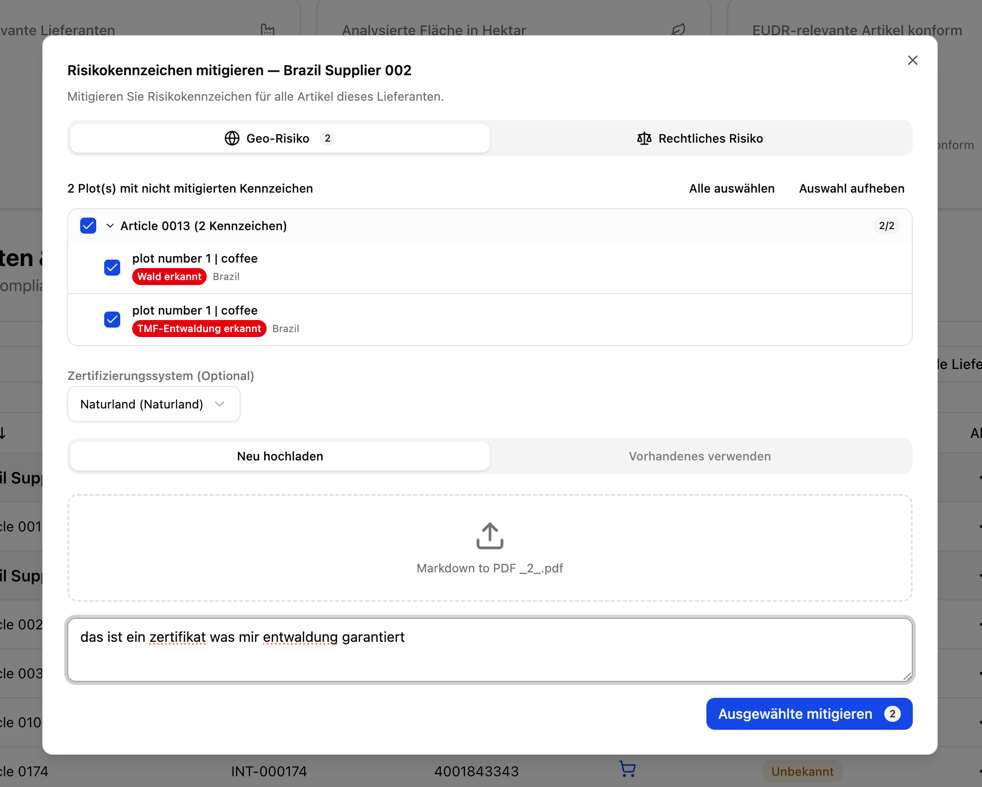 ### Option 1: Upload a Document
Upload evidence directly that addresses the risk.
* **Supported formats:** PDF, PNG, JPEG, TIFF, CSV, GeoJSON, or text files (max. 10 MB)
* **Select a certification scheme** (optional) — Choose, for example, FSC, PEFC, or RSPO so the system automatically assigns the evidence to the matching compliance categories
* **Add a note** — Describe the context of the document (e.g. "Forest management plan, valid until 2028")
**Examples of geo-risk evidence:**
* Certificates
* Official land use permits
* Agroforestry evidence
**Examples of legal evidence:**
* Land ownership titles or lease agreements
* Labor inspection reports or social audits
* Environmental permits or environmental impact assessments
* Certificates
### Option 2: Link an Existing Certificate
Select a certificate that has already been uploaded and verified from your document library.
* The system automatically checks which risk indicators are covered by the certificate
* Recognized certifications: **FSC, PEFC, SFI, ISCC, Rainforest Alliance, RSPO, Fairtrade, RTRS, EU Organic**
* A single certificate can cover multiple risk categories at the same time
### Option 3: Request from the Supplier
Send an email request directly to the supplier through the platform.
* The supplier receives a notification with the specific risk indicator
* The supplier can submit the evidence independently through the supplier portal
* You are informed by notification as soon as the supplier responds
## AI Validation
After submission, each piece of evidence is automatically reviewed by the AI:
1. **Document type detection** — The system classifies the document type and assigns it to the relevant risk indicators
2. **Confidence assessment** — The AI assigns a confidence level to the submitted evidence
3. **Automatic decision** — With high confidence and no inconsistencies (for example, a mismatched country), the evidence is accepted directly. With low confidence or critical findings, a manual review is triggered
### Validation Status
| Status | Description |
| ----------------- | --------------------------------------------------------------------------------------------- |
| **Accepted** | Evidence has been reviewed and accepted — the risk indicator changes to **"Risk mitigated"** |
| **Pending** | Evidence has been submitted and is being reviewed |
| **Manual review** | The AI could not make an automatic decision — you are informed of the outcome by notification |
| **Rejected** | The evidence was insufficient — resubmission with a new document is required |
### Option 1: Upload a Document
Upload evidence directly that addresses the risk.
* **Supported formats:** PDF, PNG, JPEG, TIFF, CSV, GeoJSON, or text files (max. 10 MB)
* **Select a certification scheme** (optional) — Choose, for example, FSC, PEFC, or RSPO so the system automatically assigns the evidence to the matching compliance categories
* **Add a note** — Describe the context of the document (e.g. "Forest management plan, valid until 2028")
**Examples of geo-risk evidence:**
* Certificates
* Official land use permits
* Agroforestry evidence
**Examples of legal evidence:**
* Land ownership titles or lease agreements
* Labor inspection reports or social audits
* Environmental permits or environmental impact assessments
* Certificates
### Option 2: Link an Existing Certificate
Select a certificate that has already been uploaded and verified from your document library.
* The system automatically checks which risk indicators are covered by the certificate
* Recognized certifications: **FSC, PEFC, SFI, ISCC, Rainforest Alliance, RSPO, Fairtrade, RTRS, EU Organic**
* A single certificate can cover multiple risk categories at the same time
### Option 3: Request from the Supplier
Send an email request directly to the supplier through the platform.
* The supplier receives a notification with the specific risk indicator
* The supplier can submit the evidence independently through the supplier portal
* You are informed by notification as soon as the supplier responds
## AI Validation
After submission, each piece of evidence is automatically reviewed by the AI:
1. **Document type detection** — The system classifies the document type and assigns it to the relevant risk indicators
2. **Confidence assessment** — The AI assigns a confidence level to the submitted evidence
3. **Automatic decision** — With high confidence and no inconsistencies (for example, a mismatched country), the evidence is accepted directly. With low confidence or critical findings, a manual review is triggered
### Validation Status
| Status | Description |
| ----------------- | --------------------------------------------------------------------------------------------- |
| **Accepted** | Evidence has been reviewed and accepted — the risk indicator changes to **"Risk mitigated"** |
| **Pending** | Evidence has been submitted and is being reviewed |
| **Manual review** | The AI could not make an automatic decision — you are informed of the outcome by notification |
| **Rejected** | The evidence was insufficient — resubmission with a new document is required |
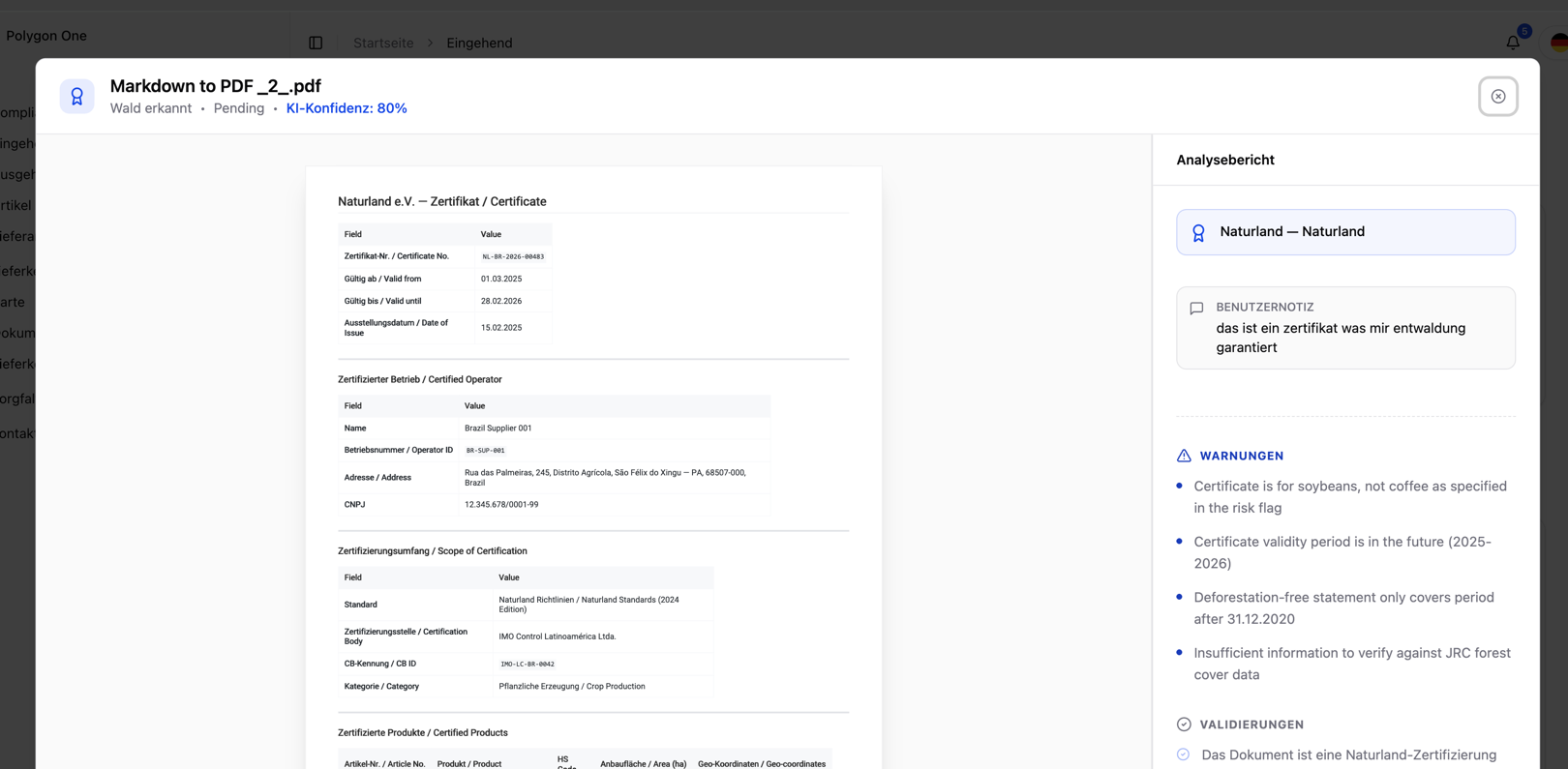 ## Mitigating Multiple Risks at Once
You do not have to address each risk indicator individually. Using the checkboxes, you can select multiple open risks and mitigate them together:
1. Check the risk indicators you want to address
2. Upload evidence or link a certificate
3. Submit everything at once
This is especially practical when a single certificate (e.g. FSC) covers multiple risks at the same time.
## FLEGT Fast Track
For **wood products from FLEGT VPA countries**, there is a fast track: uploading a valid FLEGT license automatically fulfills the legal compliance requirements for **all categories**. This eliminates the need to mitigate each legal category individually.
## Missing or Rejected Evidence
Rejected evidence must be replaced with new documents. Use the **"Request from supplier"** option in the mitigation dialog to inform the supplier directly by email about the issue and request corrected documents.
In addition, you can use the integrated **messaging system** (under **Messages**) to communicate directly with suppliers:
* Ask questions about submitted documents
* Request corrections
* Exchange status updates
## Mitigating Multiple Risks at Once
You do not have to address each risk indicator individually. Using the checkboxes, you can select multiple open risks and mitigate them together:
1. Check the risk indicators you want to address
2. Upload evidence or link a certificate
3. Submit everything at once
This is especially practical when a single certificate (e.g. FSC) covers multiple risks at the same time.
## FLEGT Fast Track
For **wood products from FLEGT VPA countries**, there is a fast track: uploading a valid FLEGT license automatically fulfills the legal compliance requirements for **all categories**. This eliminates the need to mitigate each legal category individually.
## Missing or Rejected Evidence
Rejected evidence must be replaced with new documents. Use the **"Request from supplier"** option in the mitigation dialog to inform the supplier directly by email about the issue and request corrected documents.
In addition, you can use the integrated **messaging system** (under **Messages**) to communicate directly with suppliers:
* Ask questions about submitted documents
* Request corrections
* Exchange status updates