> ## Documentation Index
> Fetch the complete documentation index at: https://help.polygon-one.com/llms.txt
> Use this file to discover all available pages before exploring further.
# Inbound DDS
> Create and manage Due Diligence Statements for inbound orders
## Overview
For inbound goods (import into the EU), **Due Diligence Statements (DDS)** may need to be created and submitted via EU TRACES. Polygon One supports both manual and automatic creation, linking, and assignment.
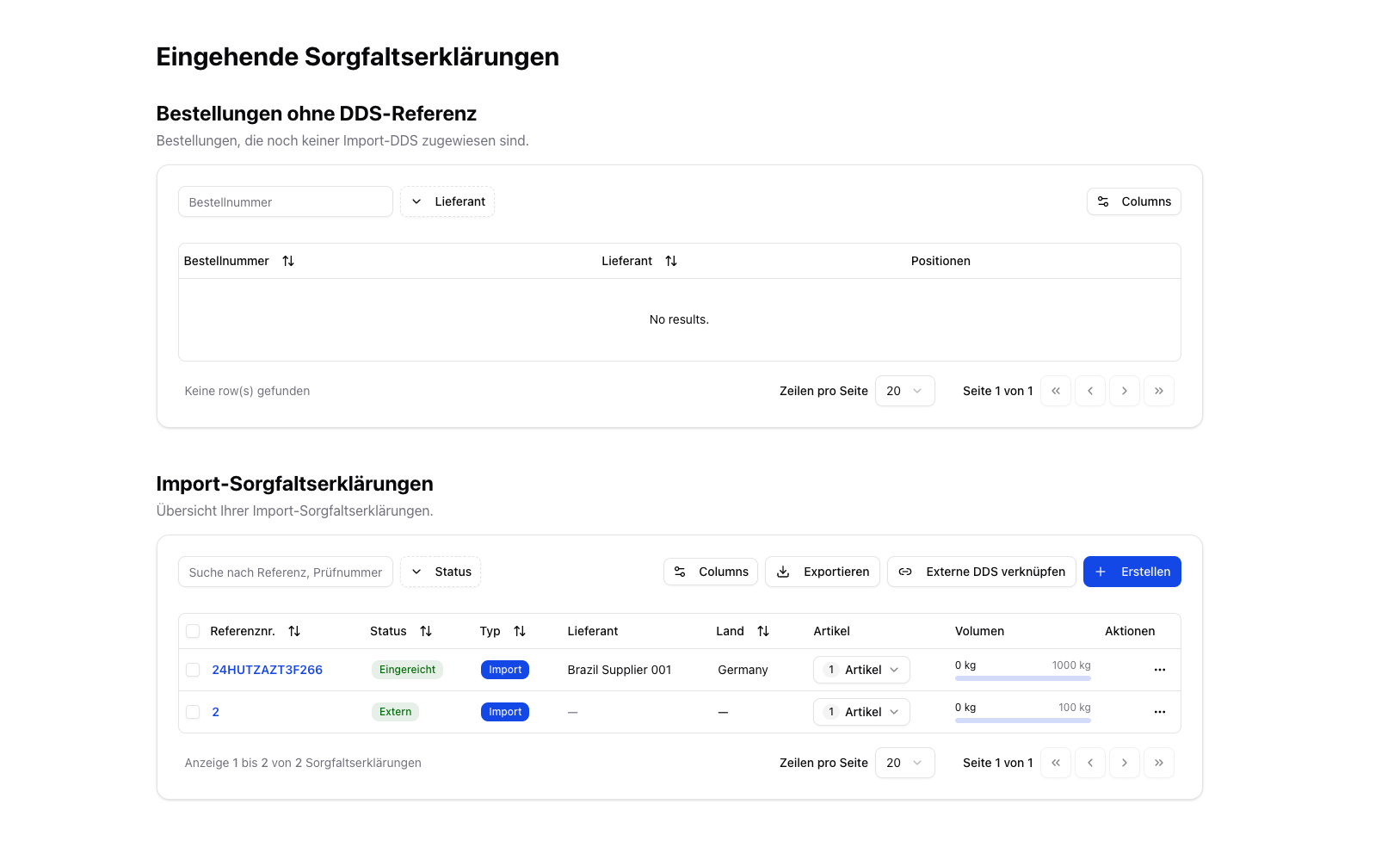
The **Due Diligence Statements → Inbound** page displays two sections:
1. **Orders without a DDS reference** — Purchase orders that are not yet assigned to a DDS
2. **Import Due Diligence Statements** — Overview of all created or linked DDS
 ## Create a DDS
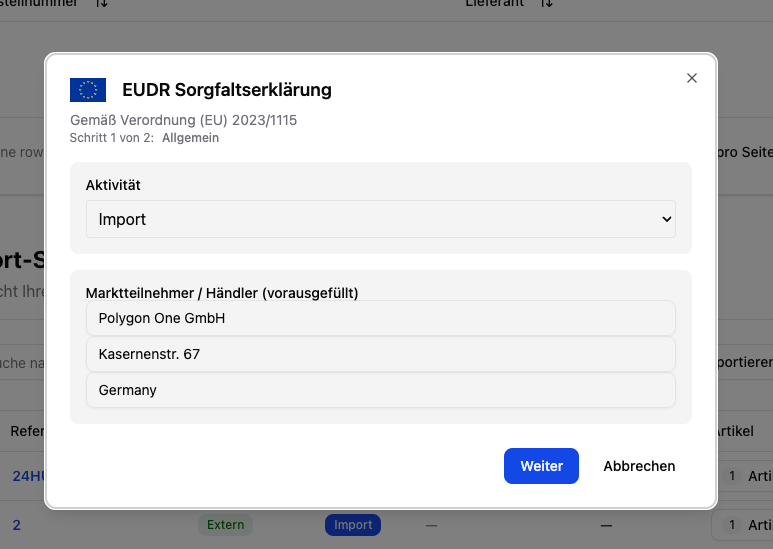
Click **"Create DDS"** — a multi-step wizard opens.
Select the **activity**. For this page, **Import** is usually relevant. Your company data is filled in automatically.
## Create a DDS
Click **"Create DDS"** — a multi-step wizard opens.
Select the **activity**. For this page, **Import** is usually relevant. Your company data is filled in automatically.
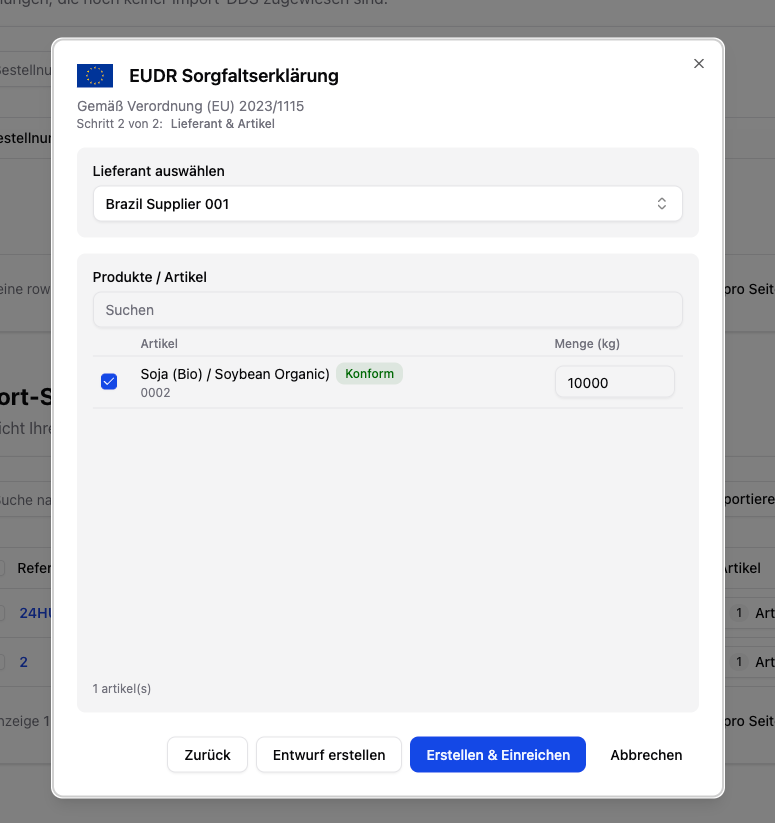
 Select the **supplier** and the specific **articles**. Enter the **quantity in kg** for each article. In this context, the quantity describes the volume to be covered by this DDS. For **import** and **export** DDS, certain articles may additionally require a **supplementary unit** (see below).
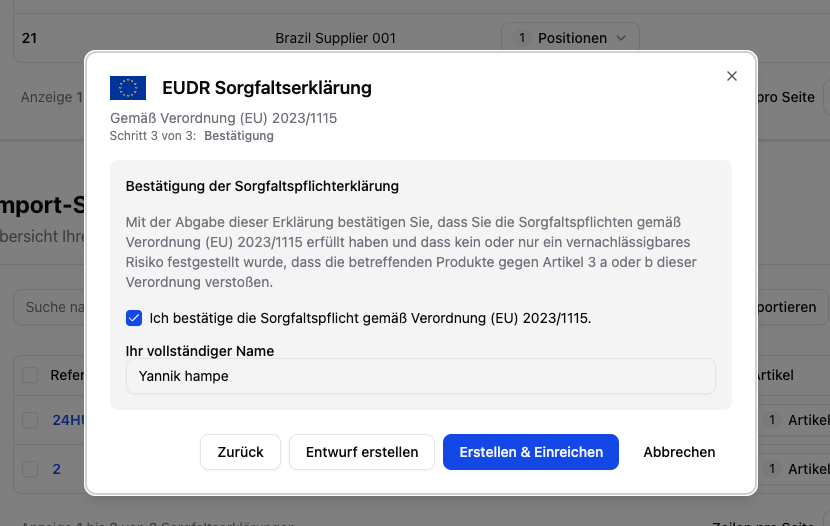
 Review the summary, confirm the due diligence in accordance with **Regulation (EU) 2023/1115**, and enter your **full name** as your signature.
 Choose **"Create & Submit"** for direct transmission to TRACES, or **"Create Draft"** to submit the DDS later.
## Supplementary Unit (Annex I)
For certain goods, TRACES requires a **supplementary unit** in addition to the weight in kg (e.g. cubic meters for wood). This obligation applies to articles with an **Annex I HS code** in **import** and **export** DDS.
* The **unit** (e.g. m³, l) is derived automatically from the HS code and cannot be changed.
* You enter the **value** per article in the **"Suppl. unit"** field.
* Articles without a supplementary unit show a "—" instead.
Choose **"Create & Submit"** for direct transmission to TRACES, or **"Create Draft"** to submit the DDS later.
## Supplementary Unit (Annex I)
For certain goods, TRACES requires a **supplementary unit** in addition to the weight in kg (e.g. cubic meters for wood). This obligation applies to articles with an **Annex I HS code** in **import** and **export** DDS.
* The **unit** (e.g. m³, l) is derived automatically from the HS code and cannot be changed.
* You enter the **value** per article in the **"Suppl. unit"** field.
* Articles without a supplementary unit show a "—" instead.
 A **draft** can be saved even without a supplementary unit (the field is then highlighted in amber). For **submission to TRACES**, however, the value is mandatory — if it is missing, **"Create & Submit"** is locked. You can add the value in the DDS detail view before resubmitting.
Supplementary units can also be ingested via **CSV/batch import** of order data (e.g. volume in m³). See [Import & Creation](/en/eudr/dds-bestellungen/import-erstellung).
## Link an External DDS
If you have already received a DDS from an upstream supplier, you can incorporate it via **"Link External DDS"**:
1. Enter the **reference number** and, optionally, the **verification number**.
2. Select the supplier and articles with quantities.
3. The external DDS is integrated into your overview.
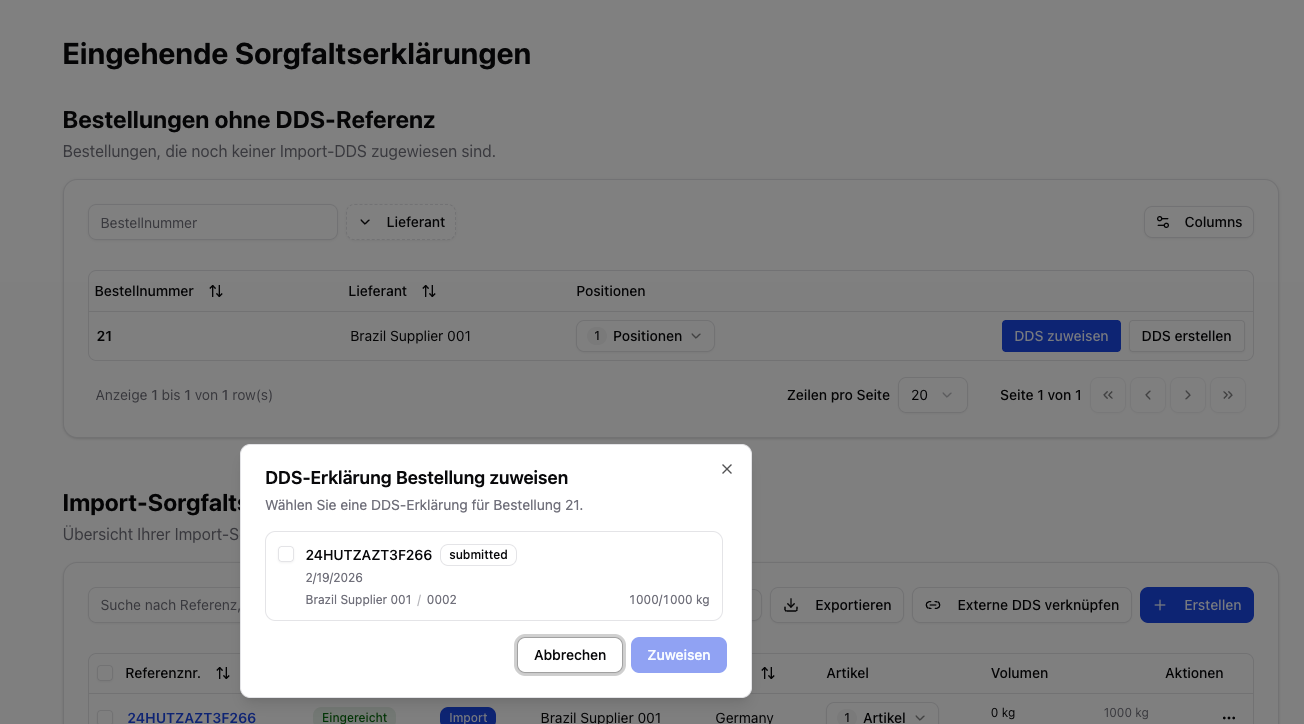
## Assigning a DDS to Orders
Once a DDS has the status **Draft**, **Validated**, or **Submitted**, you can assign matching purchase orders to it:
1. For an order without a DDS, click **"Assign DDS"**.
2. The system shows only matching DDS (same supplier, matching articles, sufficient remaining volume).
3. Select the DDS and confirm the assignment.
A **draft** can be saved even without a supplementary unit (the field is then highlighted in amber). For **submission to TRACES**, however, the value is mandatory — if it is missing, **"Create & Submit"** is locked. You can add the value in the DDS detail view before resubmitting.
Supplementary units can also be ingested via **CSV/batch import** of order data (e.g. volume in m³). See [Import & Creation](/en/eudr/dds-bestellungen/import-erstellung).
## Link an External DDS
If you have already received a DDS from an upstream supplier, you can incorporate it via **"Link External DDS"**:
1. Enter the **reference number** and, optionally, the **verification number**.
2. Select the supplier and articles with quantities.
3. The external DDS is integrated into your overview.
## Assigning a DDS to Orders
Once a DDS has the status **Draft**, **Validated**, or **Submitted**, you can assign matching purchase orders to it:
1. For an order without a DDS, click **"Assign DDS"**.
2. The system shows only matching DDS (same supplier, matching articles, sufficient remaining volume).
3. Select the DDS and confirm the assignment.
 ## DDS Status
| Status | Description |
| ------------------------ | ---------------------------------------------------------------------- |
| **Draft** | The DDS has been created but not yet submitted |
| **Processing** | The DDS has been sent and is currently being processed |
| **Submitted** | The DDS has been submitted successfully and is awaiting further review |
| **Validated** | The DDS has been confirmed and can be used as a valid statement |
| **Rejected** | The DDS was rejected by TRACES or a downstream review step |
| **Failed** | A technical error occurred during submission |
| **External** | A DDS from an upstream supplier |
| **Under review** | The DDS is undergoing an official control check |
| **Correction requested** | Update the statement and resubmit the missing information |
| **Withdrawn** | The DDS has been withdrawn from the submission process |
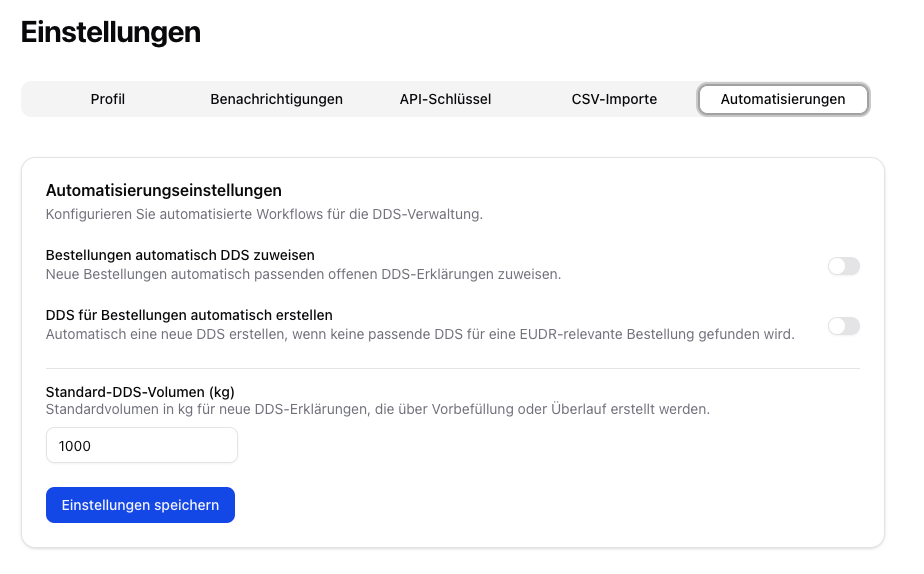
## Automation
Under **Settings → Automations**, you can automate DDS processes:
* **Automatic DDS assignment** — New orders are automatically assigned to matching open DDS
* **Automatic DDS creation** — If no matching DDS exists, a new one is created automatically
* **Default DDS volume** — Default volume for automatically created DDS
## DDS Status
| Status | Description |
| ------------------------ | ---------------------------------------------------------------------- |
| **Draft** | The DDS has been created but not yet submitted |
| **Processing** | The DDS has been sent and is currently being processed |
| **Submitted** | The DDS has been submitted successfully and is awaiting further review |
| **Validated** | The DDS has been confirmed and can be used as a valid statement |
| **Rejected** | The DDS was rejected by TRACES or a downstream review step |
| **Failed** | A technical error occurred during submission |
| **External** | A DDS from an upstream supplier |
| **Under review** | The DDS is undergoing an official control check |
| **Correction requested** | Update the statement and resubmit the missing information |
| **Withdrawn** | The DDS has been withdrawn from the submission process |
## Automation
Under **Settings → Automations**, you can automate DDS processes:
* **Automatic DDS assignment** — New orders are automatically assigned to matching open DDS
* **Automatic DDS creation** — If no matching DDS exists, a new one is created automatically
* **Default DDS volume** — Default volume for automatically created DDS
 Sales orders can never be assigned a DDS automatically, because the system is not aware of their internal batch traceability. The assignment must always be performed manually.
## Volume Tracking
Polygon One automatically tracks the **assigned volume** against the **total volume of the DDS**.
The system prevents an order from being assigned if it would exceed the remaining capacity of the DDS. In this case, you can use the **overflow DDS** function to automatically create a new DDS with the same configuration.
Make sure your **EU TRACES credentials** (username + web service access token) are stored in the settings. See [TRACES registration](/en/eudr/onboarding/traces).
Otherwise it is not possible to submit DDS to TRACES.
Sales orders can never be assigned a DDS automatically, because the system is not aware of their internal batch traceability. The assignment must always be performed manually.
## Volume Tracking
Polygon One automatically tracks the **assigned volume** against the **total volume of the DDS**.
The system prevents an order from being assigned if it would exceed the remaining capacity of the DDS. In this case, you can use the **overflow DDS** function to automatically create a new DDS with the same configuration.
Make sure your **EU TRACES credentials** (username + web service access token) are stored in the settings. See [TRACES registration](/en/eudr/onboarding/traces).
Otherwise it is not possible to submit DDS to TRACES.