> ## Documentation Index
> Fetch the complete documentation index at: https://help.polygon-one.com/llms.txt
> Use this file to discover all available pages before exploring further.
# Import & Creation
> Import and create orders
## Overview
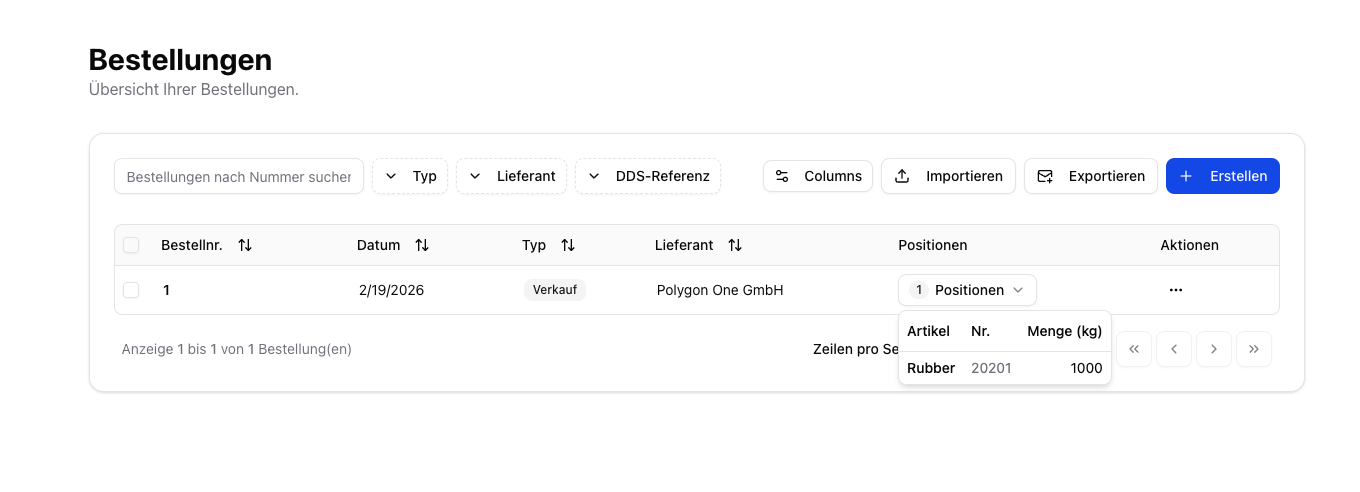
To link compliance results to actual shipments, you must import your orders into Polygon One. Each order captures the supplier, the articles, and the quantities.
 ## Purchase vs. Sale
Polygon One distinguishes between two order types:
* **Purchase** — Inbound goods from your suppliers
* **Sale** — Outbound goods to your customers (sales orders)
## Import Methods
**Ideal for processing large volumes of data.**
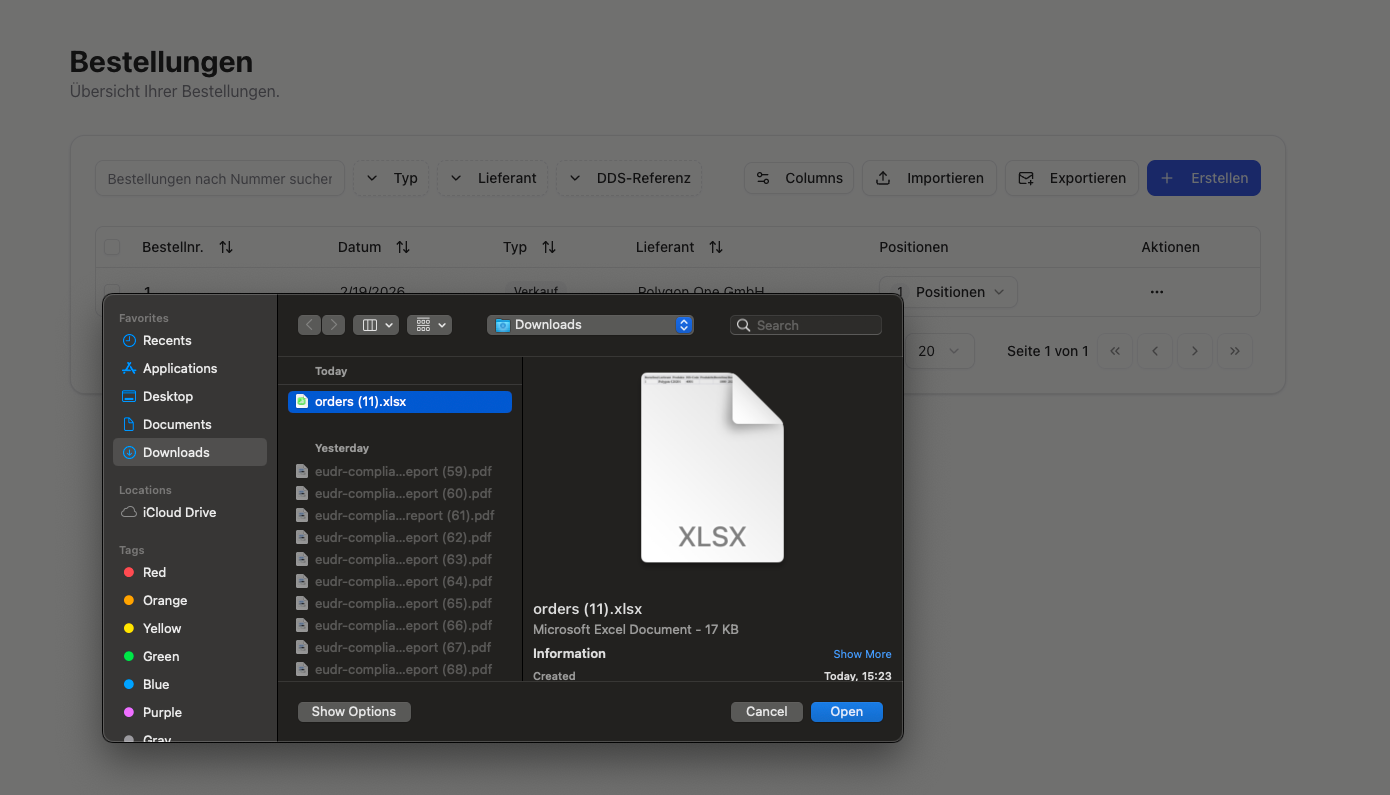
1. Navigate to the **Orders** area.
2. Click **Import** and upload your CSV file.
3. Confirm the import.
## Purchase vs. Sale
Polygon One distinguishes between two order types:
* **Purchase** — Inbound goods from your suppliers
* **Sale** — Outbound goods to your customers (sales orders)
## Import Methods
**Ideal for processing large volumes of data.**
1. Navigate to the **Orders** area.
2. Click **Import** and upload your CSV file.
3. Confirm the import.
 **For individual orders.**
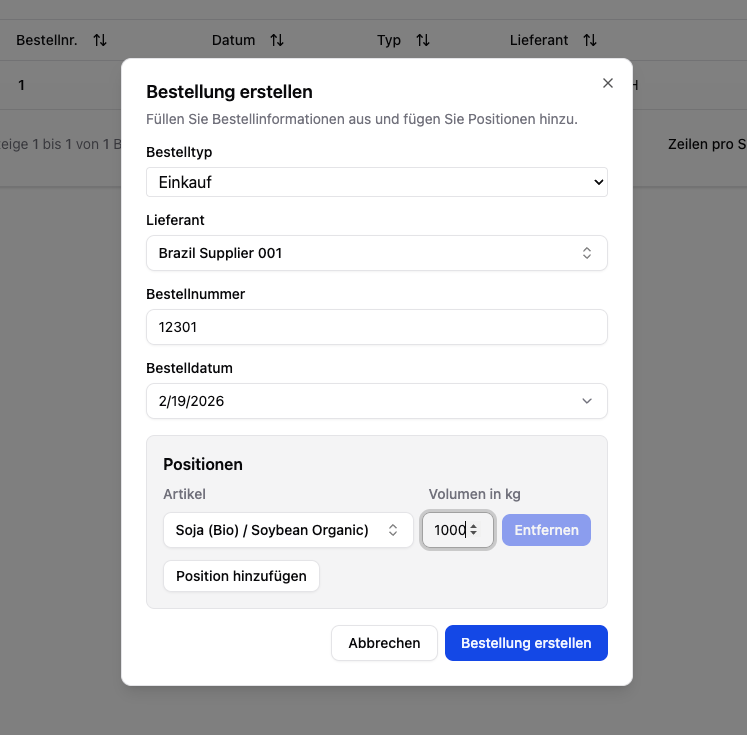
1. Click **Create** in the orders area.
2. Select the **supplier**.
3. Enter the **order number** and **order date**.
4. Select the **order type** (purchase/sale).
5. Add **line items** (article + volume in kg).
6. Save the order.
**For individual orders.**
1. Click **Create** in the orders area.
2. Select the **supplier**.
3. Enter the **order number** and **order date**.
4. Select the **order type** (purchase/sale).
5. Add **line items** (article + volume in kg).
6. Save the order.
 **For automated synchronization.**
Synchronize orders directly from your ERP system via the API.
See the [API reference](/en/api-reference/endpoint/orders/create) for details.
## CSV Fields
| Field | Required | Description |
| --------------------------- | -------- | --------------------------------------------------------------------------------------------- |
| **Order number** | Yes | Unique order number |
| **Order type** | Yes | `purchase` or `sale` |
| **Supplier** | Yes | Supplier name |
| **Article number** | Yes | Internal article number |
| **Quantity** | No\* | Order quantity (in kg). \*Optional if a piece count is provided |
| **Piece count** | No\* | Alternative to quantity — automatically converted to kg via the configured "weight per piece" |
| **Order date** | No | Date of the order |
| **External supplier ID** | No | Takes precedence over the supplier name during matching |
| **Supplier email** | No | Supplements automatically created suppliers |
| **Supplier country** | No | Supplements automatically created suppliers |
| **Supplier address** | No | Supplements automatically created suppliers |
| **HS code** | No | Required to create an article if the article does not yet exist |
| **Volume (m³)** | No | Supplementary unit for Annex I articles — passed to TRACES for import/export DDS |
| **DDS reference number** | No | External DDS reference (for passing through upstream DDS) |
| **DDS verification number** | No | External DDS verification number |
During order import, suppliers and articles can be created automatically if they do not yet exist. The system matches by name or external ID.
## Configure Column Mapping
Under **Settings → CSV Imports → Orders**, you can permanently map your own column names to the Polygon One fields. This way, you do not have to redo the mapping for every import.
## EUDR Relevance
The system uses the **HS codes** of the articles in your orders to automatically determine whether an order is **EUDR-relevant**.
Only orders with EUDR-relevant articles appear in the DDS assignment filters.
If you import orders regularly, we recommend integrating via the REST API for fully automated synchronization.
**For automated synchronization.**
Synchronize orders directly from your ERP system via the API.
See the [API reference](/en/api-reference/endpoint/orders/create) for details.
## CSV Fields
| Field | Required | Description |
| --------------------------- | -------- | --------------------------------------------------------------------------------------------- |
| **Order number** | Yes | Unique order number |
| **Order type** | Yes | `purchase` or `sale` |
| **Supplier** | Yes | Supplier name |
| **Article number** | Yes | Internal article number |
| **Quantity** | No\* | Order quantity (in kg). \*Optional if a piece count is provided |
| **Piece count** | No\* | Alternative to quantity — automatically converted to kg via the configured "weight per piece" |
| **Order date** | No | Date of the order |
| **External supplier ID** | No | Takes precedence over the supplier name during matching |
| **Supplier email** | No | Supplements automatically created suppliers |
| **Supplier country** | No | Supplements automatically created suppliers |
| **Supplier address** | No | Supplements automatically created suppliers |
| **HS code** | No | Required to create an article if the article does not yet exist |
| **Volume (m³)** | No | Supplementary unit for Annex I articles — passed to TRACES for import/export DDS |
| **DDS reference number** | No | External DDS reference (for passing through upstream DDS) |
| **DDS verification number** | No | External DDS verification number |
During order import, suppliers and articles can be created automatically if they do not yet exist. The system matches by name or external ID.
## Configure Column Mapping
Under **Settings → CSV Imports → Orders**, you can permanently map your own column names to the Polygon One fields. This way, you do not have to redo the mapping for every import.
## EUDR Relevance
The system uses the **HS codes** of the articles in your orders to automatically determine whether an order is **EUDR-relevant**.
Only orders with EUDR-relevant articles appear in the DDS assignment filters.
If you import orders regularly, we recommend integrating via the REST API for fully automated synchronization.