> ## Documentation Index
> Fetch the complete documentation index at: https://help.polygon-one.com/llms.txt
> Use this file to discover all available pages before exploring further.
# EUDR Relevance Check
> Automatic system analysis and classification into EUDR-relevant and irrelevant articles
## Overview
After you import your articles, Polygon One automatically performs an **EUDR relevance analysis**. The system uses the HS codes to determine which of your articles fall under the EU Deforestation Regulation. In the Cockpit, this step appears as the **Check EUDR Relevance** phase.
## Automatic Analysis
The analysis runs automatically in the background as soon as articles with an HS code are created in the platform. You do not need to trigger anything manually.
### Classification of Articles
After the analysis, your articles are labeled:
| Label | Description |
| --------------------- | ------------------------------------------------------------------------------------------------------------------------- |
| **EUDR-relevant** | The article contains commodities that fall under the EUDR. Evidence must be collected and a DDS created for this article. |
| **Not EUDR-relevant** | The article does not fall under the EUDR. No further action is required. |
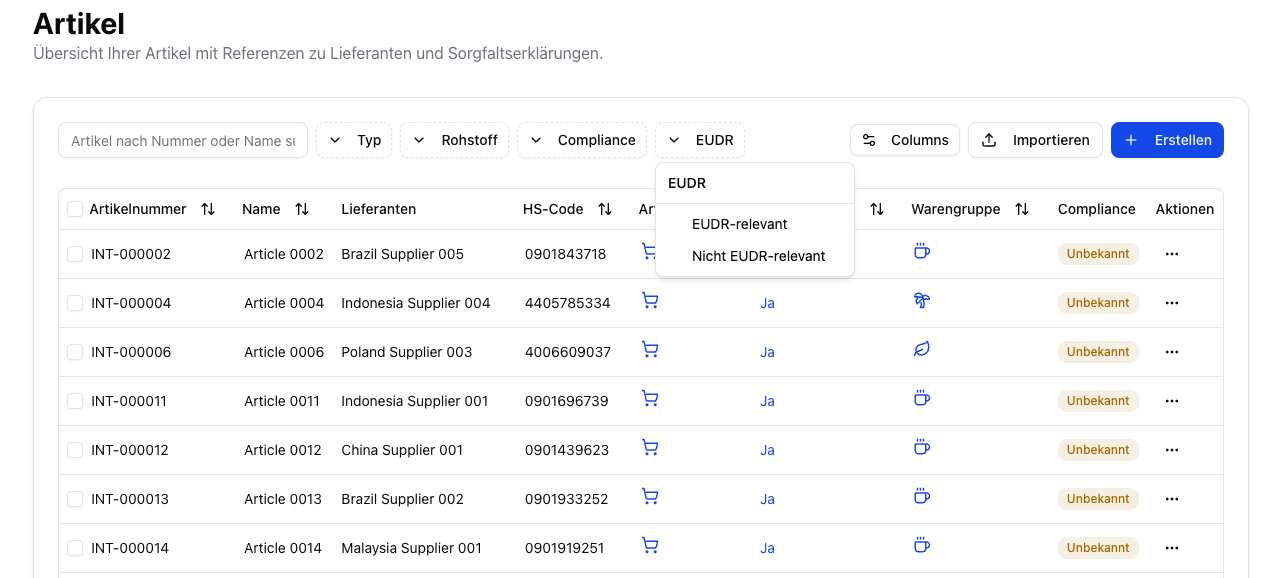
EUDR relevance is shown as a column in the article overview and can be used as a filter.
 ## EUDR-Relevant Commodities (Commodity Groups)
The EUDR applies to products that contain or are made from the following commodities:
The detected commodity group is automatically derived from the HS code and displayed in the article.
## Next Steps
Once your EUDR-relevant articles have been identified, continue with **Data Collection**:
Upload documents and geo data for relevant articles.
Invite suppliers to provide their evidence through the supplier portal.
## EUDR-Relevant Commodities (Commodity Groups)
The EUDR applies to products that contain or are made from the following commodities:
The detected commodity group is automatically derived from the HS code and displayed in the article.
## Next Steps
Once your EUDR-relevant articles have been identified, continue with **Data Collection**:
Upload documents and geo data for relevant articles.
Invite suppliers to provide their evidence through the supplier portal.