> ## Documentation Index
> Fetch the complete documentation index at: https://help.polygon-one.com/llms.txt
> Use this file to discover all available pages before exploring further.
# Supplier View
> Step-by-step guide to the EUDR data request your suppliers complete via the invitation link
## Video Guide
## Overview
Via the **invitation link**, your suppliers open the EUDR data request form in Polygon One. There they provide the requested EUDR compliance evidence for the requested articles — without their own user account.
Access is via a secure link from the invitation, without separate registration. The supplier can reopen the link while it remains valid to provide missing data or update their information.
## Step-by-Step Guide
### 1. Access and Welcome
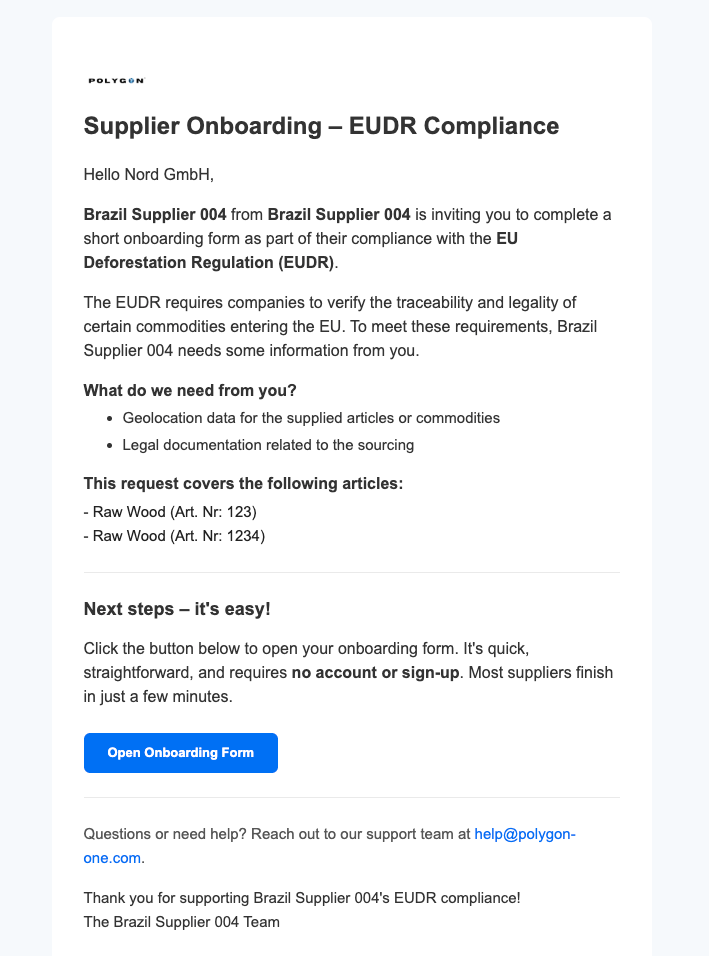
The supplier clicks the link in the email and sees the onboarding message with a personal welcome message.
### 2. General Information
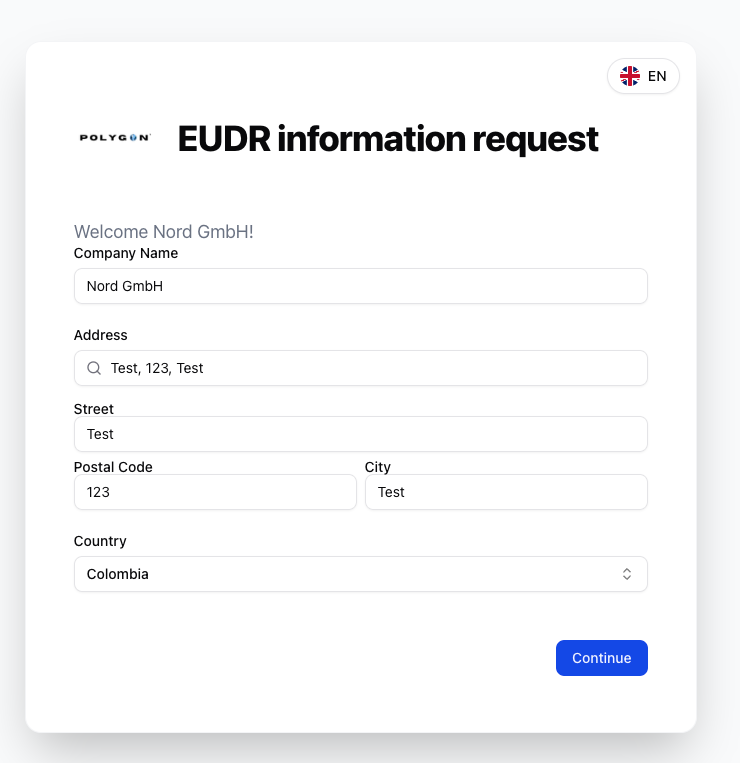
After the supplier opens the link, they see the form for the EUDR data request.
The supplier enters their official company name.
The supplier enters their company address.
The company's country is selected.
Click **"Continue"** to proceed to the next step.
The supplier can change the language of the form at any time. Polygon One currently supports Spanish, French, English, and German.
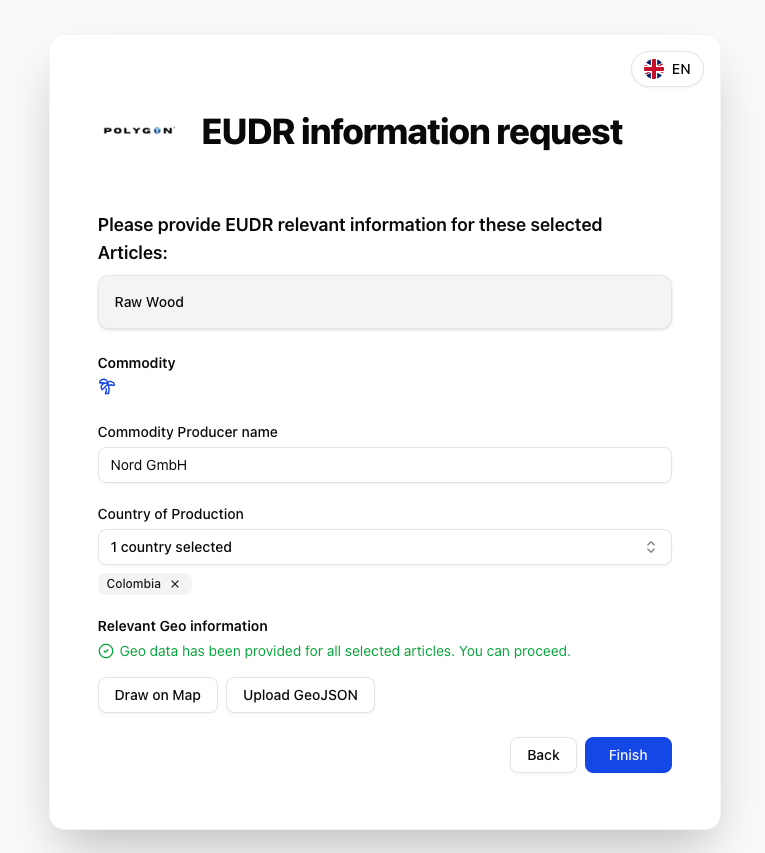
### 3. Provide Geo Information
Geo data must be provided for each requested article:
Enter the name of the commodity producer and the country of production.
Production areas are specified using the interactive map:
* **Draw on map** — mark the corner points of the production area
* **Upload GeoJSON** — upload existing geo data as a file
Geo data is provided for all requested articles. Articles without geo data are marked as missing.
It is not necessary to process all articles at once. The supplier can reopen the link at any time and provide missing data later.
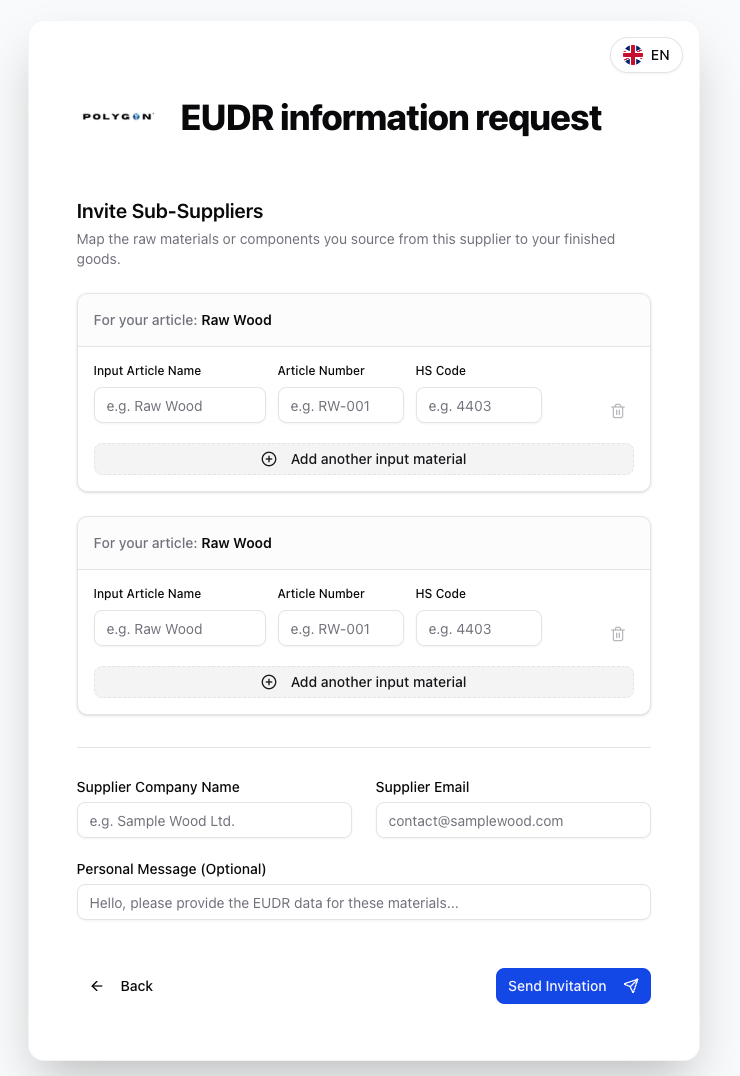
### 4. Invite Sub-Suppliers (Optional)
If the supplier sources materials from additional sub-suppliers, they can invite them in the portal:
* describe the **inbound article** (name, article number, HS code)
* enter the **supplier details** of the sub-supplier (company, email)
* optionally add a **personal message**
* the invitation is sent to the sub-supplier by email
### 5. Legal Compliance Questionnaire
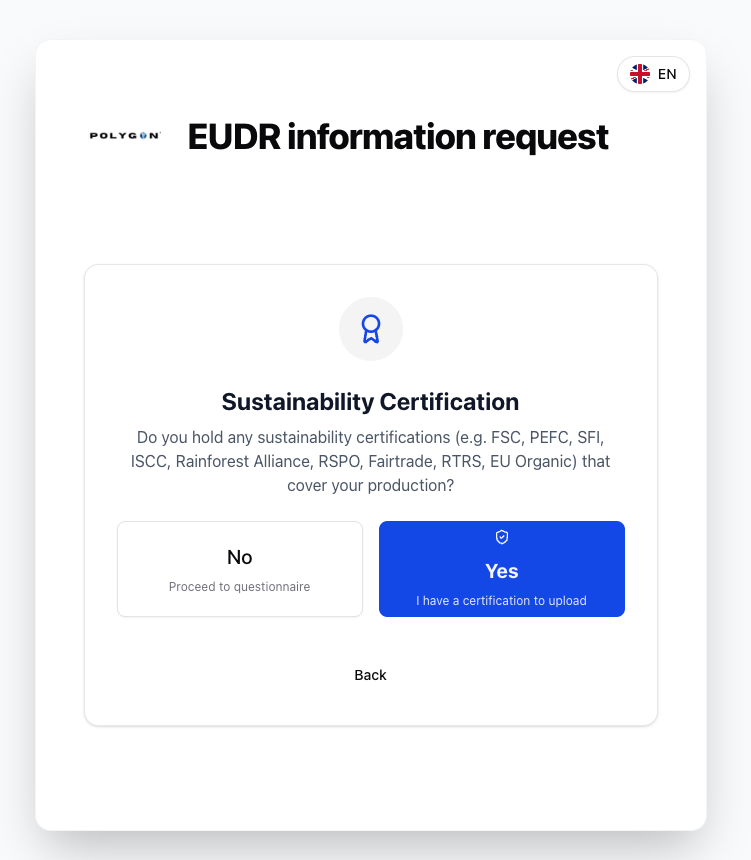
If applicable, a valid **FLEGT license** can be uploaded. If a valid license is present, the detailed questionnaire is skipped.
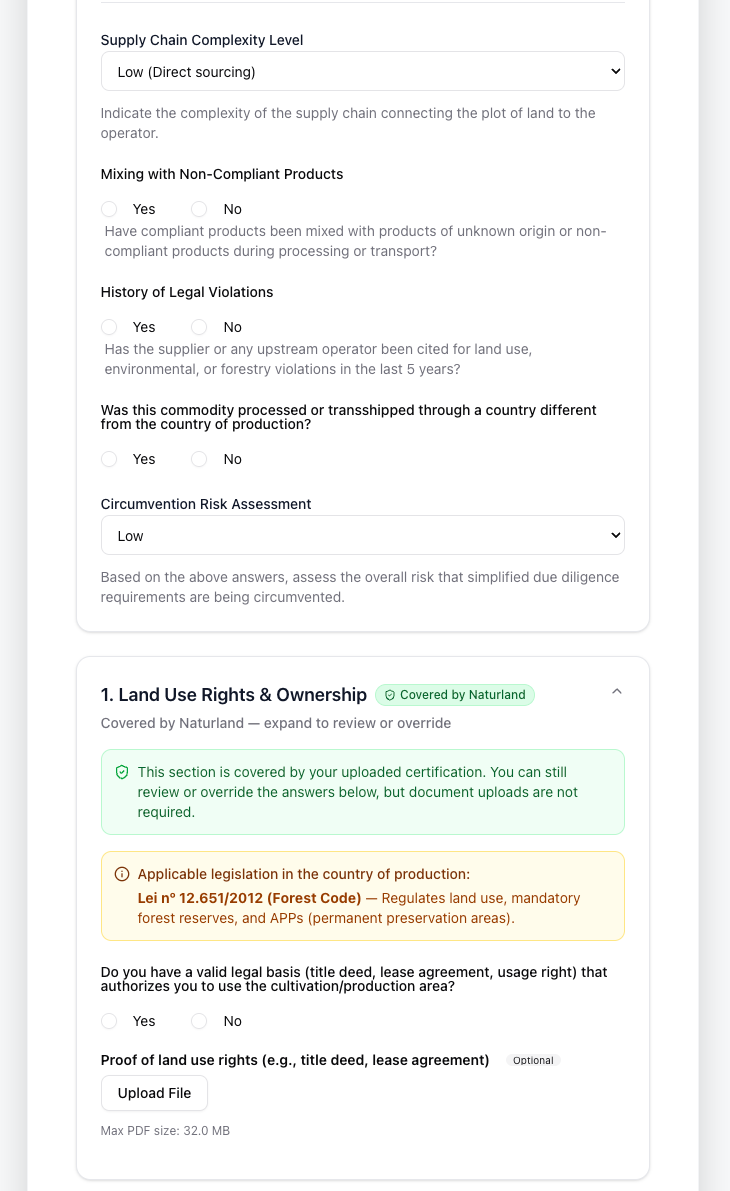
The supplier can upload a certification (FSC, PEFC, ISCC, etc.). The AI automatically analyzes which compliance categories are covered.
A country-specific questionnaire is completed — divided into categories:
* General questions
* Supply chain & risk assessment
* Land use rights & ownership
* Environmental & conservation laws
* Forest law (for wood products)
* Rights of third parties & indigenous communities
* Labor & human rights
* Tax, trade & customs regulations
* Anti-corruption measures
* Further compliance measures
Evidence documents can be uploaded for each category (PDF, Word, ODT, RTF, TXT).
The supplier reviews their answers and clicks **"Submit self-assessment"**. Unanswered questions and missing documents are shown as a warning.
After submission, the data is automatically analyzed by Polygon One:
* **satellite imagery evaluation** of the geo data for deforestation risks
* **AI document validation** of the uploaded evidence
* **compliance calculation** based on the questionnaire and evidence
The supplier can reopen the link for a valid period to view the status of their submissions, provide missing data, or update information.
 ### 2. General Information
After the supplier opens the link, they see the form for the EUDR data request.
### 2. General Information
After the supplier opens the link, they see the form for the EUDR data request.
 ### 5. Legal Compliance Questionnaire