> ## Documentation Index
> Fetch the complete documentation index at: https://help.polygon-one.com/llms.txt
> Use this file to discover all available pages before exploring further.
# TRACES Registration
> Step-by-step guide to setting up your EUDR credentials
## What Is EU TRACES?
EU TRACES NT (Trade Control and Expert System) is the European Union's official system for submitting Due Diligence Statements (DDS). In order to submit DDS through Polygon One, you need an active EU TRACES account with a **Web Service Access Authentication Key**.
## Current Status & Timeline
**As of June 2026.** Per the official European Commission notice, temporary access limitations have applied to the EU Information System (TRACES NT) since **16 February 2026**: *"no new registrations will be accepted and no new submissions can be entered on either server."* The system is **reopening in stages from June 2026**, with additional functionality following over the summer.
What this means right now:
* The **acceptance/test environment is available** — register and submit test DDS here (these have no legal value). Set up and test your integration here first.
* The **production environment is reopening in stages from June 2026**, with new registrations and submissions returning to both environments; further functionality follows over the summer. Check the official production portal for the current new-registration status.
* EUDR obligations apply from **30 December 2026** (large/medium enterprises) and **30 June 2027** (small/micro enterprises) — Regulation (EU) 2025/2650 — so there is time to complete setup and testing.
For the current status, see the official European Commission notice (linked below).
Authoritative source on availability, maintenance windows and reopening — straight from the European Commission.
## When Do I Need TRACES?
You need EU TRACES credentials as soon as you want to create Due Diligence Statements and submit them to the EU. For the preceding steps (data management, analysis, data collection), TRACES is **not** required.
You also have the option of creating DDS templates without submitting them directly to TRACES.
## Explained Simply
Before Polygon One can submit DDS to the EU, you must register your company in the official EU system (TRACES NT) and obtain a **Web Service Authentication Key**. The process involves:
1. Creating an EU Login account
2. Registering your company as an operator
3. Assigning yourself to the operator as a user
4. Activating the Web Service Authentication Key in your profile
5. Storing the key in Polygon One
***
## Step 1: Read the Official Documentation (Optional)
Read the official EUDR API documentation to understand the technical requirements.
The official EUDR documentation is highly technical. If you are working with the EUDR system for the first time, you can skip this step and return to it later. Polygon One provides a user-friendly interface for most operations.
Official documentation, user guide and training materials from the European Commission.
Official manual for operating TRACES NT.
Technical API documentation (WSDL/XSD, conformance tests) — EU Login required.
## Step 2: Create an EU Login Account
Register for an EU Login account on the official EUDR TRACES portal. EU Login is the central authentication service of the European Commission.
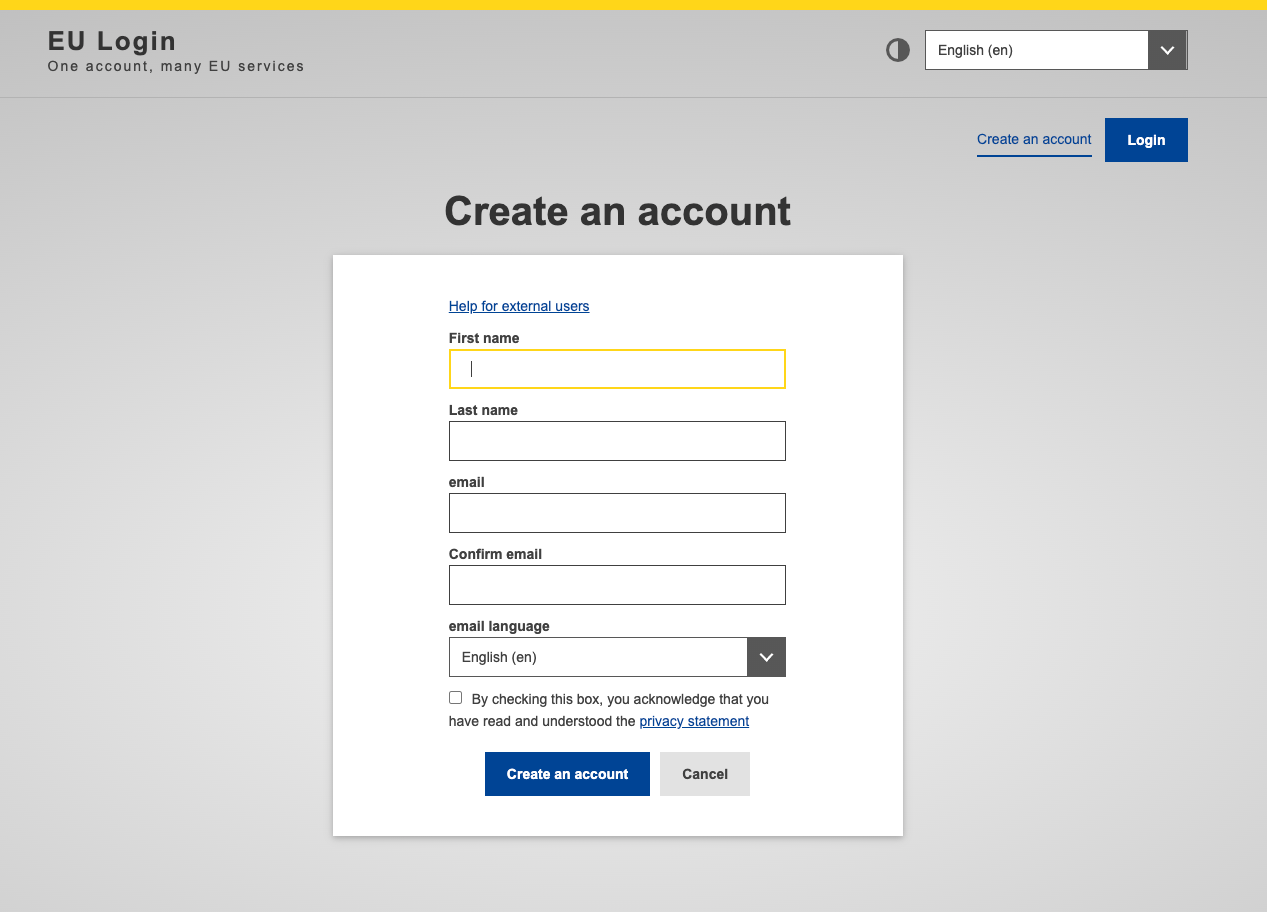 Follow the official guide for creating your EU Login account.
Replication/test environment — register and test here. Do **not** submit official DDS here.
Production environment for official DDS. Reopening in stages from June 2026 — check the portal for the current new-registration status (see "Current Status & Timeline" above).
## Step 3: Create an Operator Entity in TRACES NT
In the EUDR portal, you must register your company as an **operator** with specific activities and complete company details. This step determines your role in the supply chain.
* The operator entity must be **validated** by an administrator before users can be assigned
* All details must match your official commercial register data
* Duplicate operator entries are not validated
## Step 4: Assign a User Role to the Operator
After creating the operator entity, you must assign your user account to the operator:
Navigate to **"Edit your profile"** in the EUDR portal.
Select **"Request new role"** and then **"Operator"**.
Search for your operator entity by country and EUDR section.
Send the authorization request to become a user of the operator.
The operator entity must be **validated** by an administrator before you can carry out the next step (requesting the Web Service Authentication Key). Validation can take **1–3 business days**.
## Step 5: Activate the Web Service Authentication Key
Once the previous steps are complete and your operator entity has been **validated**, you generate the **Web Service Authentication Key** yourself, directly in your EUDR profile. **No email request is required** — this changed with the May 2026 system update (official Operator API Reference v1.0).
Log in to the EUDR Information System and open **"Edit your profile"**.
Scroll to the **"Web Services Access"** section.
Click the **"Active"** button. A new field labeled **"Authentication Key"** appears.
Click the **eye icon** next to the field to reveal the key, then copy it.
The same **"Web Services Access"** section also shows your **Web Service Client ID**. Do this in the **acceptance** environment first; repeat in the **production** environment when you are ready to go live.
The Authentication Key is **private** — treat it like a password and use it only within Polygon One. The EU Login user who set this up is the responsible person for all data submitted under these credentials.
If the **"Active"** button does not appear, your operator entity is probably not yet validated, or your user role has not been assigned yet. If everything is set up correctly and the button is still missing, contact **[SANTE-TRACES@ec.europa.eu](mailto:SANTE-TRACES@ec.europa.eu)**.
## Step 6: Verify the Configuration
Once you have activated your Web Service Authentication Key, check in the EUDR portal whether your company is configured correctly. The **Web Service Access** field should now be populated.
If the key has been activated correctly, the **Web Service Access** field in the TRACES portal is no longer empty. At that point at the latest, you can store the credentials in Polygon One.
## Step 7: Store the Credentials in Polygon One
Store your EUDR credentials in Polygon One under **Settings → Profile**:
Follow the official guide for creating your EU Login account.
Replication/test environment — register and test here. Do **not** submit official DDS here.
Production environment for official DDS. Reopening in stages from June 2026 — check the portal for the current new-registration status (see "Current Status & Timeline" above).
## Step 3: Create an Operator Entity in TRACES NT
In the EUDR portal, you must register your company as an **operator** with specific activities and complete company details. This step determines your role in the supply chain.
* The operator entity must be **validated** by an administrator before users can be assigned
* All details must match your official commercial register data
* Duplicate operator entries are not validated
## Step 4: Assign a User Role to the Operator
After creating the operator entity, you must assign your user account to the operator:
Navigate to **"Edit your profile"** in the EUDR portal.
Select **"Request new role"** and then **"Operator"**.
Search for your operator entity by country and EUDR section.
Send the authorization request to become a user of the operator.
The operator entity must be **validated** by an administrator before you can carry out the next step (requesting the Web Service Authentication Key). Validation can take **1–3 business days**.
## Step 5: Activate the Web Service Authentication Key
Once the previous steps are complete and your operator entity has been **validated**, you generate the **Web Service Authentication Key** yourself, directly in your EUDR profile. **No email request is required** — this changed with the May 2026 system update (official Operator API Reference v1.0).
Log in to the EUDR Information System and open **"Edit your profile"**.
Scroll to the **"Web Services Access"** section.
Click the **"Active"** button. A new field labeled **"Authentication Key"** appears.
Click the **eye icon** next to the field to reveal the key, then copy it.
The same **"Web Services Access"** section also shows your **Web Service Client ID**. Do this in the **acceptance** environment first; repeat in the **production** environment when you are ready to go live.
The Authentication Key is **private** — treat it like a password and use it only within Polygon One. The EU Login user who set this up is the responsible person for all data submitted under these credentials.
If the **"Active"** button does not appear, your operator entity is probably not yet validated, or your user role has not been assigned yet. If everything is set up correctly and the button is still missing, contact **[SANTE-TRACES@ec.europa.eu](mailto:SANTE-TRACES@ec.europa.eu)**.
## Step 6: Verify the Configuration
Once you have activated your Web Service Authentication Key, check in the EUDR portal whether your company is configured correctly. The **Web Service Access** field should now be populated.
If the key has been activated correctly, the **Web Service Access** field in the TRACES portal is no longer empty. At that point at the latest, you can store the credentials in Polygon One.
## Step 7: Store the Credentials in Polygon One
Store your EUDR credentials in Polygon One under **Settings → Profile**:
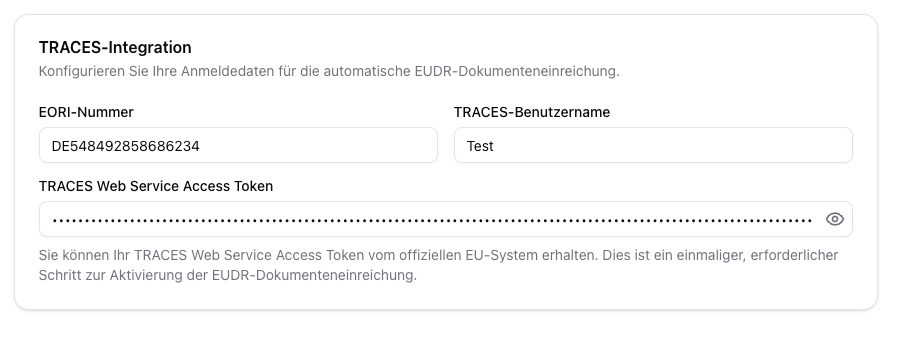 | Field | Description |
| ----------------------------------- | -------------------------------------------------------------------- |
| **EORI Number** | Your EORI number. This is strictly required in order to submit a DDS |
| **TRACES Username** | Your registered EU TRACES username (format: `n00ixxx`) |
| **TRACES Web Service Access Token** | Key for the EUDR environment (TEST or PRODUCTION) |
Click **"Save"** to complete the configuration.
**Security notes:**
* Keep your EUDR credentials secure and do not share them publicly
* Use acceptance credentials only for testing and development
* Production credentials should be used only for live operation
## Help & Contact
| Topic | Contact |
| ----------------------------------- | ------------------------------------------------------------- |
| **Problems with the EUDR portal** | [SANTE-TRACES@ec.europa.eu](mailto:SANTE-TRACES@ec.europa.eu) |
| **Technical support (Polygon One)** | Our support team is happy to assist you |
TRACES registration can take several days in total, since the operator entity must be validated before you can activate the key. Please plan accordingly.
| Field | Description |
| ----------------------------------- | -------------------------------------------------------------------- |
| **EORI Number** | Your EORI number. This is strictly required in order to submit a DDS |
| **TRACES Username** | Your registered EU TRACES username (format: `n00ixxx`) |
| **TRACES Web Service Access Token** | Key for the EUDR environment (TEST or PRODUCTION) |
Click **"Save"** to complete the configuration.
**Security notes:**
* Keep your EUDR credentials secure and do not share them publicly
* Use acceptance credentials only for testing and development
* Production credentials should be used only for live operation
## Help & Contact
| Topic | Contact |
| ----------------------------------- | ------------------------------------------------------------- |
| **Problems with the EUDR portal** | [SANTE-TRACES@ec.europa.eu](mailto:SANTE-TRACES@ec.europa.eu) |
| **Technical support (Polygon One)** | Our support team is happy to assist you |
TRACES registration can take several days in total, since the operator entity must be validated before you can activate the key. Please plan accordingly.