> ## Documentation Index
> Fetch the complete documentation index at: https://help.polygon-one.com/llms.txt
> Use this file to discover all available pages before exploring further.
# Documents
> Centralized document management
## Overview
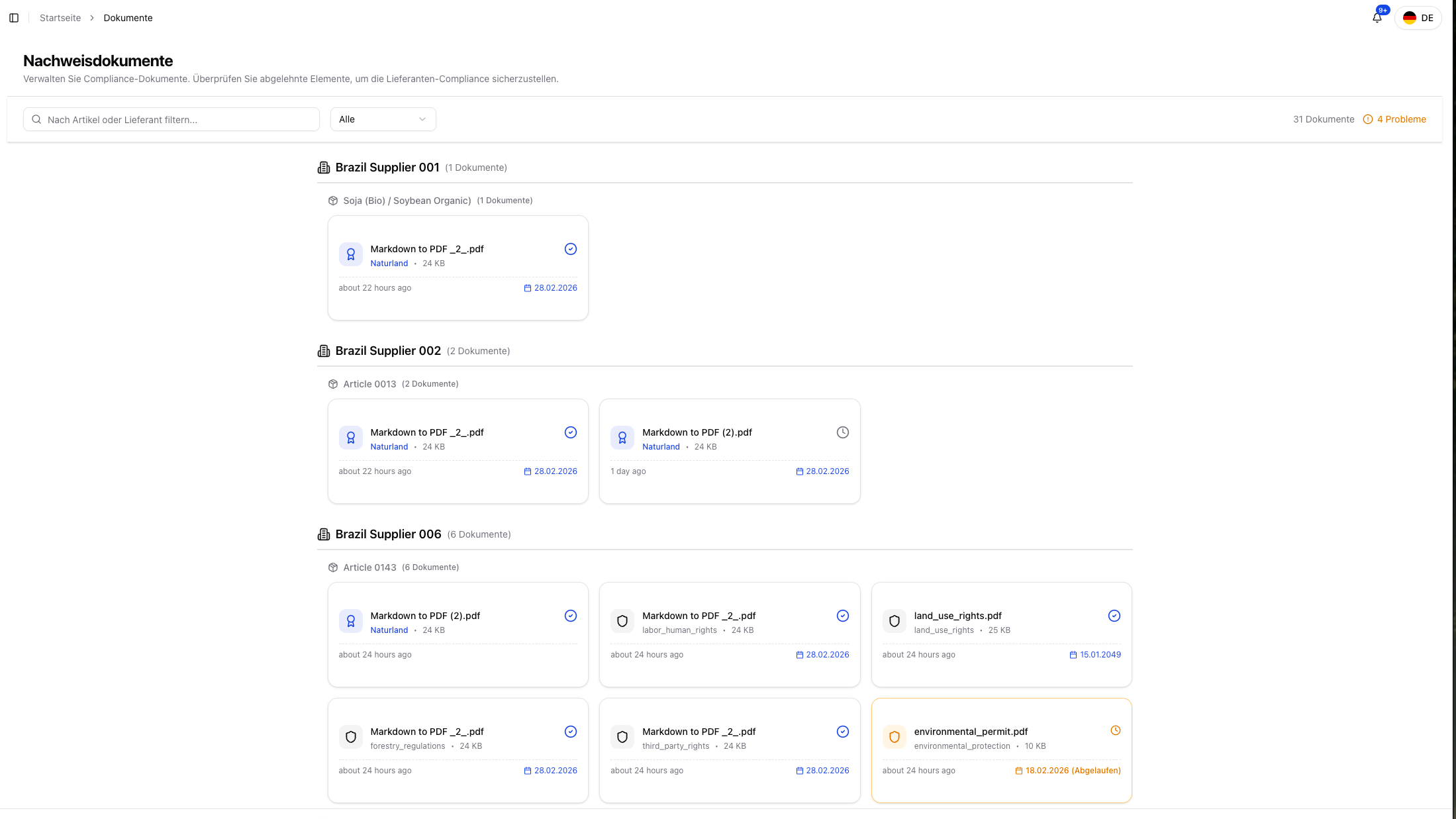
In the **Documents** area (labeled **Evidence documents** in the app), you will find a centralized overview of all uploaded compliance documents in Polygon One — whether submitted by you or your suppliers. In practice, this page is your organization-wide review and verification view for evidence.
 ## Features
* **Centralized document overview** — View all evidence documents in one place
* **Search & filter** — Use the text search to find documents by article or supplier, and filter by validation status (All, Verified, Pending, Rejected, Expired); documents are grouped by supplier and article
* **Show deleted** — Optionally also display removed documents
* **Validation status** — Instantly see which documents are verified, rejected, or expired
* **Detail view** — View AI analysis results, the original document, and metadata
* **Review focus** — Quickly prioritize pending or problematic documents
## Document Status
| Status | Description |
| ----------------- | ------------------------------------------------------------------ |
| **Verified** | The document was manually reviewed and accepted |
| **Auto-verified** | AI analysis automatically confirmed the document as valid evidence |
| **Pending** | The document has been submitted and is still being reviewed |
| **Rejected** | The document was rejected — resubmission required |
| **Expired** | The document's validity date has passed |
| **Invalid** | The document could not be processed or is not relevant |
## Document Detail View
Click a document in the overview to open the detail dialog.
## Features
* **Centralized document overview** — View all evidence documents in one place
* **Search & filter** — Use the text search to find documents by article or supplier, and filter by validation status (All, Verified, Pending, Rejected, Expired); documents are grouped by supplier and article
* **Show deleted** — Optionally also display removed documents
* **Validation status** — Instantly see which documents are verified, rejected, or expired
* **Detail view** — View AI analysis results, the original document, and metadata
* **Review focus** — Quickly prioritize pending or problematic documents
## Document Status
| Status | Description |
| ----------------- | ------------------------------------------------------------------ |
| **Verified** | The document was manually reviewed and accepted |
| **Auto-verified** | AI analysis automatically confirmed the document as valid evidence |
| **Pending** | The document has been submitted and is still being reviewed |
| **Rejected** | The document was rejected — resubmission required |
| **Expired** | The document's validity date has passed |
| **Invalid** | The document could not be processed or is not relevant |
## Document Detail View
Click a document in the overview to open the detail dialog.
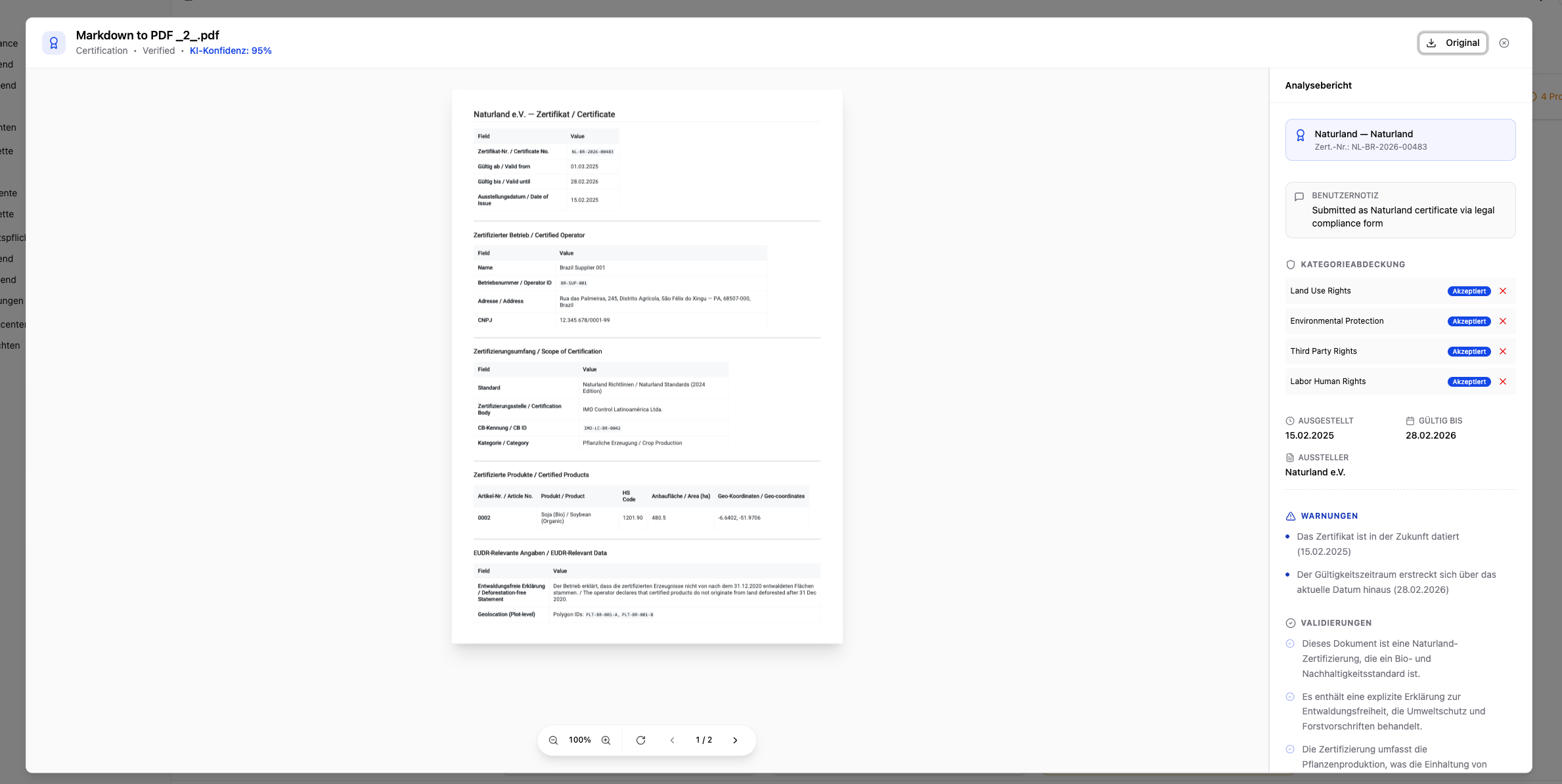 The detail view contains:
### Metadata
* **Document name** and file type
* **Uploaded by** — Name of the user or supplier who submitted the document
* **Uploaded on** — Date of the upload
* **Certification scheme** — If specified (e.g. FSC, PEFC, RSPO, Rainforest Alliance)
* **Assigned articles** — Which articles are covered by this document
* **Notes** — Context information added by the uploader
### AI Analysis Result
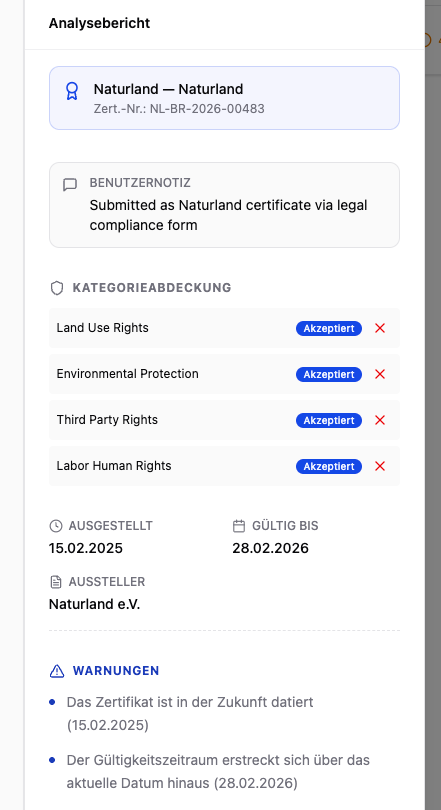
After upload, each document is automatically analyzed by the AI. The detail dialog shows the complete analysis result:
| Field | Description |
| ---------------------------------- | ------------------------------------------------------------------------------------------- |
| **Document type** | Automatically detected type (e.g. certificate, permit, inspection report) |
| **Assigned compliance categories** | Which legal categories the document covers (e.g. land use rights, environmental protection) |
| **Confidence score** | Confidence level of the AI classification |
| **Validations** | Positively detected content and confirmed information |
| **Warnings** | Potential issues that require attention |
| **Critical notices** | Serious deficiencies that may cause a rejection |
| **Recommendation** | AI recommendation: accept or reject |
With high confidence and no warnings, the document is automatically accepted as **Auto-verified**. With low confidence or critical notices, the status changes to **Pending** and requires a manual review.
### Certificate Register Check
For **FSC and PEFC certificates**, the detail view additionally shows a **register badge**. It indicates whether the license is confirmed in the official register, the holder name differs, the license is invalid/expired, or the live check was unavailable. The badge is purely informational. For details, see [Upload Evidence → Certificate Register Check](/en/eudr/datensammlung/evidence-upload).
### Download the Original Document
Using the **"Download"** button in the detail dialog, you can download the original document as a PDF at any time.
## Review Process
The review process for documents runs in three phases:
After uploading, the document is automatically analyzed by the AI. The AI classifies the document type, assigns it to the relevant compliance categories, and assigns a confidence score.
* **High confidence, no critical notices** → The document is automatically accepted as **Auto-verified**.
* **Low confidence or warnings** → The status changes to **Pending**. You receive a notification and must review the document manually.
For pending documents, you can do the following in the detail dialog:
* Download and review the original document
* View the AI analysis results and recommendation
* Accept the document as **Verified** or mark it as **Rejected**
The detail view contains:
### Metadata
* **Document name** and file type
* **Uploaded by** — Name of the user or supplier who submitted the document
* **Uploaded on** — Date of the upload
* **Certification scheme** — If specified (e.g. FSC, PEFC, RSPO, Rainforest Alliance)
* **Assigned articles** — Which articles are covered by this document
* **Notes** — Context information added by the uploader
### AI Analysis Result
After upload, each document is automatically analyzed by the AI. The detail dialog shows the complete analysis result:
| Field | Description |
| ---------------------------------- | ------------------------------------------------------------------------------------------- |
| **Document type** | Automatically detected type (e.g. certificate, permit, inspection report) |
| **Assigned compliance categories** | Which legal categories the document covers (e.g. land use rights, environmental protection) |
| **Confidence score** | Confidence level of the AI classification |
| **Validations** | Positively detected content and confirmed information |
| **Warnings** | Potential issues that require attention |
| **Critical notices** | Serious deficiencies that may cause a rejection |
| **Recommendation** | AI recommendation: accept or reject |
With high confidence and no warnings, the document is automatically accepted as **Auto-verified**. With low confidence or critical notices, the status changes to **Pending** and requires a manual review.
### Certificate Register Check
For **FSC and PEFC certificates**, the detail view additionally shows a **register badge**. It indicates whether the license is confirmed in the official register, the holder name differs, the license is invalid/expired, or the live check was unavailable. The badge is purely informational. For details, see [Upload Evidence → Certificate Register Check](/en/eudr/datensammlung/evidence-upload).
### Download the Original Document
Using the **"Download"** button in the detail dialog, you can download the original document as a PDF at any time.
## Review Process
The review process for documents runs in three phases:
After uploading, the document is automatically analyzed by the AI. The AI classifies the document type, assigns it to the relevant compliance categories, and assigns a confidence score.
* **High confidence, no critical notices** → The document is automatically accepted as **Auto-verified**.
* **Low confidence or warnings** → The status changes to **Pending**. You receive a notification and must review the document manually.
For pending documents, you can do the following in the detail dialog:
* Download and review the original document
* View the AI analysis results and recommendation
* Accept the document as **Verified** or mark it as **Rejected**
 For rejected documents, a new document must be submitted. Use the [Messages page](/en/eudr/optional/contact-center) to inform the supplier about the rejection and the required corrections.
All documents are retained for at least **5 years** in accordance with EUDR requirements.
Documents are primarily uploaded via [Evidence upload](/en/eudr/datensammlung/evidence-upload) or the [supplier portal](/en/eudr/lieferantenansicht). The document overview serves for centralized management and review — particularly helpful for quickly identifying rejected or pending documents.
For rejected documents, a new document must be submitted. Use the [Messages page](/en/eudr/optional/contact-center) to inform the supplier about the rejection and the required corrections.
All documents are retained for at least **5 years** in accordance with EUDR requirements.
Documents are primarily uploaded via [Evidence upload](/en/eudr/datensammlung/evidence-upload) or the [supplier portal](/en/eudr/lieferantenansicht). The document overview serves for centralized management and review — particularly helpful for quickly identifying rejected or pending documents.