> ## Documentation Index
> Fetch the complete documentation index at: https://help.polygon-one.com/llms.txt
> Use this file to discover all available pages before exploring further.
# Outbound Articles & Traceability
> Link sales articles to input articles, geodata, and DDS
## Overview
The **Outbound dashboard** shows all your sales articles and their compliance status. Here, you can link inbound articles (input) to outbound articles (output) as needed, in order to cleanly represent traceability for downstream operators.
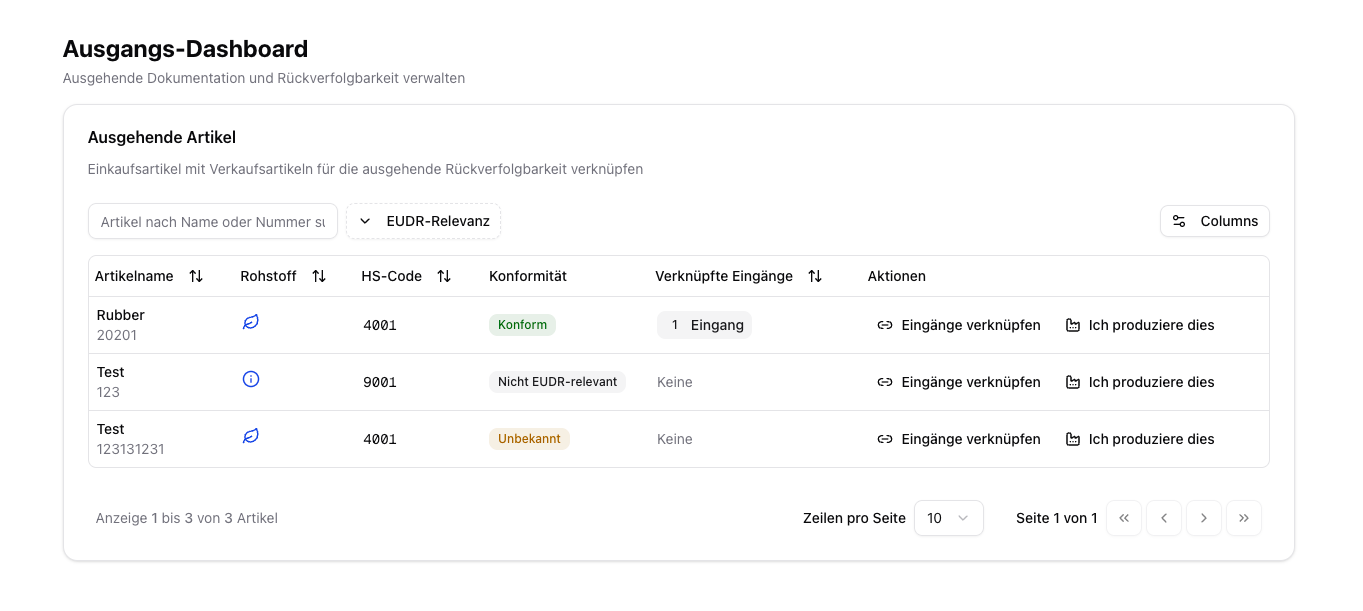 Linking input and output articles is especially important if you process or resell goods and want to transfer existing evidence to your sales articles. In addition, you can store EU production information for **domestic production** here.
## When Is This Linking Useful?
**Examples:**
* Cocoa beans (purchase article) → chocolate (sales article)
* Several raw materials are combined into a finished product
* An article is repackaged and sold under a new article number
## Link Input Articles (BOM Linking)
In the **Outbound dashboard**, navigate to the sales article you want to assign input articles to.
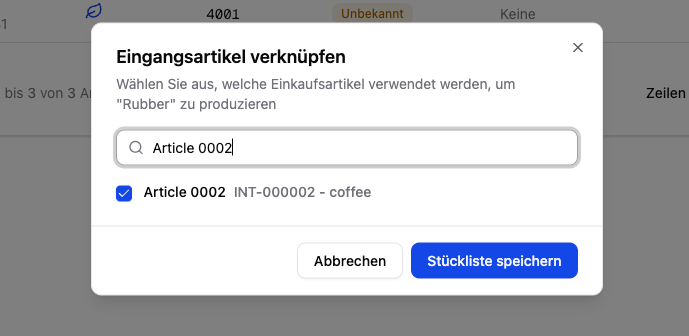
Click **"Link Inputs"**. A dialog opens in which you can select from your purchase articles.
Search by name or article number and select the articles used as input for this sales article.
Click **"Save Bill of Materials"**. The compliance evidence of the input articles is automatically transferred to the sales article.
Linking input and output articles is especially important if you process or resell goods and want to transfer existing evidence to your sales articles. In addition, you can store EU production information for **domestic production** here.
## When Is This Linking Useful?
**Examples:**
* Cocoa beans (purchase article) → chocolate (sales article)
* Several raw materials are combined into a finished product
* An article is repackaged and sold under a new article number
## Link Input Articles (BOM Linking)
In the **Outbound dashboard**, navigate to the sales article you want to assign input articles to.
Click **"Link Inputs"**. A dialog opens in which you can select from your purchase articles.
Search by name or article number and select the articles used as input for this sales article.
Click **"Save Bill of Materials"**. The compliance evidence of the input articles is automatically transferred to the sales article.
 ## EU Production (Domestic Production)
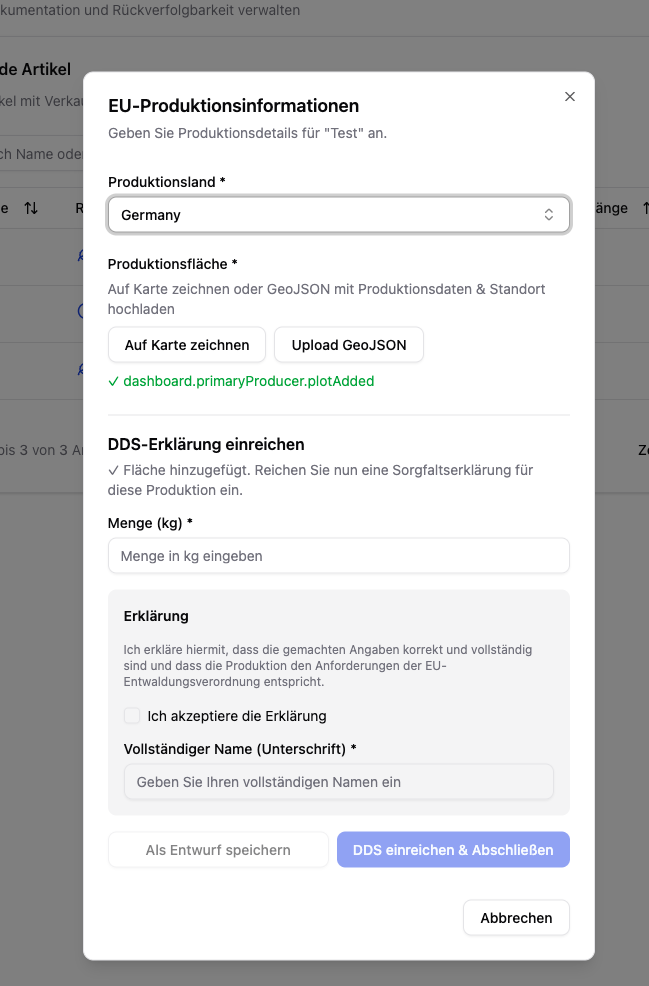
If you produce goods in the EU yourself, you can store the **EU production information** directly in the Outbound dashboard:
Select the production country and save.
Draw the area on the map or upload a GeoJSON file.
Enter the quantity (kg), accept the statement, and submit the DDS for domestic production.
## EU Production (Domestic Production)
If you produce goods in the EU yourself, you can store the **EU production information** directly in the Outbound dashboard:
Select the production country and save.
Draw the area on the map or upload a GeoJSON file.
Enter the quantity (kg), accept the statement, and submit the DDS for domestic production.
 The compliance evidence of the input articles must be complete before linking to sales articles makes sense.
External DDS from suppliers can also be transferred automatically to sold articles through this linking.
The compliance evidence of the input articles must be complete before linking to sales articles makes sense.
External DDS from suppliers can also be transferred automatically to sold articles through this linking.