

Overview
This page explains, from your perspective, what happens on the supplier side after you send a data request — so you can answer your suppliers’ questions and gauge the process.Guide for your suppliers
A step-by-step walkthrough addressed directly to the supplier — ready to forward.
Access: the link is enough, no account needed
The link in the request email takes the supplier straight to their reply view. The link itself is the access — your supplier needs neither an account nor a password. One link per supplier relationship. Every further request appears under that same link. If exactly one request is open, the link opens it directly; if several are open, the supplier lands on a list with the sections To do and Completed. The link is valid for 30 days and is extended whenever you send the supplier something new; after a maximum lifetime of 90 days the platform automatically issues a fresh link with the next send, and the open requests move over with it. Optionally, the supplier creates a persistent supplier workspace (name, email, password) and then sees all requests from their customers in one place under Packaging data requests — with sender, type, status, due date, and received date, regardless of whether their link is still valid. The original link keeps working unchanged, and an expired access is renewed automatically when they click the request.A security code when data changes
If a supplier changes data they have already submitted, the platform requires a one-time code sent to a confirmed mailbox; a first-time fill is never interrupted. How one-time codes and the security contact work is described under One-time Code and Security Contact.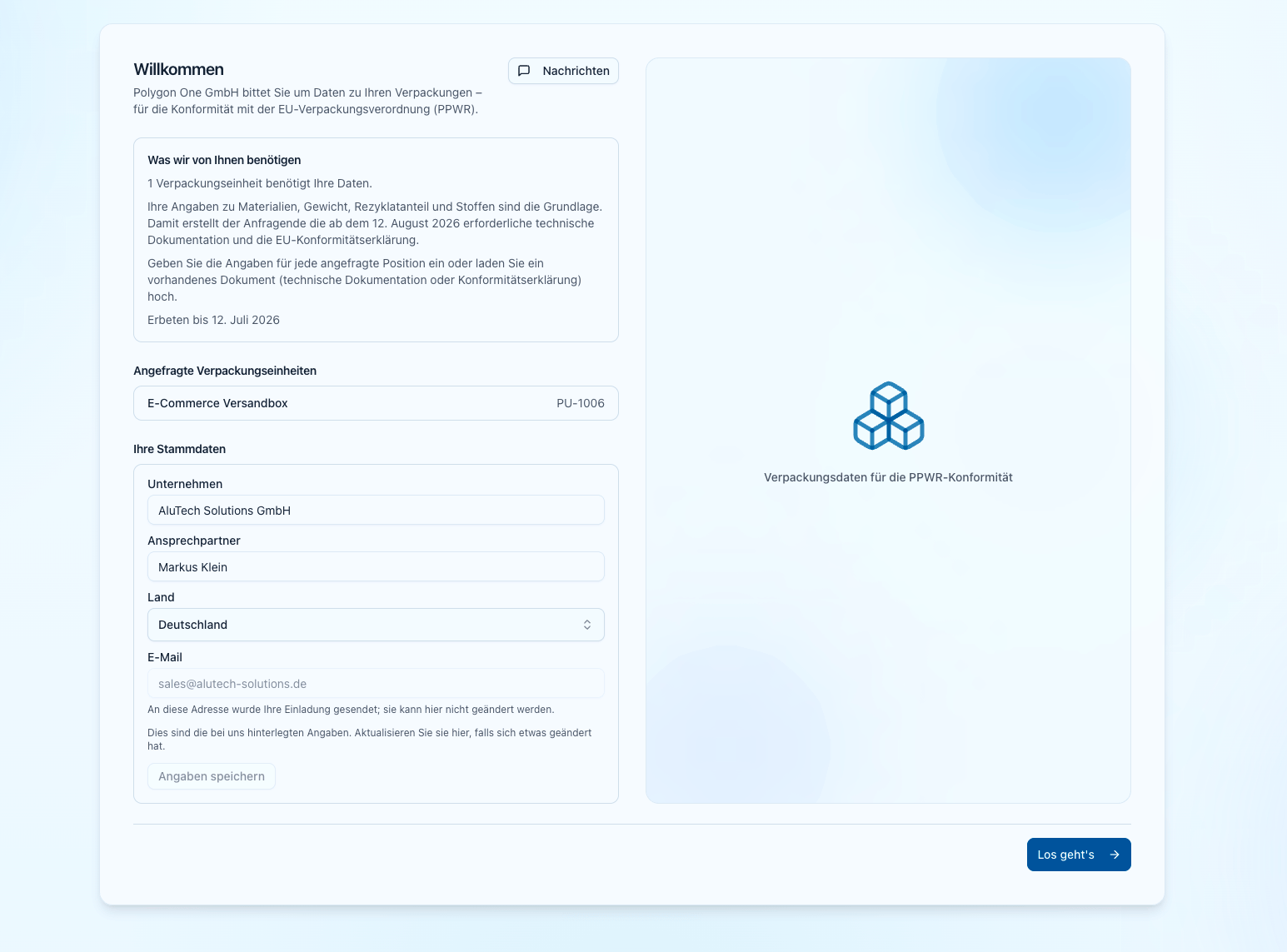
The supplier's entry point: request overview with progress per packaging unit
What the supplier sees
After a short welcome with context (who is asking, why, what the data is needed for) and a chance to check their own company details, the supplier lands in Your data request: a list of the requested packaging units (or components) with a progress indicator “{ready} of {total} ready · {n} covered by document”. Each item has a status: Open → In progress → Ready, plus Document provided for a unit covered by a document. The status is derived automatically from the completeness of the data — the supplier cannot “tick off” anything that is not actually complete.All three routes are open on every row at the same time: the components sit expanded inside the row, the document upload is always there, and Delegate stands beside them as the third, subordinate option. There is no up-front choice.
Documents first: the drop zone
AI document analysis is an add-on. The steps described here are available once it is enabled for your workspace. Without it, you enter the values manually as before.
Drag your documents here or choose them — technical documentation, declarations of conformity, test reports. We read each file and place it; where we are unsure we ask you below.Accepted are PDF, JPG, and PNG up to 10 MB per file, several at once. Each file gets its own row with its terminal state: Uploading…, Reading, Stored, Limit reached — stored, not read, Already here — not added (with the option Add anyway), or Failed. If the analysis fails, the status line says so and offers a way out: “The analysis of “{fileName}” failed. Try again, or fill the fields in yourself.” — with a Try again button.
Automatic reading has a ceiling. Once it is reached, the document is stored but not read: “Stored, but not read automatically. Please fill the values in yourself.” You still receive the document and can start the analysis yourself on your side.
Placing a document on a unit
If the analysis is confident which unit a document belongs to, it is attached there directly. If it is not confident, it asks the supplier:- ""{fileName}” appears to be about {unit} ({n}% confidence).” — with That’s right, Choose another unit, or No specific unit.
- With no signal at all: “Which unit is “{fileName}” about? We could not tell for certain.”
Newly detected components
If a document describes components that are missing from the reply, the section What your documents read lists them — grouped by unit and component — with the badge Newly detected. The supplier decides per component: Add to reply (prefills the create form), Rename (correct code and name before it is created), or Discard (""{code}” will be removed from this reply. The values read for it will not be used.”).Values in the supplier’s form
Values that were read land as a prefill in the supplier’s fields, always visibly marked:What is still missing
Below every unfinished row, in warning colour, stands exactly what is missing (“Missing: Heavy metals, PFAS”) or “No component data entered yet.” One click on that line takes the supplier straight to the component that owes the entry — or, if several are open, into the unit.Help with the form
At the foot of the form there may be Help with this form — on invitations sent under a partner brand the assistant is absent, and the number of questions per invitation is capped per day (once the cap is reached it points at the support address: “You have asked a lot of questions today. The assistant is available again tomorrow …”). Behind it, an AI assistant answers questions about using the form — it states what it is itself: “This assistant is an AI and answers automatically. It sees only your own entries in this invitation, and it never judges your compliance case.”Those questions do not reach you. What your supplier asks there creates no entry in the message thread and no notification for you: questions about content still come to you through the request’s message thread.
Entering component data
The supplier records the components in a guided form: name, material, mass (g), recycled content (%), heavy metals (mg/kg, sum of Pb+Cd+Hg+Cr VI), and for food contact the PFAS entries as well. Numeric fields also accept a decimal comma (1,5 as well as 1.5).
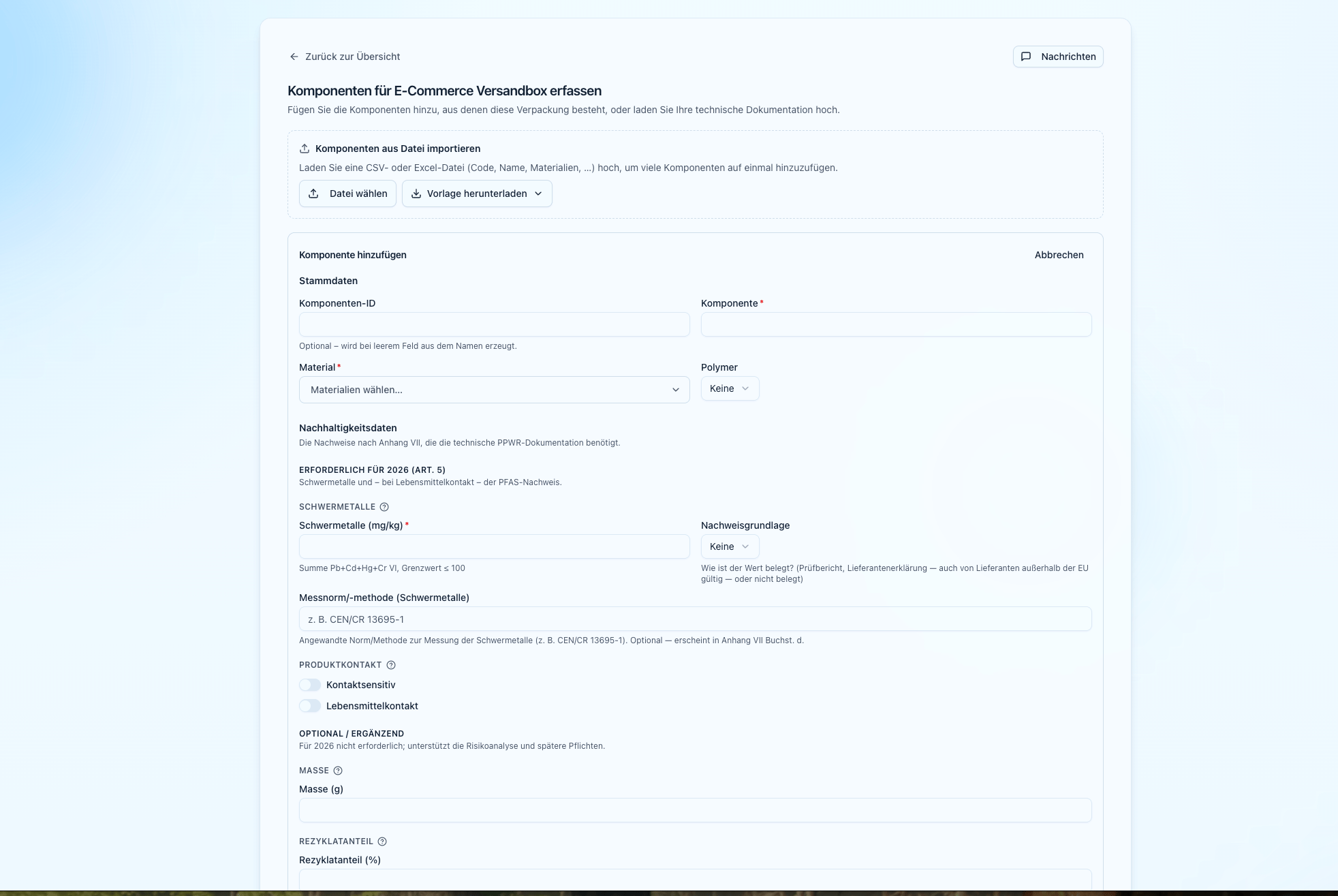
Component entry in the supplier portal
- Substance claims must be substantiated: every declared Art. 5 substance entry (heavy metals, PFAS) needs a test report or a supplier declaration, otherwise submission is blocked — “Submission blocked: missing basis for declared substances”. The notice names the affected items and jumps there on click.
- Self-declaration: before submitting, the supplier ticks a mandatory checkbox: “I hereby confirm that the information I have provided is accurate and complete.” If they change anything afterwards, the tick is reset — it always confirms exactly the final state.
Every component code must be unique within the supplier’s own inventory. On submit, this message can therefore appear: “One of the component codes is already taken — either two components in this submission use the same code, or the code is already assigned to one of your other components.” The same fix works in both cases: change the affected code to one that is still free (or leave the code field empty — a free code is then generated from the name) and submit again.
Which main document the supplier is offered
Which sufficient main document is offered depends on the role you stored on the packaging unit:
So no declaration of conformity is demanded from a supplier or a fulfilment service provider — they deliver their own Annex VII documentation, and the declaration stays your job as the manufacturer. Optionally they add, under Further evidence (optional), test reports (heavy metals, PFAS), a recycled-content proof, a technical drawing, or a data sheet.
Delegating to a sub-supplier
If the packaging (or part of it) comes from an upstream supplier, your supplier can delegate the affected items to their own sub-supplier: they select the items, enter the sub-supplier’s name, email, and country, and send their own request — by automatic email or as a copyable link. The data flows back into the same request; in the cockpit you see the delegation in the Delegated column (“Delegated to {name}”). The supplier can keep their sub-supplier’s contact details confidential (Hide sub-supplier details) — you still see the delivered data.Submitting, and what follows
Via Review & submit the supplier reaches a summary (ready units, components, documents) and sends the reply with Send reply. After that the request is read-only for them:- Your request switches to Submitted; the data is on your units immediately.
- The message thread stays open for both sides — follow-up questions keep running through the platform.
- If the supplier notices a mistake afterwards, they ask for a reopen via Request a correction. Only once you release the correction (Request correction) can they revise their — prefilled — reply and resubmit.
Why some values can only be decided after submission
If the supplier drops a document into a still-open request, the values read from it belong to them first — on your side those values read “Cannot be decided yet: this document belongs to a request the supplier can still answer.” Their submission resolves this: values they confirmed are applied, values they answered differently are dropped, and values they said nothing about arrive with you as open suggestions to review. The same happens if you cancel the request or the supplier’s link lapses.A declaration of conformity delivered by a supplier lands at Pending review — it never counts as verified automatically. All other documents are accepted initially and wait for your approval.Until submission the supplier’s form entries stay local to their session; only Send reply transfers the reply in one step. Documents, by contrast, reach you immediately — only the values read from them wait for the submission.
Next steps
Supplier view (for your suppliers)
The step-by-step walkthrough from the supplier’s perspective — ideal for forwarding.
Evidence Documents
How the AI analyses uploaded supplier documents and how you accept the values.