

Overview
The packaging unit is the subject of the Declaration of Conformity. On the Packaging units page (sidebar → Packaging units,/packaging) you see four distribution tiles at the top (role distribution, packaging type, data completeness, obligation status) and below them the searchable, filterable table of your units.
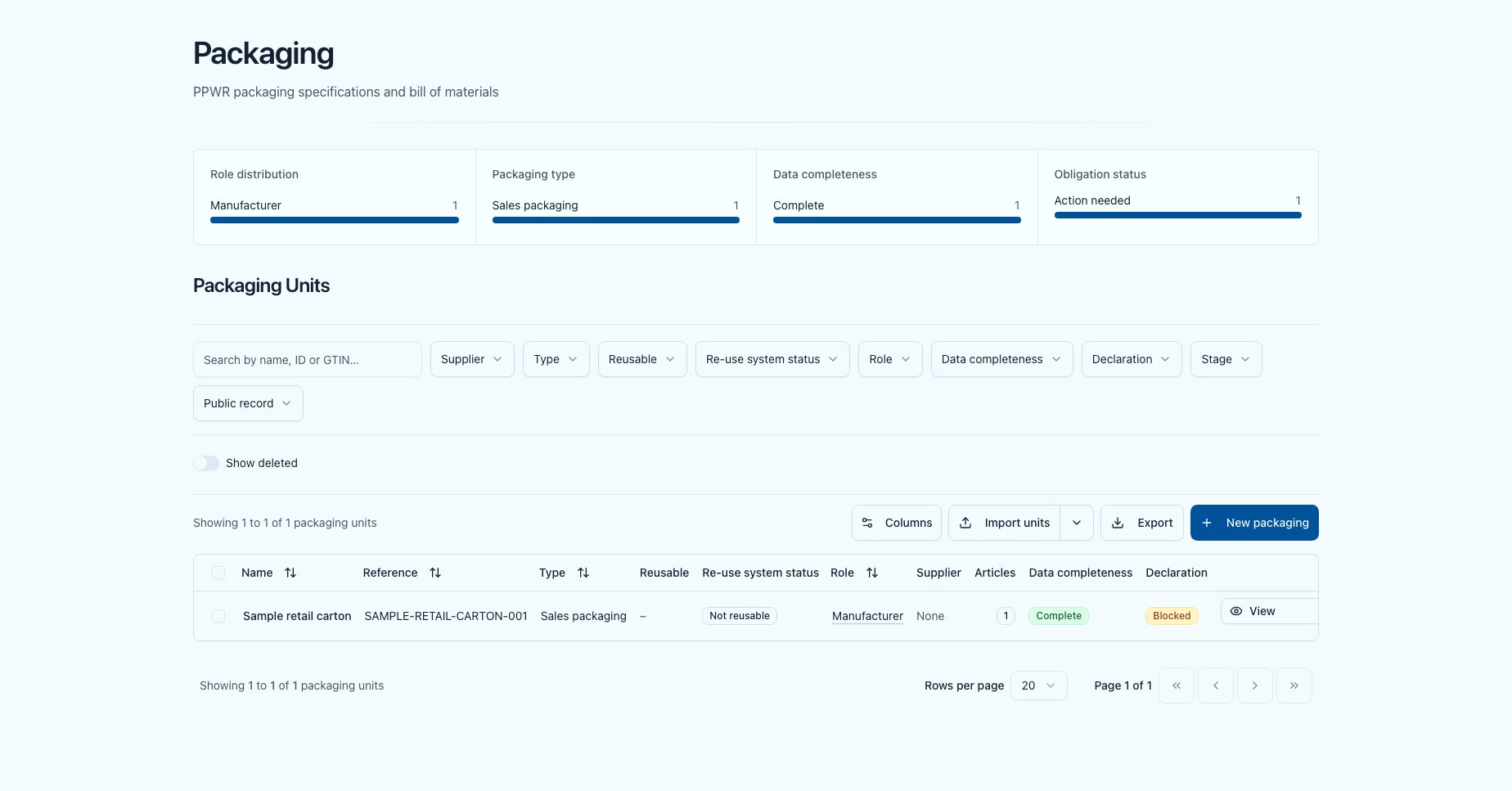
Packaging units list with distribution tiles and filters
The form
The form has two sections: Master data and Classification.”Master data” section
GTIN and dimensions are not fields of the unit. They belong to the primary size: when creating they sit inside the Master data section under the sub-heading First size (primary) (GTIN, width, height, depth in mm), when editing in the Sizes card on the Overview tab. The same packaging in several dimensions is one unit with several sizes — see Sizes.
You can leave the internal reference blank when creating a unit. Polygon One then assigns the next free reference for your company automatically —
PU-1, PU-2, PU-3 and so on. References you enter yourself are never changed or renamed. This applies to every way a unit comes into being: this form, the dialogs that create units from an article or component selection, the CSV/Excel import and the API.When editing an existing unit the reference stays required — it cannot be blanked afterwards.”Classification” section
Supplier, producer (EPR) and Art. 21
A bordered box at the end of the section contains:- Supplier — the operator assigned to this unit. For an importer or authorised representative this upstream operator provides the Declaration of Conformity; for a distributor it is the upstream operator whose producer registration and marking are checked (and who may provide the declaration voluntarily on request).
- Producer (EPR) — a switch (only for manufacturer, importer, distributor). It marks that you are the first to place this unit on the market in a Member State’s territory (producer within the meaning of Art. 3(15)) and therefore carry extended producer responsibility — registration, reporting, fees. This is not the same role as the manufacturer who signs the Declaration of Conformity.
- Art. 21 switches (only for importer/distributor): Placed under own brand and Modified affecting conformity. If either applies, you assume the manufacturer’s obligations — you then issue the Declaration of Conformity yourself.
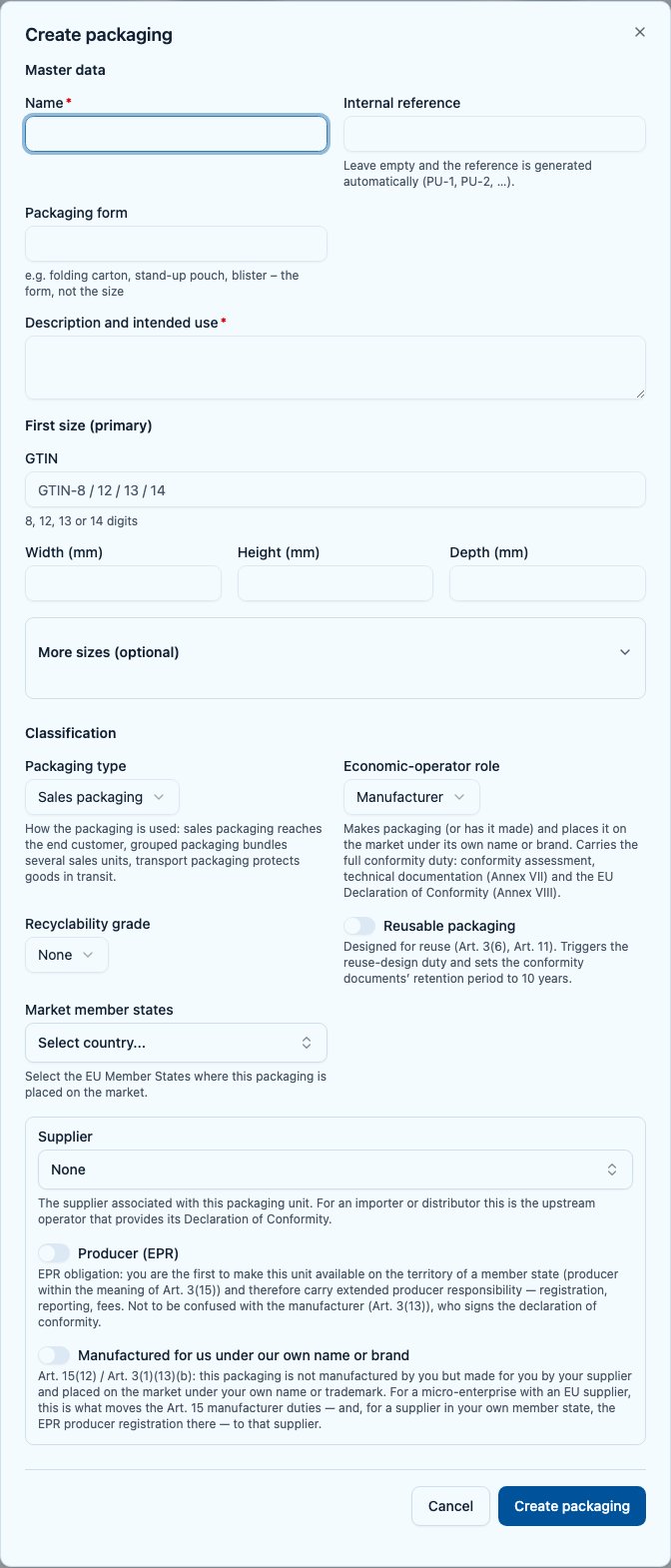
A packaging unit's form with the Master data and Classification sections
The detail page
After creating, the detail page opens with five tabs:- Overview — the Packaging data card (the same form) for editing and, below it, the Sizes card with the GTIN and dimensions of each size, see Sizes.
- Components — this unit’s bill of materials (count in brackets).
- Obligations — which PPWR obligations apply to this unit and their status.
- Documents — Declaration of Conformity, technical documentation and attached evidence.
- Articles — the articles linked to this unit.
Managing components (bill of materials)
In the Components (bill of materials) tab you build the composition of the unit:1
Link an existing component
Under Link existing component, choose a component, enter the quantity and click Link.
2
Create a new component
Via New component you open the component form; the new component is linked directly to this unit.
3
Change quantity or unlink
Adjust the quantity per row directly. Use the trash icon to unlink a component from the unit.
4
Edit data
Expand a row to edit the component’s data inline. The Data completeness badge per row shows what is still missing.
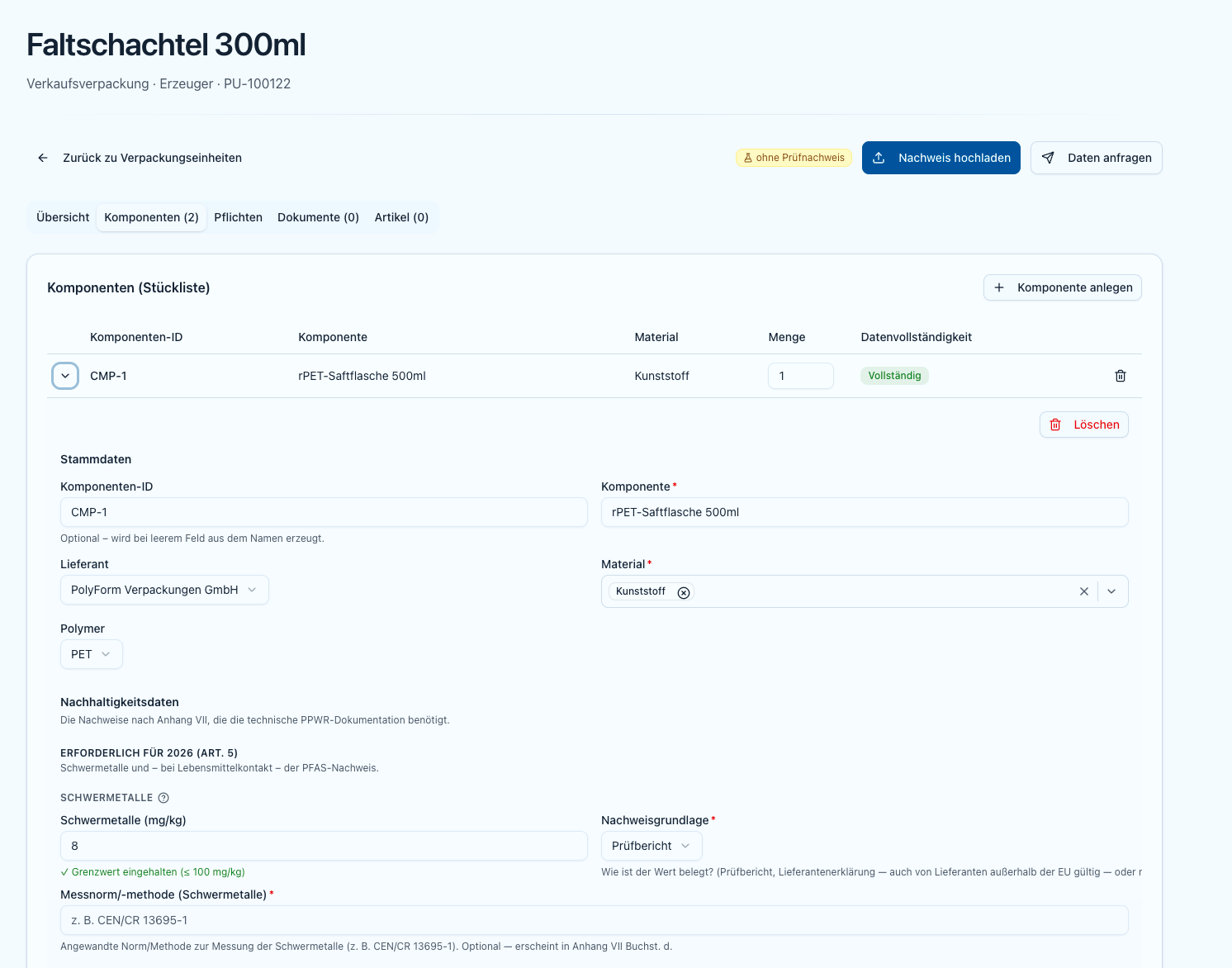
A packaging unit's bill of materials with quantities and completeness badges
Details on the component fields (heavy metals, PFAS, recycled content) are in Components.
Deleting, trash, and permanent deletion
Deleting is reversible at first. The confirmation dialog says so: “Delete this packaging specification? It moves to the trash, where you can restore it.” The same rules apply to components and to evidence documents. Seeing the trash. The Show deleted switch brings the deleted units back into the same table. A deleted row can no longer be opened — it only offers Restore and Permanently delete. Permanently delete requires a separate right; without it the action is refused (the button is not hidden). Restoring. Individually via Restore, several at once via Restore ({n}). The dialog names the limits openly: “The unit and its documents are restored. Note: data requests cancelled by the deletion stay cancelled, and superseded AI proposals are not reinstated.” Two things can prevent a restore — and then nothing is restored:- The internal reference has been reassigned in the meantime (a deleted unit does not block its reference). The message names the unit that now carries it.
- The unit would end up with two active declarations of conformity: “Cannot restore: the unit would end up with two active declarations of conformity. Nothing was restored.”
The selected packaging units and everything attached to them — component links, documents and their files — are erased for good. This cannot be undone. Units covered by a declaration of conformity are kept and block the whole batch.Permanent deletion is a separate right (“Permanently delete packaging”), distinct from ordinary deletion: your team can be allowed to move units to the trash without being able to destroy them. Without that right Polygon One refuses the action. Every operation is recorded in the audit log.
If nothing is permanently deleted, the records stay in the trash until the PPWR retention period has elapsed — 5 years, or 10 years for units flagged as reusable. Only then are they removed automatically. Restoring resets that clock.The period is never shortened. The 10 years also apply where a unit has ever issued a reusable declaration of conformity, even if the Reusable packaging switch is cleared later. And when several units are deleted together, the whole batch takes the longest period in it: if one unit is reusable, all of them get 10 years.
Unit obligations
The Obligations tab shows, per packaging unit, the applicable PPWR obligations and their status. Obligations that only enter into force in 2028/2030 are marked as “not yet in force” and are never flagged as outstanding. How these obligations derive from the role is described in the obligations catalogue.Create a Declaration of Conformity
Once a unit is ready, issue the declaration in the “Documents” tab.