

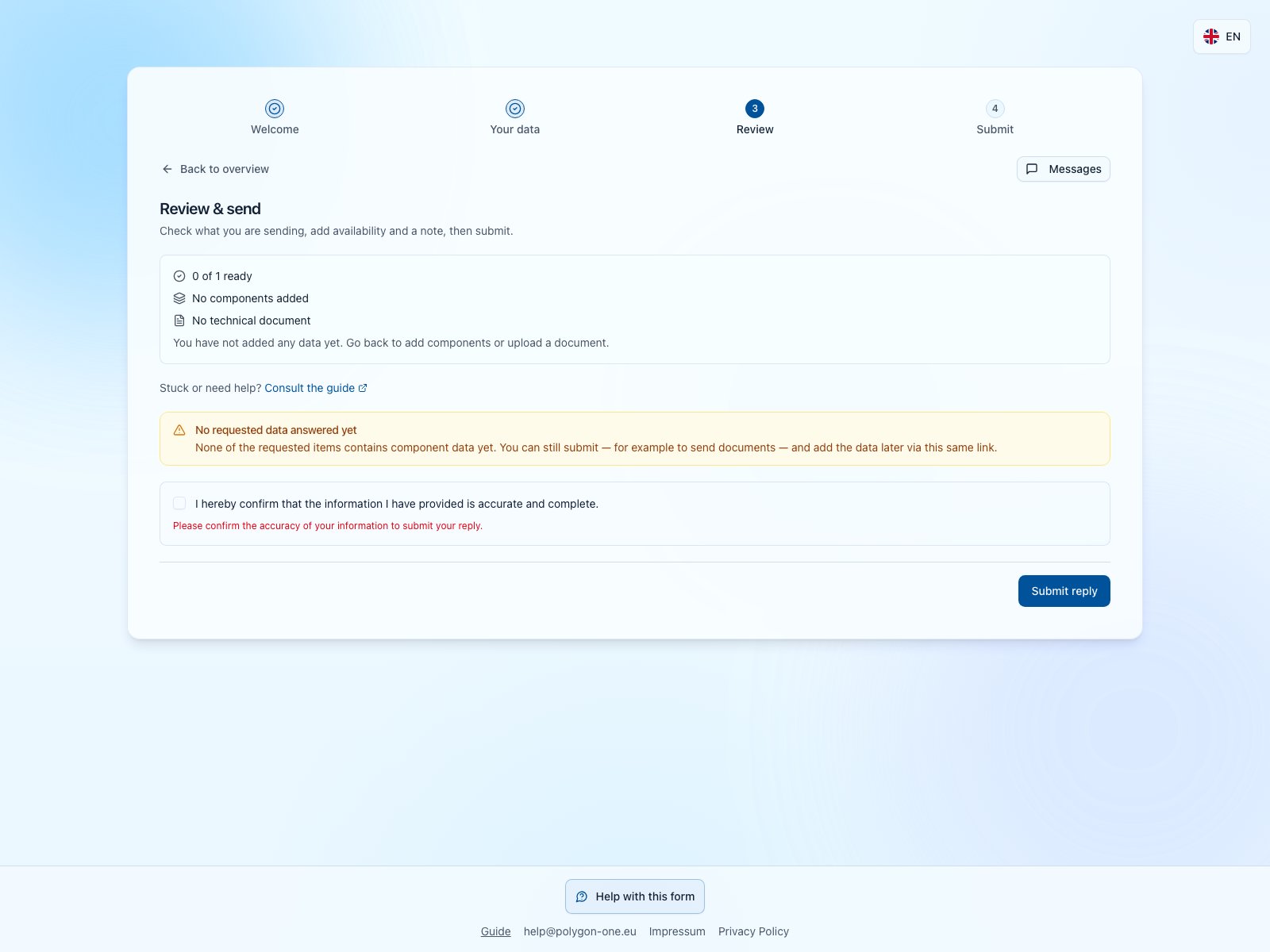
This PPWR example shows the state before sending: zero of one item ready, missing components and documents, and an unchecked affirmation. Review the notices and actual response scope; this is not a submission confirmation.
- Open the review step. Check the requested items, component and document counts, and values filled from documents.
- Follow warnings to the affected item. Fix missing evidence for claims, incorrect units and values assigned to the wrong component. Blocking messages must be resolved before sending.
- Check your security contact if shown. Confirm the accuracy declaration, request a code if required and enter the code delivered to your mailbox.
- Use the final send action. Stay on the page until the confirmation identifies the submitted response and what it contains.
A saved draft has not been sent. A submitted response still requires customer review and does not establish regulatory compliance.

Saving, reviewing and submitting are separate steps. Wait for the actual confirmation at each step. Your customer reviews the response; save, review and resubmit a requested correction. Submitted means neither accepted nor legally compliant.
Can I send an incomplete or document-only answer?
Can I send an incomplete or document-only answer?
If the form permits it, review the gaps and explicitly acknowledge the partial response warning. Check which items are supported by data and which only have documents. This sends the available response; it does not turn missing values into verified data or waive a blocking evidence requirement. Arrange missing information with your customer.
The code or submission failed
The code or submission failed
Use security-code help. Closing a code dialog or receiving a code is not a submission. Keep the response open, read the error and check whether a submission confirmation exists before retrying. Never share the code or invitation.
My customer requested a correction
My customer requested a correction
Reopen the original request and read the note and highlighted fields. Update the requested values or documents, review the summary and submit again. Use the request’s conversation for questions. Sending a message alone does not complete the correction.
Can I update an answer after submitting it?
Can I update an answer after submitting it?
A submitted data response can be reopened, updated and sent again while the request remains available. Review the complete response before resubmitting because the new submission replaces the data reply your customer reviews. A closed or cancelled request cannot be reopened this way. A readiness acknowledgement is also not a reusable data response; ask your customer if that separate acknowledgement must change.