

Overview
When the risk assessment detects geo risks (deforestation, degradation) or legal risks for an article, these must be mitigated. For this, the mitigation dialog is available to you — a central tool with which you can submit evidence, link existing certificates, or request documents directly from the supplier.The Mitigation Dialog
When you have an open risk indicator (geo or legal), click “Mitigate”. The mitigation dialog opens with three options: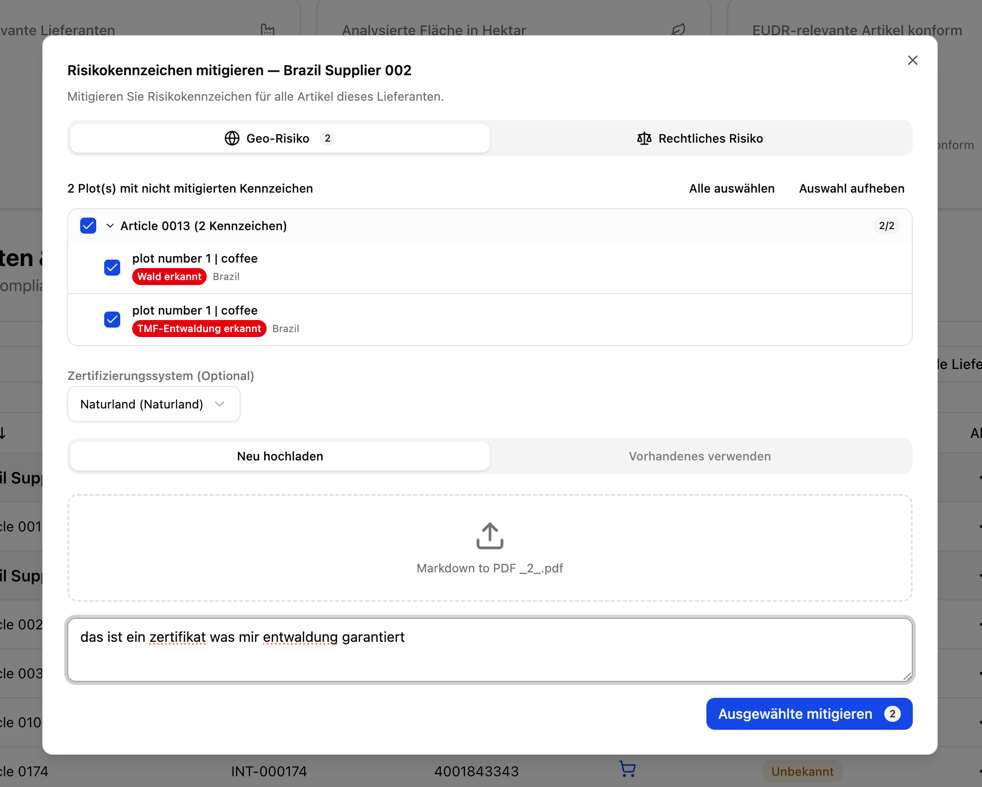
Option 1: Upload a Document
Upload evidence directly that addresses the risk.- Supported formats: PDF, PNG, JPEG, TIFF, CSV, GeoJSON, or text files (max. 10 MB)
- Select a certification scheme (optional) — Choose, for example, FSC, PEFC, or RSPO so the system automatically assigns the evidence to the matching compliance categories
- Add a note — Describe the context of the document (e.g. “Forest management plan, valid until 2028”)
- Certificates
- Official land use permits
- Agroforestry evidence
- Land ownership titles or lease agreements
- Labor inspection reports or social audits
- Environmental permits or environmental impact assessments
- Certificates
Option 2: Link an Existing Certificate
Select a certificate that has already been uploaded and verified from your document library.- The system automatically checks which risk indicators are covered by the certificate
- Recognized certifications: FSC, PEFC, SFI, ISCC, Rainforest Alliance, RSPO, Fairtrade, RTRS, EU Organic
- A single certificate can cover multiple risk categories at the same time
Option 3: Request from the Supplier
Send an email request directly to the supplier through the platform.- The supplier receives a notification with the specific risk indicator
- The supplier can submit the evidence independently through the supplier portal
- You are informed by notification as soon as the supplier responds
AI Validation
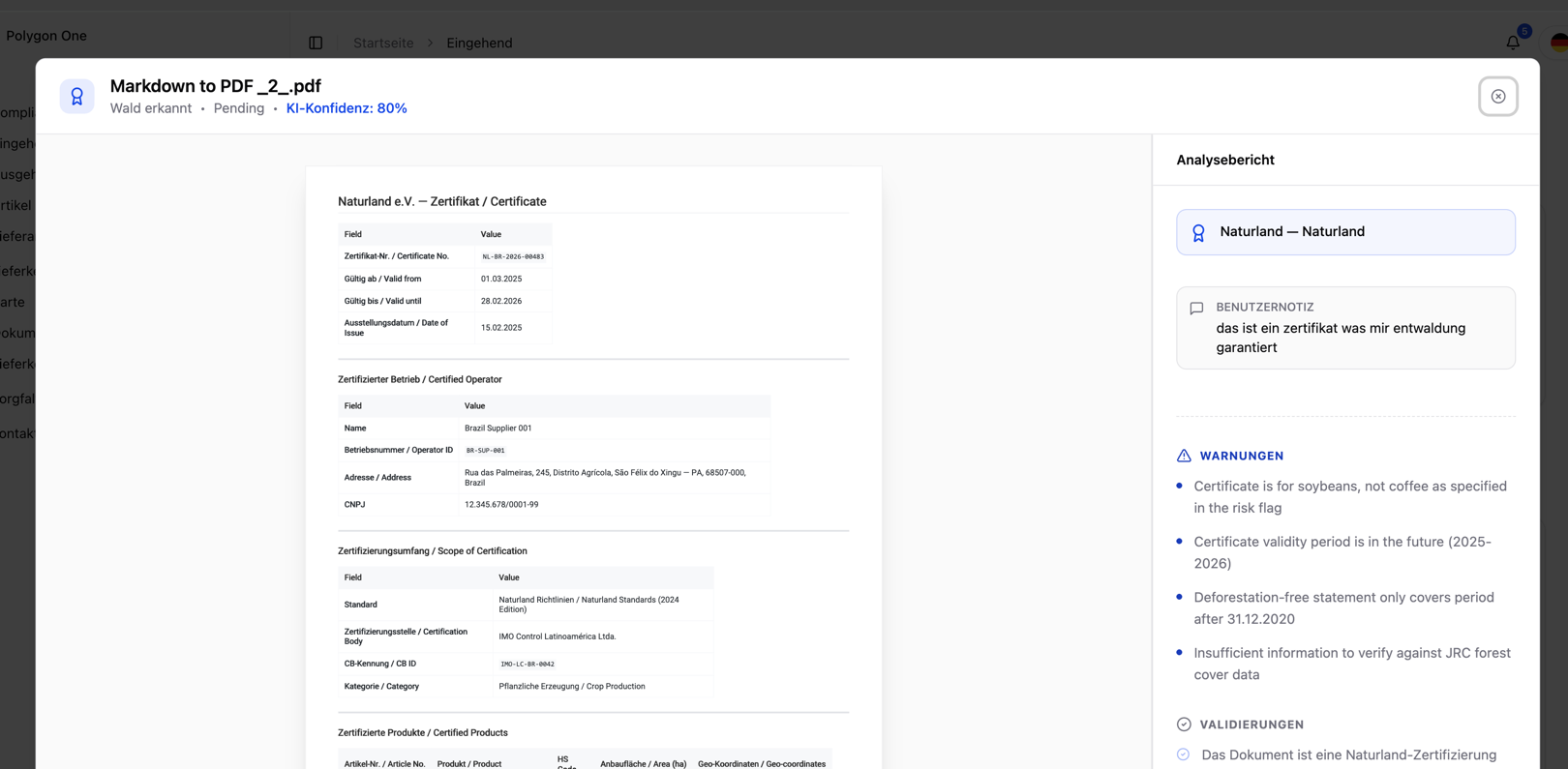
After submission, each piece of evidence is automatically reviewed by the AI:- Document type detection — The system classifies the document type and assigns it to the relevant risk indicators
- Confidence assessment — The AI assigns a confidence level to the submitted evidence
- Automatic decision — With high confidence and no inconsistencies (for example, a mismatched country), the evidence is accepted directly. With low confidence or critical findings, a manual review is triggered
Validation Status
| Status | Description |
|---|---|
| Accepted | Evidence has been reviewed and accepted — the risk indicator changes to “Risk mitigated” |
| Pending | Evidence has been submitted and is being reviewed |
| Manual review | The AI could not make an automatic decision — you are informed of the outcome by notification |
| Rejected | The evidence was insufficient — resubmission with a new document is required |
Mitigating Multiple Risks at Once
You do not have to address each risk indicator individually. Using the checkboxes, you can select multiple open risks and mitigate them together:- Check the risk indicators you want to address
- Upload evidence or link a certificate
- Submit everything at once
This is especially practical when a single certificate (e.g. FSC) covers multiple risks at the same time.
FLEGT Fast Track
Missing or Rejected Evidence
In addition, you can use the integrated messaging system (under Messages) to communicate directly with suppliers:- Ask questions about submitted documents
- Request corrections
- Exchange status updates