

What Is EU TRACES?
EU TRACES NT (Trade Control and Expert System) is the European Union’s official system for submitting Due Diligence Statements (DDS). In order to submit DDS through Polygon One, you need an active EU TRACES account with a Web Service Access Authentication Key.When Do I Need TRACES?
You need EU TRACES credentials as soon as you want to create Due Diligence Statements and submit them to the EU. For the preceding steps (data management, analysis, data collection), TRACES is not required.
You also have the option of creating DDS templates without submitting them directly to TRACES.
Explained Simply
Before Polygon One can submit DDS to the EU, you must register your company in the official EU system (TRACES NT) and obtain a Web Service Authentication Key. The process involves:- Creating an EU Login account
- Registering your company as an operator
- Assigning yourself to the operator as a user
- Requesting the Web Service Authentication Key by email
- Storing the key in Polygon One
Step 1: Read the Official Documentation (Optional)
Read the official EUDR API documentation to understand the technical requirements.The official EUDR documentation is highly technical. If you are working with the EUDR system for the first time, you can skip this step and return to it later. Polygon One provides a user-friendly interface for most operations.
Step 2: Create an EU Login Account
Register for an EU Login account on the official EUDR TRACES portal. EU Login is the central authentication service of the European Commission.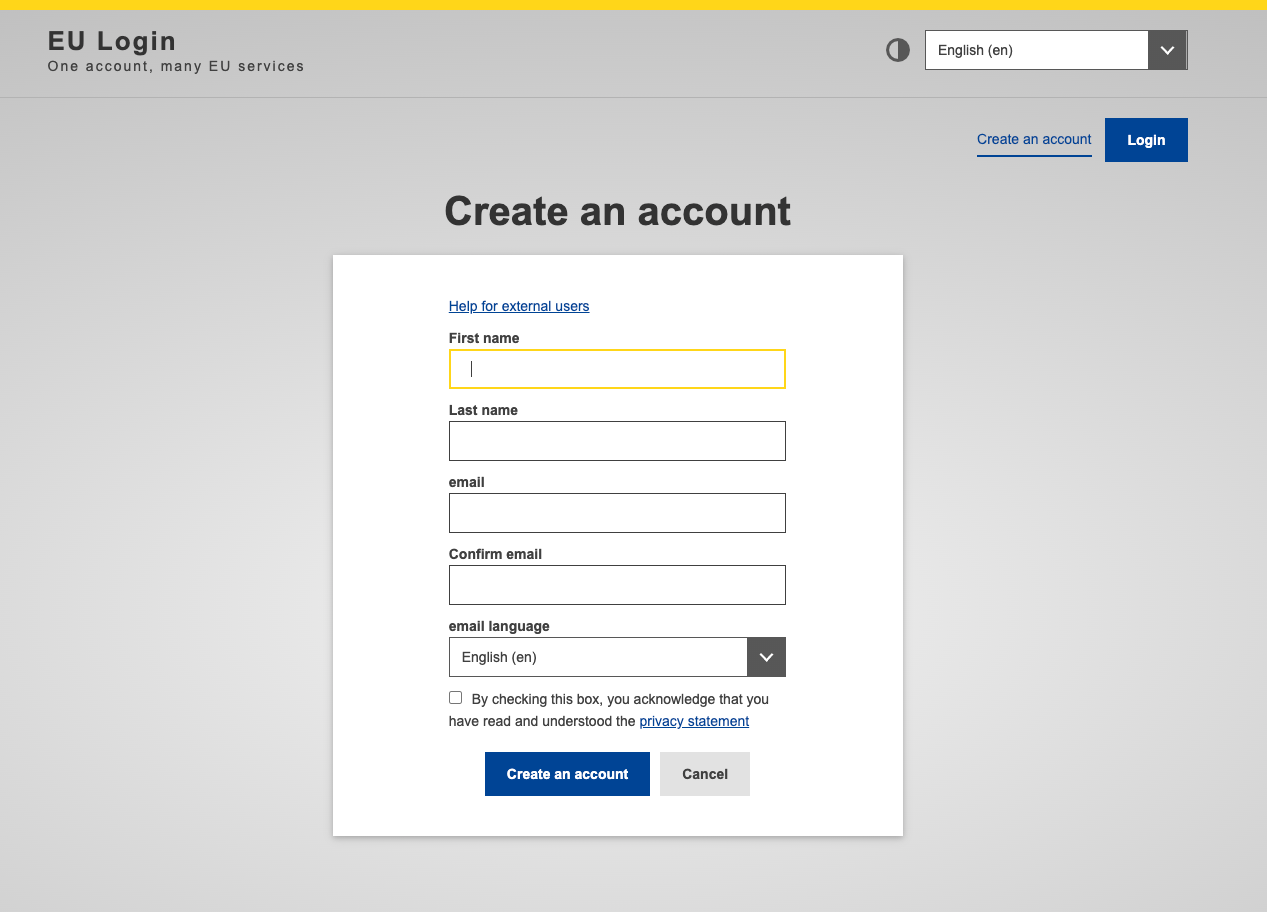
Create EU Login — Official Guide
Follow the official guide for creating your EU Login account.
EUDR Acceptance Portal (Test Environment)
Use the acceptance environment for testing.
Step 3: Create an Operator Entity in TRACES NT
In the EUDR portal, you must register your company as an operator with specific activities and complete company details. This step determines your role in the supply chain.Step 4: Assign a User Role to the Operator
After creating the operator entity, you must assign your user account to the operator:Step 5: Request the Web Service Authentication Key
After all previous steps are complete, you will notice that the Web Service Client Authentication Key field in your EUDR portal is empty. This is normal — this key is not generated automatically but must be requested by email. Send an email to SANTE-TRACES@ec.europa.eu using the following template:Email Template
Processing time: 1–2 business days. You will receive the key by email after approval.
Step 6: Verify the Configuration
Once you have received your Web Service Authentication Key, check in the EUDR portal whether your company is configured correctly. The Web Service Access field should now be populated.If the key has been activated correctly, the Web Service Access field in the TRACES portal is no longer empty. At that point at the latest, you can store the credentials in Polygon One.
Step 7: Store the Credentials in Polygon One
Store your EUDR credentials in Polygon One under Settings → Profile: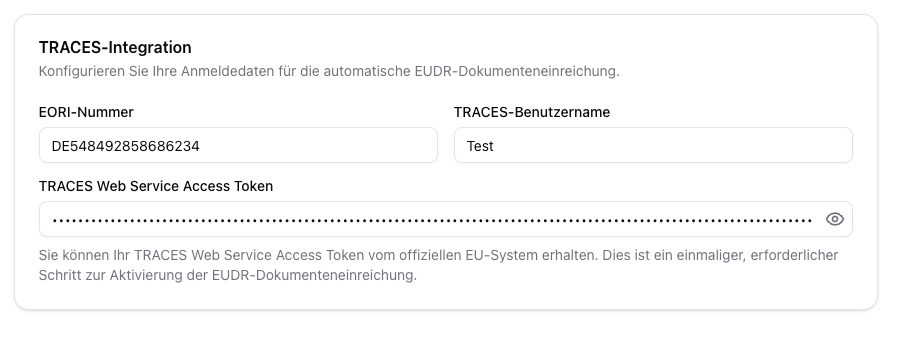
| Field | Description |
|---|---|
| EORI Number | Your EORI number. This is strictly required in order to submit a DDS |
| TRACES Username | Your registered EU TRACES username (format: n00ixxx) |
| TRACES Web Service Access Token | Key for the EUDR environment (TEST or PRODUCTION) |
Help & Contact
| Topic | Contact |
|---|---|
| Problems with the EUDR portal | SANTE-TRACES@ec.europa.eu |
| Technical support (Polygon One) | Our support team is happy to assist you |
TRACES registration can take several days in total, since both the operator validation and the key request require processing time. Please plan accordingly.