

Overview
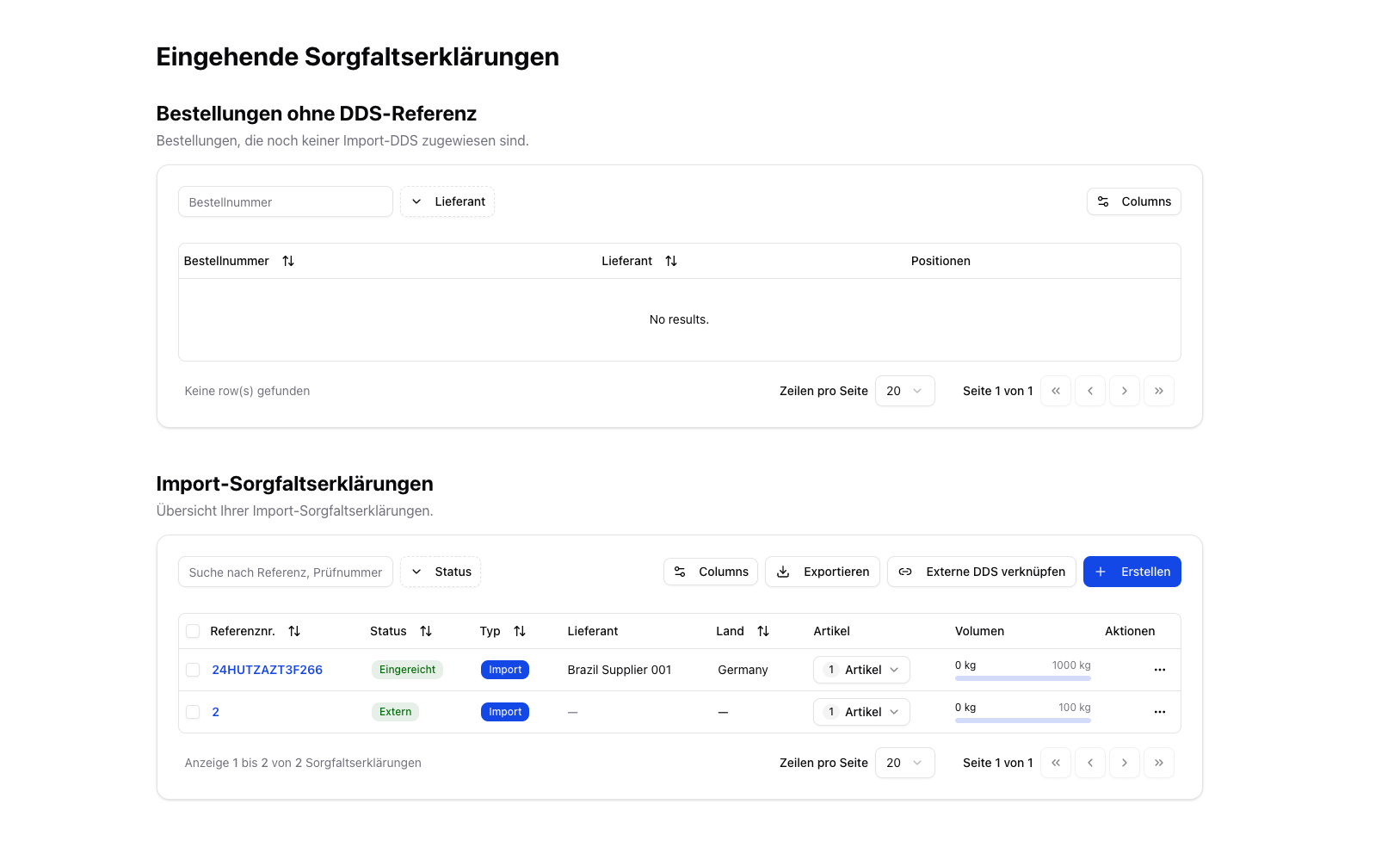
For inbound goods (import into the EU), Due Diligence Statements (DDS) may need to be created and submitted via EU TRACES. Polygon One supports both manual and automatic creation, linking, and assignment. The Due Diligence Statements → Inbound page displays two sections:- Orders without a DDS reference — Purchase orders that are not yet assigned to a DDS
- Import Due Diligence Statements — Overview of all created or linked DDS
Create a DDS
Step 1: General
Select the activity. For this page, Import is usually relevant. Your company data is filled in automatically.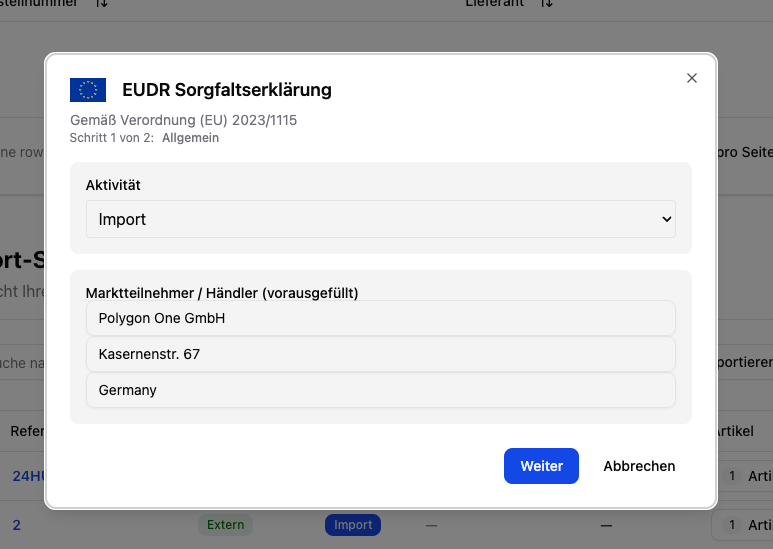
Step 2: Supplier & Article
Select the supplier and the specific articles. Enter the quantity in kg for each article. In this context, the quantity describes the volume to be covered by this DDS. For import and export DDS, certain articles may additionally require a supplementary unit (see below).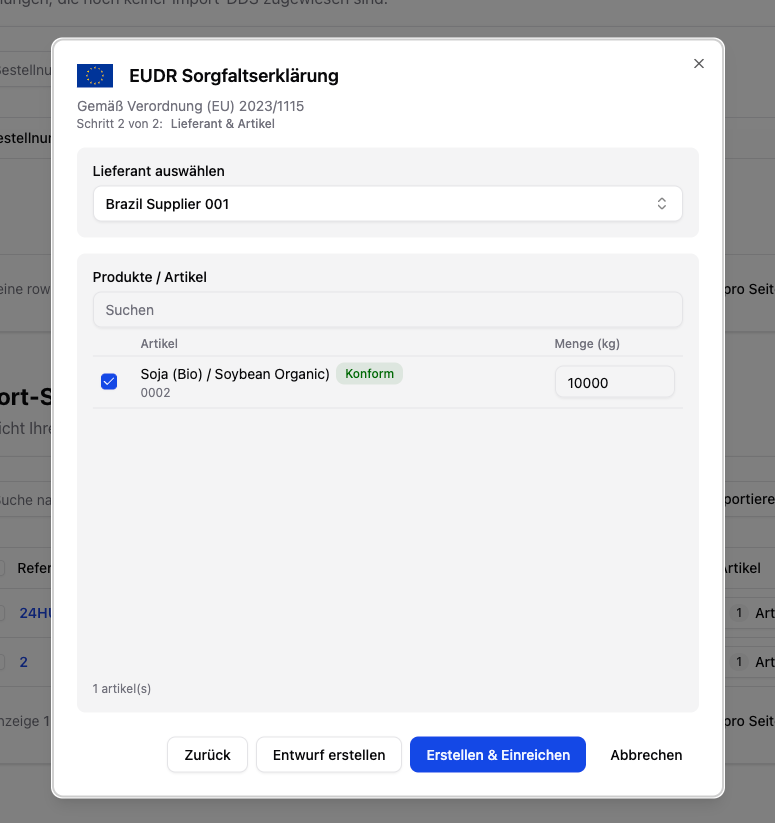
Step 3: Confirmation
Review the summary, confirm the due diligence in accordance with Regulation (EU) 2023/1115, and enter your full name as your signature.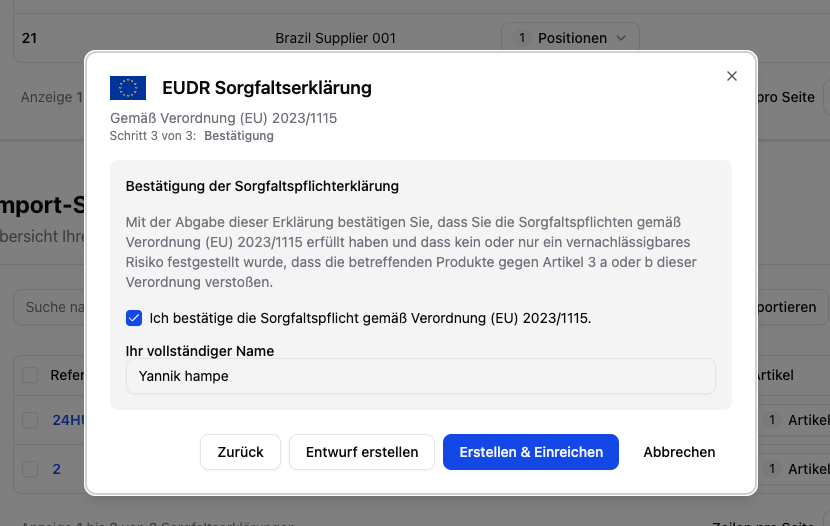
Supplementary Unit (Annex I)
For certain goods, TRACES requires a supplementary unit in addition to the weight in kg (e.g. cubic meters for wood). This obligation applies to articles with an Annex I HS code in import and export DDS.- The unit (e.g. m³, l) is derived automatically from the HS code and cannot be changed.
- You enter the value per article in the “Suppl. unit” field.
- Articles without a supplementary unit show a ”—” instead.

Supplementary units can also be ingested via CSV/batch import of order data (e.g. volume in m³). See Import & Creation.
Link an External DDS
If you have already received a DDS from an upstream supplier, you can incorporate it via “Link External DDS”:- Enter the reference number and, optionally, the verification number.
- Select the supplier and articles with quantities.
- The external DDS is integrated into your overview.
Assigning a DDS to Orders
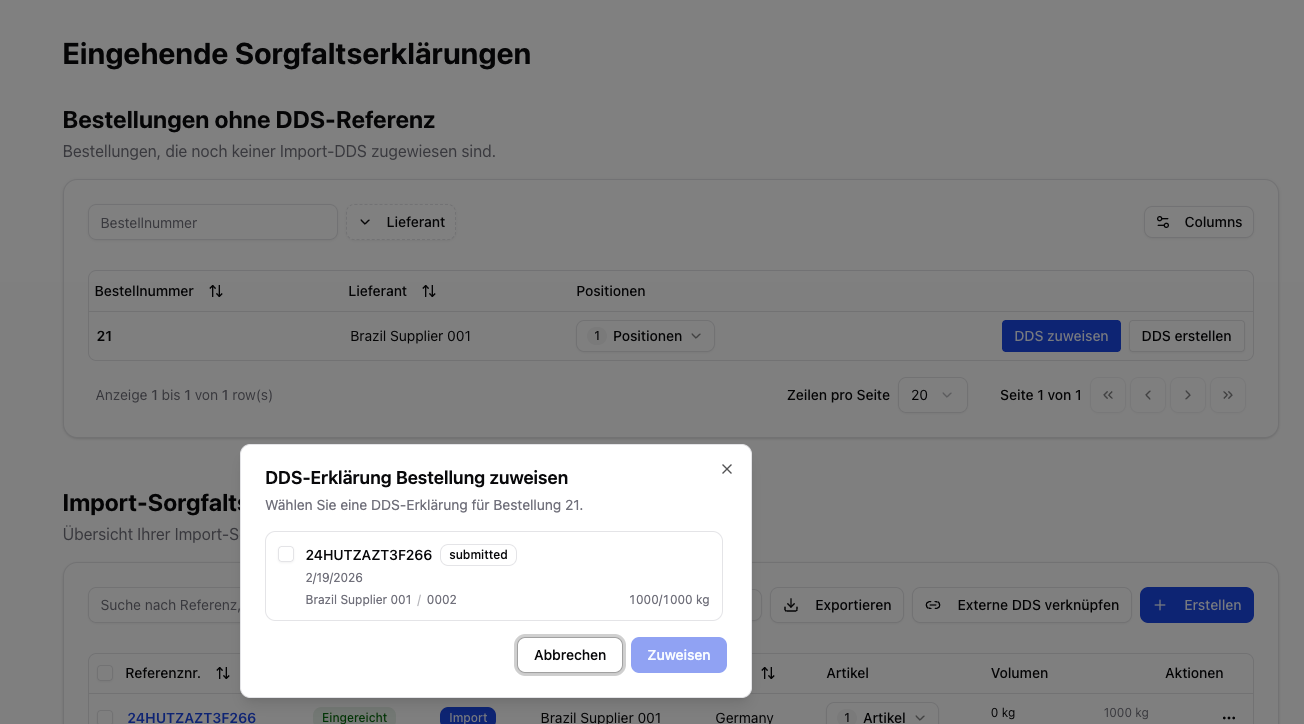
Once a DDS has the status Draft, Validated, or Submitted, you can assign matching purchase orders to it:- For an order without a DDS, click “Assign DDS”.
- The system shows only matching DDS (same supplier, matching articles, sufficient remaining volume).
- Select the DDS and confirm the assignment.
DDS Status
| Status | Description |
|---|---|
| Draft | The DDS has been created but not yet submitted |
| Processing | The DDS has been sent and is currently being processed |
| Submitted | The DDS has been submitted successfully and is awaiting further review |
| Validated | The DDS has been confirmed and can be used as a valid statement |
| Rejected | The DDS was rejected by TRACES or a downstream review step |
| Failed | A technical error occurred during submission |
| External | A DDS from an upstream supplier |
| Under review | The DDS is undergoing an official control check |
| Correction requested | Update the statement and resubmit the missing information |
| Withdrawn | The DDS has been withdrawn from the submission process |
Automation
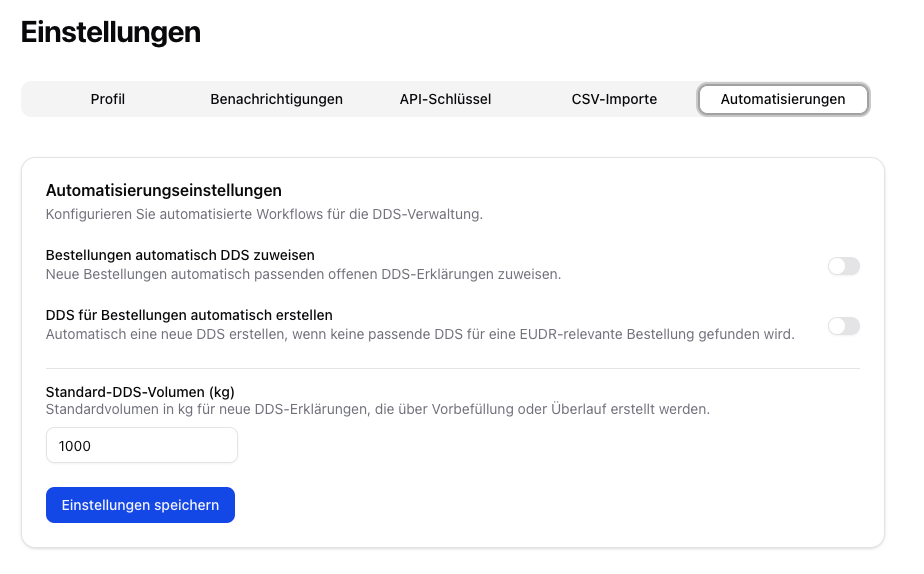
Under Settings → Automations, you can automate DDS processes:- Automatic DDS assignment — New orders are automatically assigned to matching open DDS
- Automatic DDS creation — If no matching DDS exists, a new one is created automatically
- Default DDS volume — Default volume for automatically created DDS
Volume Tracking
Polygon One automatically tracks the assigned volume against the total volume of the DDS.Make sure your EU TRACES credentials (username + web service access token) are stored in the settings. See TRACES registration.
Otherwise it is not possible to submit DDS to TRACES.