

Overview
In the Documents area (labeled Evidence documents in the app), you will find a centralized overview of all uploaded compliance documents in Polygon One — whether submitted by you or your suppliers. In practice, this page is your organization-wide review and verification view for evidence.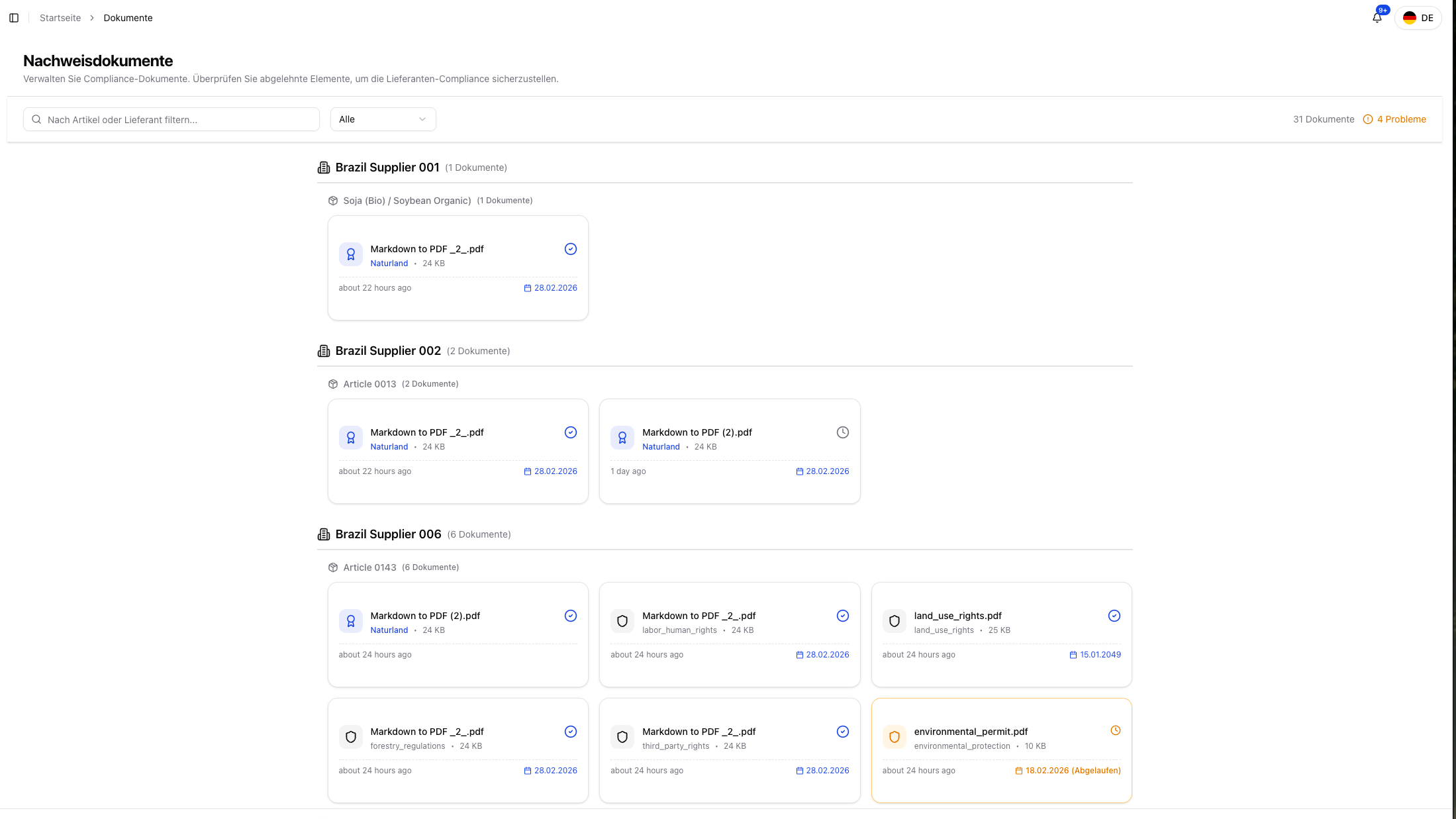
Features
- Centralized document overview — View all evidence documents in one place
- Search & filter — Use the text search to find documents by article or supplier, and filter by validation status (All, Verified, Pending, Rejected, Expired); documents are grouped by supplier and article
- Show deleted — Optionally also display removed documents
- Validation status — Instantly see which documents are verified, rejected, or expired
- Detail view — View AI analysis results, the original document, and metadata
- Review focus — Quickly prioritize pending or problematic documents
Document Status
| Status | Description |
|---|---|
| Verified | The document was manually reviewed and accepted |
| Auto-verified | AI analysis automatically confirmed the document as valid evidence |
| Pending | The document has been submitted and is still being reviewed |
| Rejected | The document was rejected — resubmission required |
| Expired | The document’s validity date has passed |
| Invalid | The document could not be processed or is not relevant |
Document Detail View
Click a document in the overview to open the detail dialog.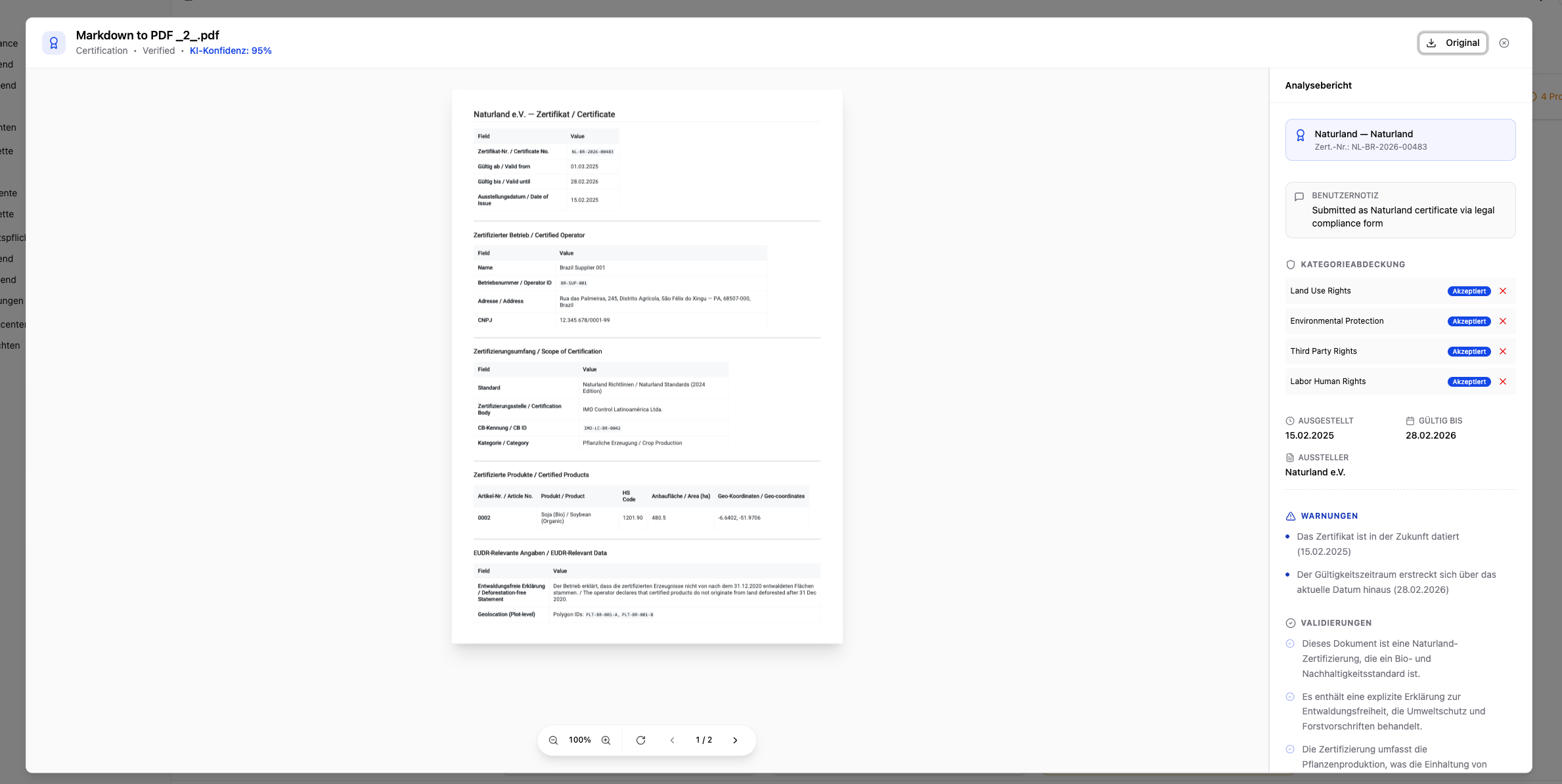
Metadata
- Document name and file type
- Uploaded by — Name of the user or supplier who submitted the document
- Uploaded on — Date of the upload
- Certification scheme — If specified (e.g. FSC, PEFC, RSPO, Rainforest Alliance)
- Assigned articles — Which articles are covered by this document
- Notes — Context information added by the uploader
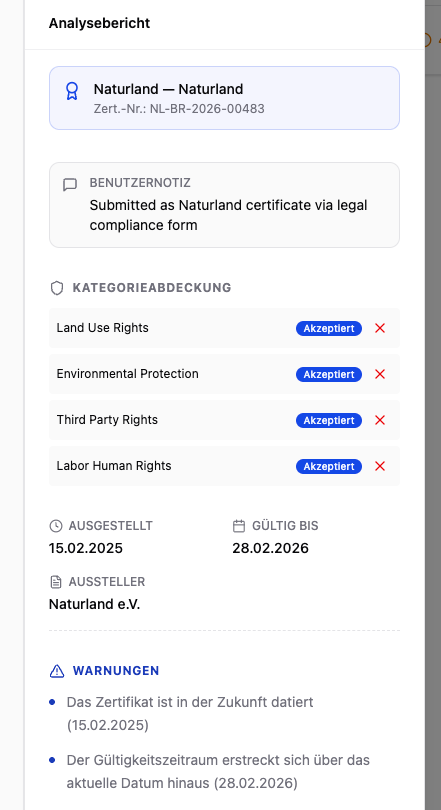
AI Analysis Result
After upload, each document is automatically analyzed by the AI. The detail dialog shows the complete analysis result:| Field | Description |
|---|---|
| Document type | Automatically detected type (e.g. certificate, permit, inspection report) |
| Assigned compliance categories | Which legal categories the document covers (e.g. land use rights, environmental protection) |
| Confidence score | Confidence level of the AI classification |
| Validations | Positively detected content and confirmed information |
| Warnings | Potential issues that require attention |
| Critical notices | Serious deficiencies that may cause a rejection |
| Recommendation | AI recommendation: accept or reject |
With high confidence and no warnings, the document is automatically accepted as Auto-verified. With low confidence or critical notices, the status changes to Pending and requires a manual review.
Certificate Register Check
For FSC and PEFC certificates, the detail view additionally shows a register badge. It indicates whether the license is confirmed in the official register, the holder name differs, the license is invalid/expired, or the live check was unavailable. The badge is purely informational. For details, see Upload Evidence → Certificate Register Check.Download the Original Document
Using the “Download” button in the detail dialog, you can download the original document as a PDF at any time.Review Process
The review process for documents runs in three phases:Upload & automatic analysis
After uploading, the document is automatically analyzed by the AI. The AI classifies the document type, assigns it to the relevant compliance categories, and assigns a confidence score.
Automatic or manual decision
- High confidence, no critical notices → The document is automatically accepted as Auto-verified.
- Low confidence or warnings → The status changes to Pending. You receive a notification and must review the document manually.
All documents are retained for at least 5 years in accordance with EUDR requirements.
Documents are primarily uploaded via Evidence upload or the supplier portal. The document overview serves for centralized management and review — particularly helpful for quickly identifying rejected or pending documents.