

What Is EU TRACES?
EU TRACES NT is the European Union’s official system for submitting Due Diligence Statements (DDS). For Polygon One to submit DDS on your behalf, you need an EU TRACES account with a Web Service Authentication Key. You only need TRACES to submit DDS. Data management, analysis, data collection and DDS drafts work in Polygon One without TRACES access.Since June 2026 the EU Information System is open again for registrations and submissions in both the acceptance (test) and production environments. EUDR obligations apply from 30 December 2026 (large/medium enterprises) and 30 June 2027 (small/micro enterprises), Regulation (EU) 2025/2650. The European Commission publishes the current status.
Overview
- Create an EU Login account
- Request the operator role for your company
- Activate the Web Service Authentication Key in your profile
- Store the credentials in Polygon One
Acceptance portal (test)
For testing — DDS submitted here have no legal effect.
Production portal
For official DDS.
Step 1: Create an EU Login Account
EU Login is the European Commission’s central sign-in service. Create a personal account (not a shared or placeholder account): this user becomes the responsible person for every DDS submitted with the key.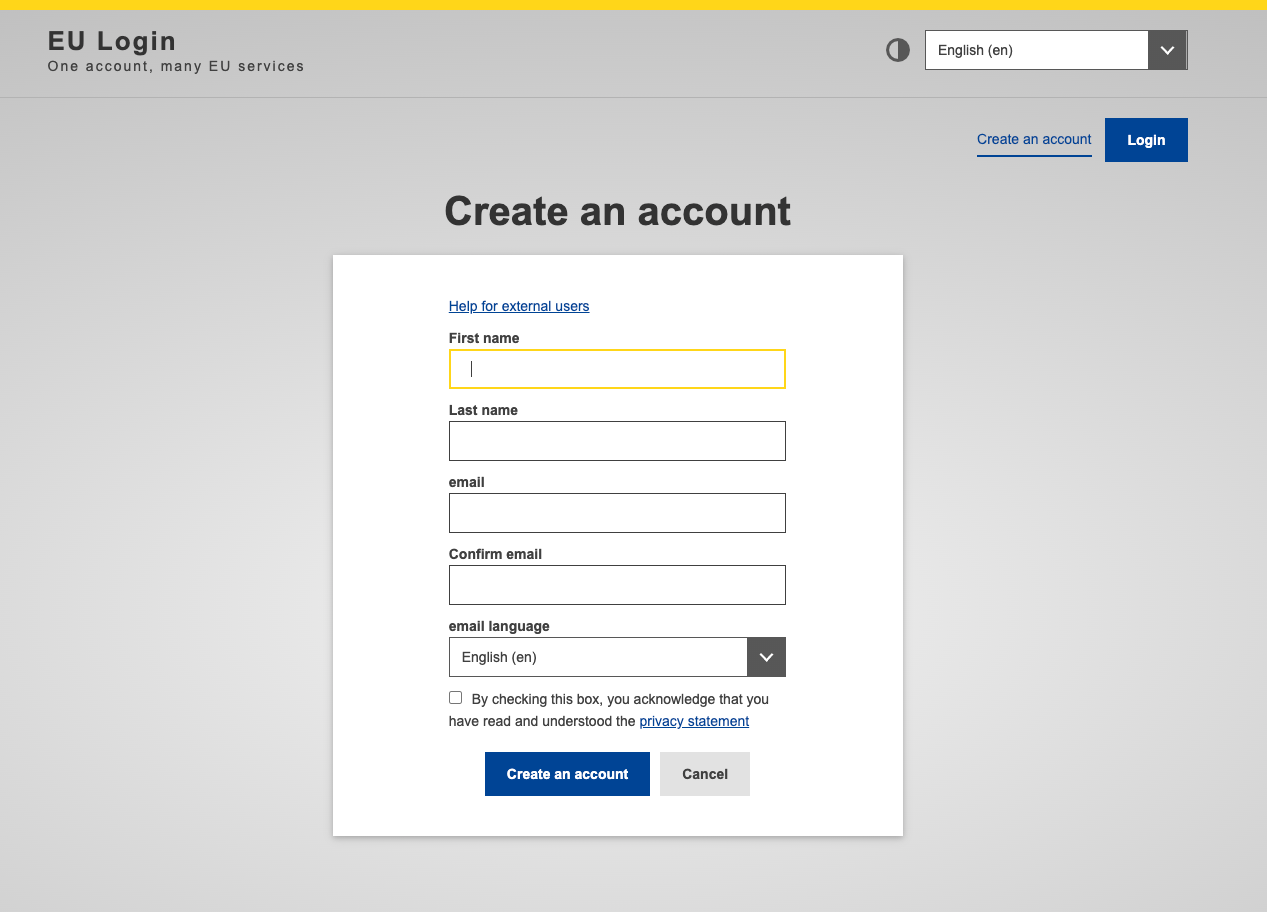
EU Login registration page
Create an EU Login — official guide
Follow the official guide to create your EU Login account.
Step 2: Request the Operator Role
Log in to the EUDR portal with your EU Login and link your user to your company (the operator).1
Request a new role
On first login, or under “Edit your profile”, choose “Request new role” and then “Operator”.
2
Search for your company
Search for your company. If it already exists in TRACES, request to join it — do not create a second entry.
3
If it does not exist: create the operator
After the first search, ”+ Create a new operator” appears. Enter the company details exactly as in the commercial register and select the activity “EUDR Operator”. If you import or export, add your EORI under the operator identifiers.
4
Wait for approval
Under “Your roles”, the role must have the status “Valid” before you continue.
Who approves? The first user of a newly created EU company is approved automatically and becomes its administrator. Every further user is approved by an administrator of the company (Actors → Users, green check mark, save). Companies outside the EU are validated by TRACES support on request by email.
A web service user belongs to exactly one operator. If your company has several legal entities, each needs its own EU Login user with its own key.
Step 3: Activate the Web Service Authentication Key
You generate the key yourself in your profile; normally no email request is needed (EUDR Operator API Reference v1.2, “Acquiring Credentials”).1
Open your profile
In the EUDR portal, open “Edit your profile”. Note your username under “Personal Information” (format
n00…).2
Open Web Services Access
Scroll to the “Web Services Access” section.
3
Activate
Click “Active”. The “Authentication Key” field appears.
4
Reveal and copy
Click the eye icon next to the field and copy the key.
Email template for TRACES support
Email template for TRACES support
Step 4: Store the Credentials in Polygon One
Store your credentials in Polygon One under Settings → Profile and click “Save”.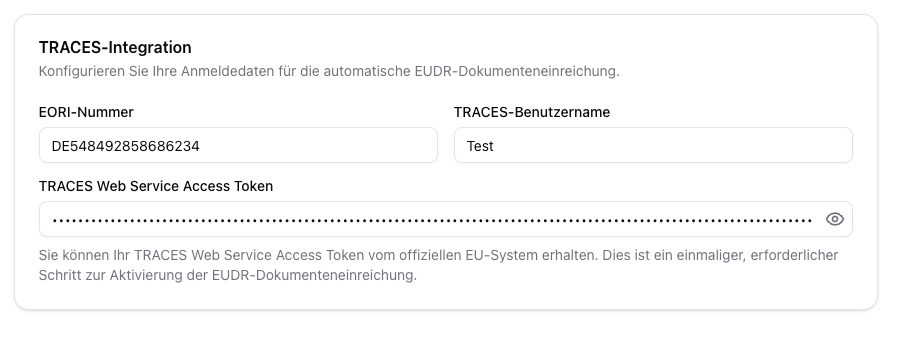
TRACES credentials in Polygon One settings
Help & Contact
TRACES NT — user manual
Official manual for using TRACES NT.
EUDR Operator API Reference
The European Commission’s technical API documentation (public).