

Overview
The Dashboard (sidebar → Overview → Dashboard,/dashboard) is headed EUDR tasks in the buyer workspace when the EUDR module is active. It consolidates progress, prioritizes open tasks and links directly to the next step. The active PPWR module and the supplier workspace show different overviews.
Unlike individual functional pages such as Suppliers, Plots, or DDS, the dashboard is not a separate data store but your control and orientation area for the entire EUDR process. It has no metric cards — the page consists only of the task list and the collapsible context area.
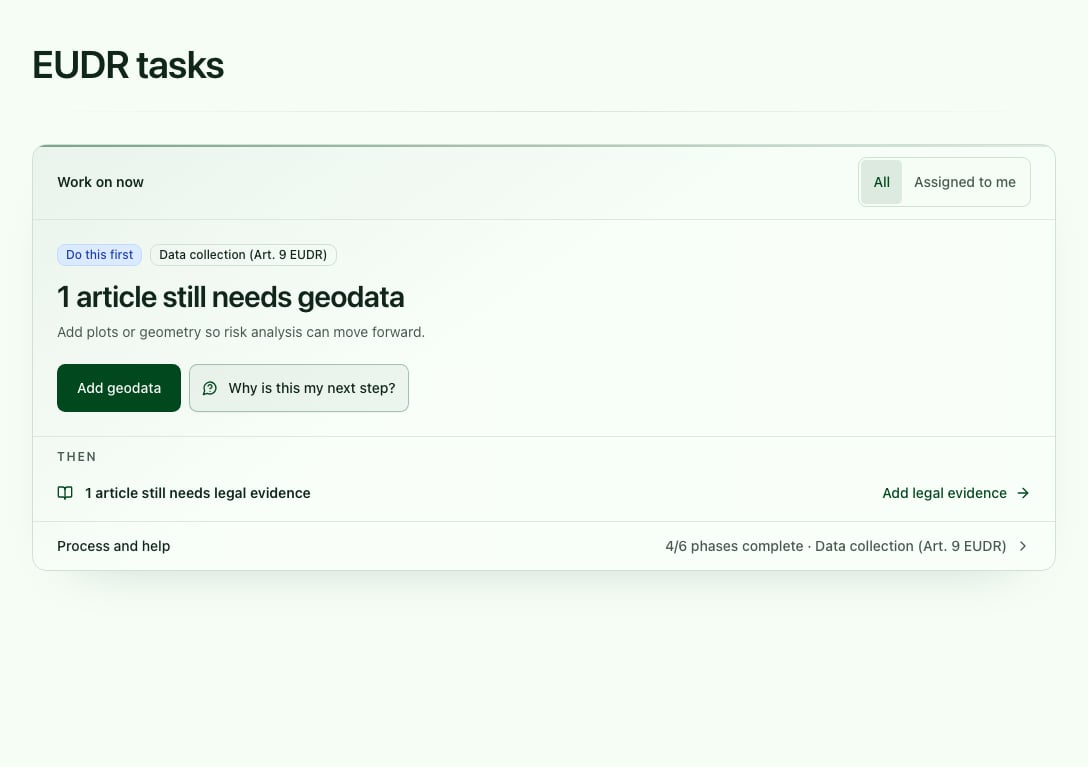
The EUDR dashboard with the most important action and the prioritized task list that follows
What You See in the Dashboard
Do this first
The first task in the selected view appears at the top under Do this first. Its button opens the appropriate area, with a filter for the affected records where applicable. Examples include:- creating missing suppliers or articles
- checking EUDR relevance
- adding evidence or geo data
- deciding proposed document mappings in the review list
- creating or assigning a DDS for open orders
Follow-up tasks and personal view
Under Then, up to three further tasks are initially visible. If more remain, expand the additional tasks below them. The All / Assigned to me switch applies to the main action and follow-up tasks:- All shows company-wide tasks.
- Assigned to me shows inbound compliance tasks for suppliers assigned to you: missing geo or legal data, pending reviews, non-compliant articles and urgent open checks. The links carry this ownership filter into the destination.
- Company-wide tasks for master data, manual classification, document decisions, request drafts, traceability and DDS appear only under All.
An empty personal list only means that none of these tasks remain for your assigned suppliers. Switch to All to see company-wide tasks. An empty company list is not a product or transaction approval, including legal approval.
Process and Help
Below the task list is the collapsible Process and help area. It contains the phase bar for the entire EUDR workflow:- Initial setup
- Master data
- EUDR relevance
- Data collection
- Risk assessment
- DDS & orders
Common Paths from the Dashboard
Build Master Data
Import or complete suppliers and articles.
Check EUDR Relevance
Identify and prioritize relevant articles.
Collect Evidence
Invite suppliers, review documents, and add geo data.
Import Plots
Upload and review geo data via CSV, Excel, or GeoJSON.
Build Traceability
Link inbound and outbound articles.
Complete DDS
Link orders to a DDS and submit statements.
Recommended Way of Working
1
Start with the main action
Choose All or Assigned to me and open the highlighted action. Check the filter applied on the destination page.
2
Work through queue items one by one
Complete missing data or make the requested decision. Uploading alone does not complete a review; the statuses show ongoing analyses and open proposals.
3
Use the phase bar for orientation
Reopen the dashboard after making changes. A task may remain while background checks or decisions are outstanding. Use the findings catalogue to identify the specific reason.
4
Open the contextual help
Use the recommended Help Center page when you want to explore a task in more functional or operational depth.