

Overview
In the Documents area (labeled Evidence documents in the app), you will find a centralized overview of all uploaded compliance documents in Polygon One — whether submitted by you or your suppliers. In practice, this page is your organization-wide review and verification view for evidence.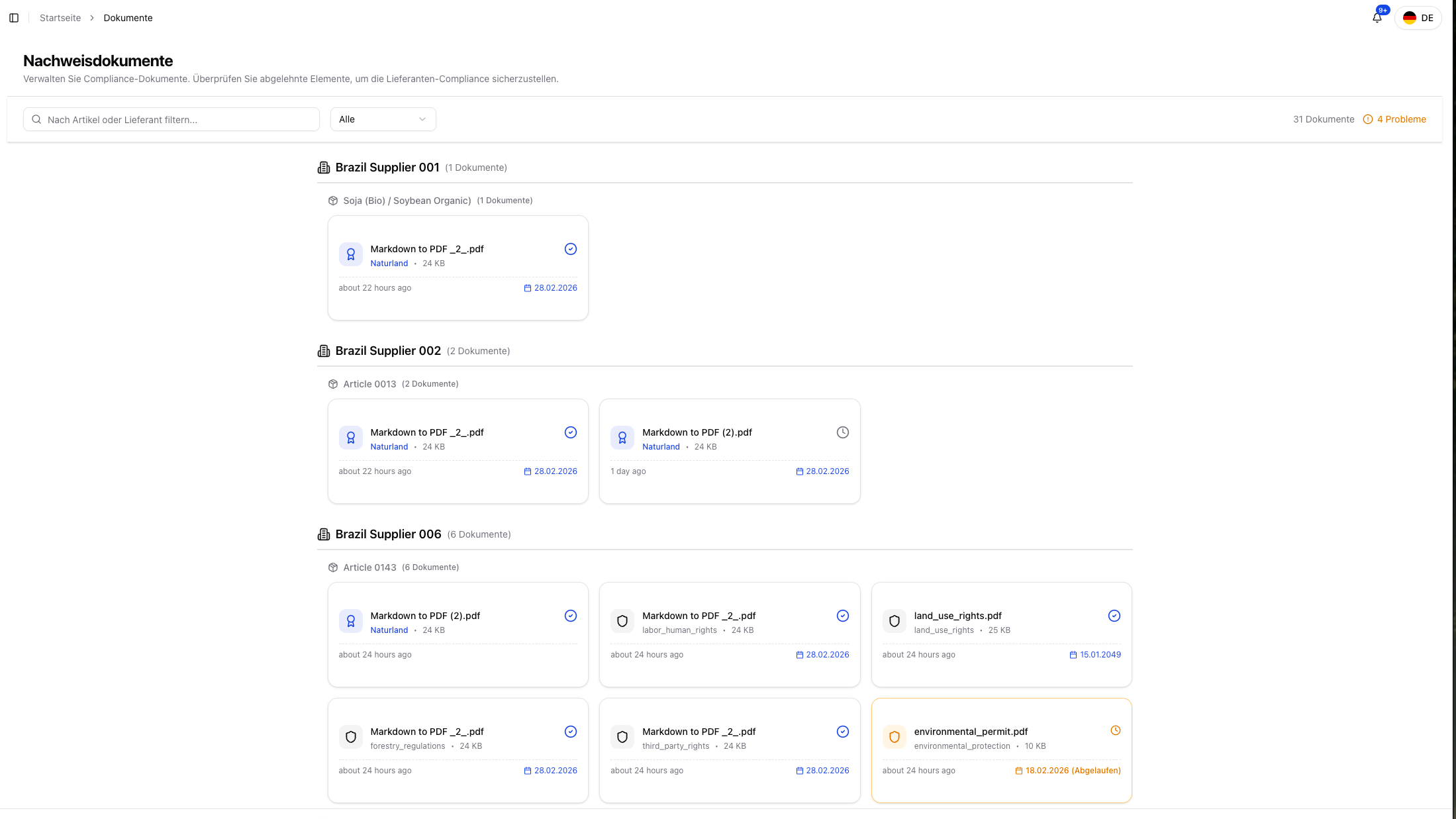
Document overview with status filter
Features
- Centralized document overview — View all evidence documents in one place
- Search & filter — Use the text search to find documents by article or supplier, and filter by review status; documents are grouped by supplier and article
- Show deleted — a switch that reveals the documents in the trash
- Selection and bulk delete — select several cards on the displayed page and delete them together
- Review status — Instantly see which documents are verified, rejected, or still to be reviewed
- Detail view — View AI analysis results, the original document, and metadata
- Review focus — Quickly prioritize pending or problematic documents
Document Status
Two states that are not a rejection — and not a task for you.Supporting evidence means the document stays stored and visible, but does not satisfy this legality category on its own. The category still needs a document that evidences it directly. There is nothing to decide there. A typical case is a document filed under Other: that slot has no expected type, so a “wrong type” counts there as a note, not a rejection.Custody only — no legality coverage is a terminal state for chain-of-custody and mass-balance/credit certificates. They audit the chain of custody, not the production site — informative for traceability, but no legality coverage. Nothing to review here either; legality still has to be evidenced by site-scoped documents.
The detail dialog can show the check group “Holder not confirmed” instead of a status change. The document is then not wrong — what is missing is the declaration of who holds it. The link “Review supply-chain parties” takes you straight there. For Chinese or otherwise multilingual company names, declare the producer under the legal name printed on the evidence and add other spellings as alternate names on the entity; a semantic translation is not inferred automatically. Then re-analyze the document.
Document Detail View
Click a document in the overview to open the detail dialog.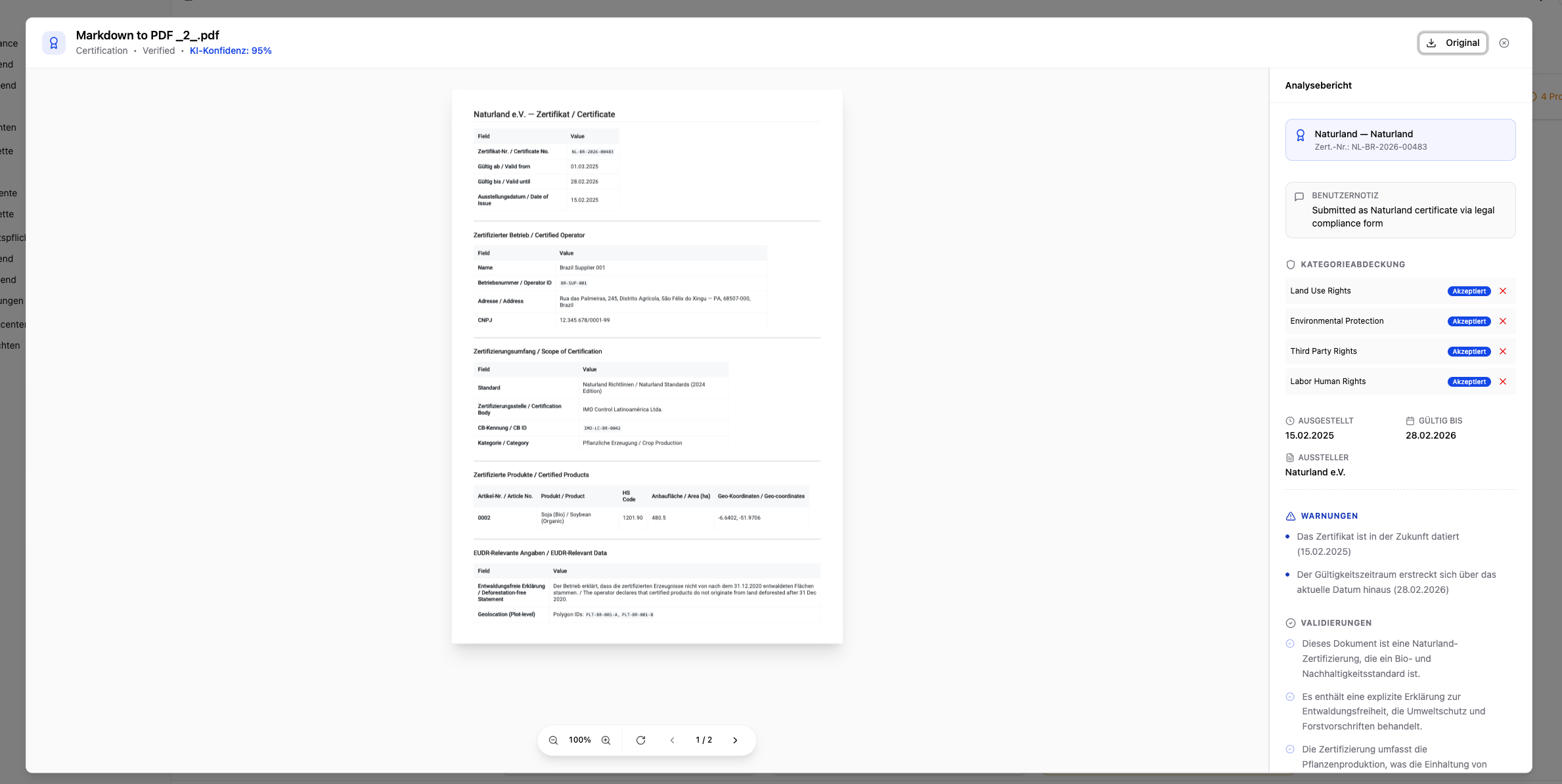
Document overview with status filter
Metadata
- Document name and file type
- Uploaded by — Name of the user or supplier who submitted the document
- Uploaded on — Date of the upload
- Certification scheme — If specified (e.g. FSC, PEFC, RSPO, Rainforest Alliance)
- Assigned articles — Which articles are covered by this document
- Notes — Context information added by the uploader
Analysis Result and Open Decisions
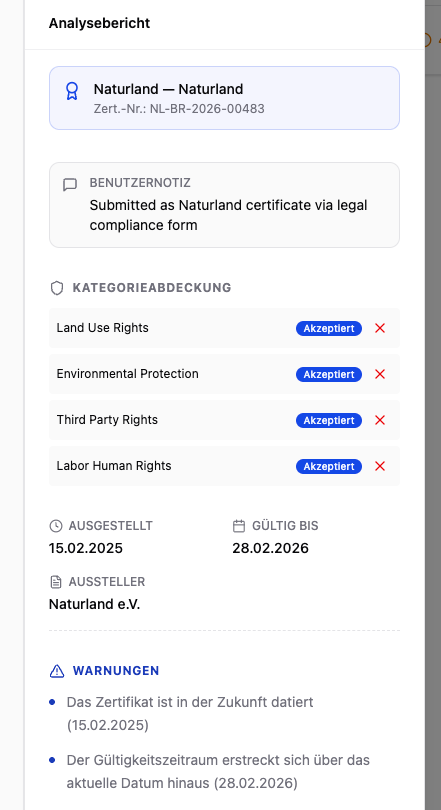
After upload, the analysis reads and classifies the document. The detail dialog shows the information found and the points you need to review:The analysis evaluates each category from the source passages it read and the fixed decision rules. A conclusive result can automatically settle the category as covered or declined; unclear coverage remains an open proposal for your decision. A numeric confidence value alone never decides. Plot-linked evidence can also leave open decisions per plot. There is no control that accepts or rejects the whole document at once; the document status only summarizes the individual outcomes. AI document review explains the complete field-by-field review.
Certificate Register Check
For FSC and PEFC certificates, the detail view additionally shows a register badge. It indicates whether the license is confirmed in the official register, the holder name differs, the license is invalid/expired, or the live check was unavailable. The badge is purely informational. For details, see Upload Evidence → Certificate Register Check.Download the Original Document
Using the “Download” button in the detail dialog, you can download the original document as a PDF at any time.One File, Many Articles: Grouped Cards
A single upload from a supplier often lands on several articles at once. Such copies are folded into one card per physical file.- “Per-article status” (for questionnaires: “Per-article responses”) expands the copies; beside it sits a counter “{count} articles”.
- The card’s badge shows the worst status across all copies. If the copies are at different stages, it reads “Verified for {count} of {total}” instead. So a card never reads “Verified” while a copy is rejected, expired, or still being analyzed.
- “Analyze now” sends the whole group through analysis again. If everything is already running, the button says “Nothing to analyze — every copy is already in progress”.
Selection and Bulk Delete
Every card carries a selection box in the top left. Above the list sits “Select all {count} on this page”; as soon as something is selected, the bar shows “{count} selected on this page” and the button “Delete selected ({count})”.Selection always covers only the displayed page — never the whole filtered set. Turn the page and the selection starts over. The same mechanics apply in every module and on every operational table (articles, orders, DDS, plots, packaging).
Delete, Restore, Permanently Delete
Deleting Moves to the Trash — It Destroys Nothing
A deleted document disappears from the list but is kept in full. It then carries the badge “Deleted” and becomes visible again via the “Show deleted” switch in the toolbar. There is no separate trash area — that switch is the trash. More happens in the same step than you see:- The paired evidence record and every still-open mapping proposal are retired. So a deleted document stops proposing decisions nobody could act on.
- Every article the document was covering is re-assessed — not only the one you removed it from. One uploaded file can carry coverage for several articles.
- A risk mitigation resting on that document is reopened, and notifications about it are cleared.
Nothing empties the trash behind your back. Automatic clean-up only ever happens after the statutory EUDR retention period of five years. Until then, a deleted document stays restorable.
Restore
“Restore” brings the document back together with its evidence record — and re-assesses every article whose coverage it had been carrying. Without that, an article the delete correctly drove to “Non-compliant” would stay stuck there.Permanently Delete
“Permanently Delete” removes the database record and the file from storage. The dialog “Permanently Delete Document” puts it plainly: “This will remove the document from the database and delete the file from storage. This action is irreversible.” What applies:- Only from the trash. A live document cannot be permanently deleted in one step — it has to be deleted first.
- Only with delete permission. Without it the server refuses the action. It exists in the interface only; there is no REST API for it.
- Other copies of the same file are untouched.
- The document’s mappings go with it, and the affected articles are re-assessed.
On Grouped Cards
When a card stands for several copies, the actions work on the whole group:
A single deleted copy inside the group carries the hint “Deleted — restore the whole file”: what comes back is always the file, not the individual row.
An interrupted run can simply be triggered again.
Accepted File Formats
PDF and images (PNG, JPEG, TIFF), as well as text, CSV, JSON, and GeoJSON files, are always accepted. Office files — Word, Excel, ODT, RTF — are accepted where document conversion is set up for your installation. When it is, the upload dialog names them explicitly: “PDF, images (PNG, JPEG, TIFF), text, CSV, JSON, GeoJSON, or Office documents (Word, Excel, ODT, RTF) • Max 10 MB”. If that is not what it says, Office files are not offered in that environment — convert them to PDF yourself before uploading..xls and .doc are recognised by their file extension. PowerPoint is not offered on any surface.
Review Process
The review process for documents runs in three phases:1
Upload and analysis
After upload, the analysis reads the document type, values, source passages, and possible compliance categories. Conclusive category outcomes are settled automatically under the fixed decision rules; dependable field values can be written to the record as automatically applied.
2
Review the result and open points
Automatically accepted or declined category outcomes need no click. Supporting evidence and Custody only — no legality coverage are also terminal states. Open the original beside the analysis result and check the remaining open categories and values against their quote and page. AI document review explains the field-by-field review and provenance labels.
3
Decide open coverage
Coverage appears under Open decisions only when the automatic check could not settle it conclusively. Confirm or reject that proposal per compliance category, individually or in bulk. For plot-linked evidence, decide open coverage per plot with Confirm or Reject.When many documents are waiting for review, use the Review queue button to open the company-wide queue and decide several documents at once — details under Risk Mitigation → Review Queue.
There is no button that verifies or rejects an entire document. The displayed document status is derived from the individual category and plot decisions.
An automatic outcome or your decision is recorded on the relevant category or plot mapping. A hard finding on that specific mapping — such as an expired certificate or an unconfirmed holder — still takes precedence.
A re-analysis keeps your review while the result remains materially the same. If something material changes — document type, certification scheme, the certificate’s scope, certificate number, issue or expiry date, plausibility, or the findings — the app presents the affected decisions again and records the invalidated review in the audit log.
Manual document review
All documents are retained for at least 5 years in accordance with EUDR requirements.
Documents are primarily uploaded via Evidence upload or the supplier portal. The document overview serves for centralized management and review — particularly helpful for quickly identifying rejected or pending documents.