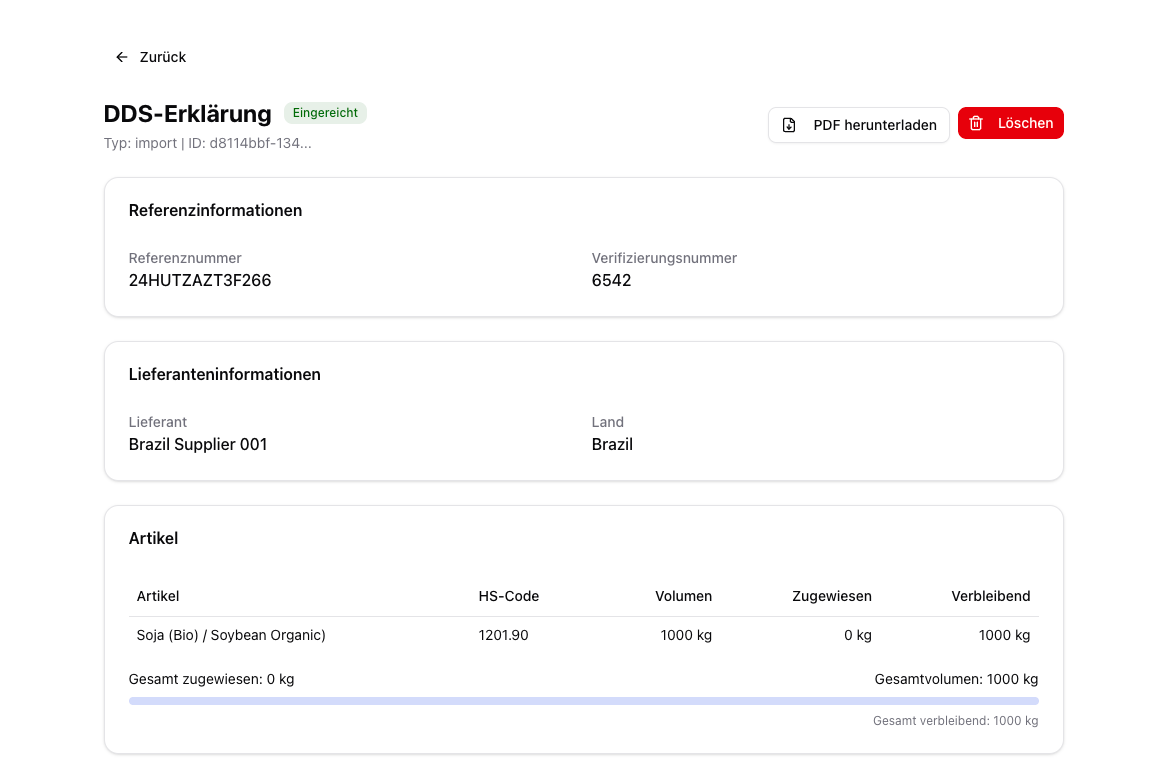
For DDS with the status external (created outside Polygon One), fields such as country, submitted on, supplier country, and plot data may be empty — only the reference number and verification number are captured.
From the DDS detail view, you can submit a DDS in draft status to TRACES directly. For a statement already submitted, “Refresh status” fetches the current state from TRACES together with the reference and verification number; a supplier’s statement you check via “Verify in TRACES”. See Incoming DDS.
For customs clearance, both the DDS reference number and the verification number are required. Both are included in the export file and the PDF version.
{"docsConfig":{"theme":"mint","$schema":"https://mintlify.com/docs.json","name":"Polygon One Helpcenter","colors":{"primary":"#15803D","light":"#07C983","dark":"#15803D"},"logo":{"light":"https://mintcdn.com/polygonone/AMoRp9VbcW46gNsT/logo/light.svg?fit=max\u0026auto=format\u0026n=AMoRp9VbcW46gNsT\u0026q=85\u0026s=4a316da81d50e49c7f9f6480a235558e","dark":"https://mintcdn.com/polygonone/AMoRp9VbcW46gNsT/logo/dark.svg?fit=max\u0026auto=format\u0026n=AMoRp9VbcW46gNsT\u0026q=85\u0026s=2f010ff600ff4880f154678933ee7214"},"favicon":"https://mintcdn.com/polygonone/ySkQMGGRhMNkPSTt/favicon.svg?fit=max\u0026auto=format\u0026n=ySkQMGGRhMNkPSTt\u0026q=85\u0026s=90cbe4fd3ee2dbffcb8de6167a8d47f3","api":{"playground":{"display":"simple"}},"navbar":{"links":[{"href":"mailto:help@polygon-one.eu","label":"Support"}],"primary":{"type":"button","label":"App","href":"https://app.polygon-one.com/"}},"footer":{"socials":{"website":"https://polygon-one.com"}},"search":{"prompt":"Suche..."},"integrations":{"posthog":{"apiKey":"phc_uKa9gMArvxxjzGfYWUWS4YLP7yT7gPETBzA3ktR7mUTD","apiHost":"https://eu.i.posthog.com","sessionRecording":false}},"contextual":{"options":["copy","view","chatgpt","claude","perplexity","mcp","cursor","vscode"],"display":"header"},"styling":{"latex":false},"navigation":{"global":{"anchors":[]},"languages":[{"language":"de","default":true,"href":""},{"language":"en","href":"en"},{"language":"fr","href":"fr/lieferanten/start"},{"language":"es","href":"es/lieferanten/start"},{"language":"zh","href":"zh/lieferanten/start"}]}},"deployment":{"deploymentMetadataValue":{"subdomain":"polygonone","hasAudioNarration":false,"actualSubdomain":"polygonone","customDomains":["help.polygon-one.com"],"gitSource":{"type":"github","owner":"polygon-one","repo":"docs","deployBranch":"main","contentDirectory":"","isPrivate":true,"mountPath":"","label":""},"chroma":{"liveDeploymentHistoryId":"6ae0b07ed03bec028f0a63ad","collectionId":"0d95f0d6-0f41-4003-828c-a1abdfd66982","schemaVersion":"v3","latestBuiltDeploymentHistoryId":"6ae0b07ed03bec028f0a63ad"},"entitlements":{},"buildId":"6ae0b07ed03bec028f0a63ad","clientVersion":"0.0.3971","searchFilterCounts":[{"language":"de","tag":"API-Referenz","count":62},{"language":"en","tag":"API Reference","count":62},{"language":"de","tag":"EUDR","count":53},{"language":"en","tag":"EUDR","count":53},{"language":"de","tag":"Für Lieferanten","count":28},{"language":"en","tag":"For suppliers","count":28},{"language":"es","tag":"Para proveedores","count":28},{"language":"fr","tag":"Pour les fournisseurs","count":28},{"language":"zh","tag":"供应商帮助","count":28},{"language":"de","tag":"PPWR","count":25},{"language":"en","tag":"PPWR","count":25},{"language":"de","tag":"API-Dokumentation","count":10},{"language":"en","tag":"API Documentation","count":10},{"language":"de","tag":"PPWR – Verpackungsdaten","count":9},{"language":"de","tag":"Ihr Datenformat","count":9},{"language":"en","tag":"PPWR – Packaging Data","count":9},{"language":"en","tag":"Your data format","count":9},{"language":"es","tag":"Su formato de datos","count":9},{"language":"fr","tag":"Votre format de données","count":9},{"language":"zh","tag":"数据格式指南","count":9},{"language":"de","tag":"Datensammlung (Art. 9 EUDR)","count":8},{"language":"de","tag":"DDS \u0026 Bestellungen (Art. 3 EUDR)","count":8},{"language":"de","tag":"Optional","count":8},{"language":"en","tag":"Data Collection (Art. 9 EUDR)","count":8},{"language":"en","tag":"DDS \u0026 Orders (Art. 3 EUDR)","count":8},{"language":"en","tag":"Optional","count":8},{"language":"es","tag":"Solicitud EUDR","count":7},{"language":"fr","tag":"Demande EUDR","count":7},{"language":"zh","tag":"EUDR 请求","count":7},{"language":"es","tag":"Espacio del proveedor","count":4},{"language":"es","tag":"Solicitud PPWR","count":4},{"language":"fr","tag":"Espace fournisseur","count":4},{"language":"fr","tag":"Demande PPWR","count":4},{"language":"zh","tag":"供应商工作区","count":4},{"language":"zh","tag":"PPWR 请求","count":4},{"language":"es","tag":"Resolver un problema","count":3},{"language":"fr","tag":"Résoudre un problème","count":3},{"language":"zh","tag":"更正、审核和状态","count":3},{"language":"es","tag":"Empiece aquí","count":1},{"language":"fr","tag":"Commencer ici","count":1},{"language":"zh","tag":"从这里开始","count":1}]},"assistantConfig":{"enableAskAiButton":false,"enableStarterQuestions":false,"enableAskAiSearchBar":true},"basePath":"","hasChatPermissions":false,"hasWebMcpPermissions":false,"toggles":[{"name":"kill-isr","enabled":true,"variant":{"name":"disabled","enabled":false,"feature_enabled":true},"impressionData":false},{"name":"agent-mintlify-slack","enabled":true,"variant":{"name":"disabled","enabled":false,"feature_enabled":true},"impressionData":false},{"name":"editor-v7-file-tree","enabled":true,"variant":{"name":"disabled","enabled":false,"feature_enabled":true},"impressionData":false},{"name":"agent-integrations-settings","enabled":true,"variant":{"name":"disabled","enabled":false,"feature_enabled":true},"impressionData":false},{"name":"automations-pr-grouping","enabled":true,"variant":{"name":"disabled","enabled":false,"feature_enabled":true},"impressionData":false},{"name":"custom-prefix","enabled":true,"variant":{"name":"disabled","enabled":false,"feature_enabled":true},"impressionData":false},{"name":"analytics-v7","enabled":true,"variant":{"name":"disabled","enabled":false,"feature_enabled":true},"impressionData":false},{"name":"user-flows-analytics","enabled":true,"variant":{"name":"disabled","enabled":false,"feature_enabled":true},"impressionData":false},{"name":"no-publish-flow","enabled":true,"variant":{"name":"disabled","enabled":false,"feature_enabled":true},"impressionData":false},{"name":"workos-onboarding","enabled":true,"variant":{"name":"disabled","enabled":false,"feature_enabled":true},"impressionData":false},{"name":"llms-txt-v2","enabled":true,"variant":{"name":"disabled","enabled":false,"feature_enabled":true},"impressionData":false},{"name":"pause-universal-search-reconcile","enabled":true,"variant":{"name":"disabled","enabled":false,"feature_enabled":true},"impressionData":false},{"name":"snapshot-serving-live","enabled":true,"variant":{"name":"disabled","enabled":false,"feature_enabled":true},"impressionData":false},{"name":"stripTemperatureMiddleware","enabled":true,"variant":{"name":"disabled","enabled":false,"feature_enabled":true},"impressionData":false},{"name":"per-site-search-delta","enabled":true,"variant":{"name":"disabled","enabled":false,"feature_enabled":true},"impressionData":false},{"name":"support-platform-pylon-zendesk","enabled":true,"variant":{"name":"disabled","enabled":false,"feature_enabled":true},"impressionData":false},{"name":"snapshot-serving","enabled":true,"variant":{"name":"disabled","enabled":false,"feature_enabled":true},"impressionData":false},{"name":"instant-rollback","enabled":true,"variant":{"name":"disabled","enabled":false,"feature_enabled":true},"impressionData":false},{"name":"granular-notifications-server","enabled":true,"variant":{"name":"disabled","enabled":false,"feature_enabled":true},"impressionData":false},{"name":"granular-notifications","enabled":true,"variant":{"name":"disabled","enabled":false,"feature_enabled":true},"impressionData":false},{"name":"editor-private-page-search","enabled":true,"variant":{"name":"disabled","enabled":false,"feature_enabled":true},"impressionData":false},{"name":"automations-fable","enabled":true,"variant":{"name":"disabled","enabled":false,"feature_enabled":true},"impressionData":false},{"name":"fixed-ai-action-pricing","enabled":true,"variant":{"name":"disabled","enabled":false,"feature_enabled":true},"impressionData":false},{"name":"automation-resolve-merge-conflict","enabled":true,"variant":{"name":"disabled","enabled":false,"feature_enabled":true},"impressionData":false},{"name":"scoped-publishing","enabled":true,"variant":{"name":"disabled","enabled":false,"feature_enabled":true},"impressionData":false},{"name":"mintql","enabled":true,"variant":{"name":"disabled","enabled":false,"feature_enabled":true},"impressionData":false},{"name":"page-level-analytics","enabled":true,"variant":{"name":"disabled","enabled":false,"feature_enabled":true},"impressionData":false},{"name":"editor-version-history-v2","enabled":true,"variant":{"name":"disabled","enabled":false,"feature_enabled":true},"impressionData":false},{"name":"editor-nav-generations","enabled":true,"variant":{"name":"disabled","enabled":false,"feature_enabled":true},"impressionData":false},{"name":"billing-page-v2","enabled":true,"variant":{"name":"disabled","enabled":false,"feature_enabled":true},"impressionData":false},{"name":"workspace-projects","enabled":true,"variant":{"name":"disabled","enabled":false,"feature_enabled":true},"impressionData":false},{"name":"assistant-v5","enabled":true,"variant":{"name":"disabled","enabled":false,"feature_enabled":true},"impressionData":false},{"name":"byok-sep-25","enabled":true,"variant":{"name":"disabled","enabled":false,"feature_enabled":true},"impressionData":false},{"name":"fork-pr-previews","enabled":true,"variant":{"name":"disabled","enabled":false,"feature_enabled":true},"impressionData":false},{"name":"revalidation-jwt","enabled":true,"variant":{"name":"disabled","enabled":false,"feature_enabled":true},"impressionData":false},{"name":"vite-origin","enabled":true,"variant":{"name":"disabled","enabled":false,"feature_enabled":true},"impressionData":false},{"name":"editor-agent-model-picker","enabled":true,"variant":{"name":"disabled","enabled":false,"feature_enabled":true},"impressionData":false},{"name":"billing-updated-9-15","enabled":true,"variant":{"name":"disabled","enabled":false,"feature_enabled":true},"impressionData":false},{"name":"workos-sso-scim","enabled":true,"variant":{"name":"disabled","enabled":false,"feature_enabled":true},"impressionData":false},{"name":"hobby-abuse-scan","enabled":true,"variant":{"name":"disabled","enabled":false,"feature_enabled":true},"impressionData":false},{"name":"dashboard-inbox","enabled":true,"variant":{"name":"disabled","enabled":false,"feature_enabled":true},"impressionData":false},{"name":"workos-signup","enabled":true,"variant":{"name":"disabled","enabled":false,"feature_enabled":true},"impressionData":false},{"name":"workos-enabled","enabled":true,"variant":{"name":"disabled","enabled":false,"feature_enabled":true},"impressionData":false}],"isAtlas":false,"googleFontsInlined":false},"customCss":[{"filePath":"style.css","content":"html:has(#content[data-page-href$=\"/lieferanten/start\"]) #pagination,html:has(#content[data-page-href*=\"/lieferanten/\"]) #mobile-nav #navigation-items>div:has(>#localization-select-trigger)>div:has(>button[aria-haspopup=menu]),html:has(#content[data-page-href*=\"/lieferanten/\"]) #navbar div:has(>div>a[href$=\"/lieferanten/start\"]),html:has(#content[data-page-href*=\"/lieferanten/\"]) #navbar li:has(>a[href=\"https://app.polygon-one.com/\"]),html:has(#content[data-page-href*=\"/lieferanten/\"]) [role=dialog] li:has(>a[href=\"https://app.polygon-one.com/\"]){display:none!important}"}],"page":{"pagePath":"en/eudr/dds-bestellungen/export","slug":"/en/eudr/dds-bestellungen/export","pageMetadata":{"title":"Export","description":"Export orders and DDS","icon":"download","href":"/en/eudr/dds-bestellungen/export"},"description":{"compiledSource":"\"use strict\";\nconst {jsx: _jsx} = arguments[0];\nconst {useMDXComponents: _provideComponents} = arguments[0];\nfunction _createMdxContent(props) {\n const _components = {\n p: \"p\",\n ..._provideComponents(),\n ...props.components\n };\n return _jsx(_components.p, {\n children: \"Export orders and DDS\"\n });\n}\nfunction MDXContent(props = {}) {\n const {wrapper: MDXLayout} = {\n ..._provideComponents(),\n ...props.components\n };\n return MDXLayout ? _jsx(MDXLayout, {\n ...props,\n children: _jsx(_createMdxContent, {\n ...props\n })\n }) : _createMdxContent(props);\n}\nreturn {\n default: MDXContent\n};\n","frontmatter":{},"scope":{}},"pageType":"default","mdx":{"mdxSource":{"compiledSource":"\"use strict\";const{Fragment:_Fragment,jsx:_jsx,jsxs:_jsxs}=arguments[0];const{useMDXComponents:_provideComponents}=arguments[0];function _createMdxContent(props){const _components={a:`a`,code:`code`,p:`p`,strong:`strong`,tbody:`tbody`,td:`td`,th:`th`,thead:`thead`,tr:`tr`,..._provideComponents(),...props.components},{Frame,Heading,Info,Note,OptimizedImage,Step,Steps,Table}=_components;if(!Frame)_missingMdxReference(`Frame`,true);if(!Heading)_missingMdxReference(`Heading`,true);if(!Info)_missingMdxReference(`Info`,true);if(!Note)_missingMdxReference(`Note`,true);if(!OptimizedImage)_missingMdxReference(`OptimizedImage`,true);if(!Step)_missingMdxReference(`Step`,true);if(!Steps)_missingMdxReference(`Steps`,true);if(!Table)_missingMdxReference(`Table`,true);return _jsxs(_Fragment,{children:[_jsx(Heading,{level:`2`,id:`overview`,children:`Overview`}),`\n`,_jsx(_components.p,{children:`Export your orders, linked to your DDS, for customs clearance, internal documentation, or sharing with authorities.`}),`\n`,_jsx(Heading,{level:`2`,id:`export-orders`,children:`Export Orders`}),`\n`,_jsxs(Steps,{children:[_jsx(Step,{title:`Open the order overview`,children:_jsxs(_components.p,{children:[`Navigate to the `,_jsx(_components.strong,{children:`Orders`}),` area.`]})}),_jsxs(Step,{title:`Filter orders`,children:[_jsx(_components.p,{children:`Use the filter function: by type (purchase/sale), supplier, EUDR relevance, DDS reference, or commodity.`}),_jsx(Frame,{caption:`Filter and export orders`,children:_jsx(OptimizedImage,{src:`https://mintcdn.com/polygonone/P0kHQTouD3qsnW6r/images/helpcenter/dds-bestellungen/export-filter.png?fit=max\u0026auto=format\u0026n=P0kHQTouD3qsnW6r\u0026q=85\u0026s=b22d61c514974f778fc09ea110c11174`,\"data-og-width\":`1296`,width:`1296`,\"data-og-height\":`522`,height:`522`,\"data-path\":`images/helpcenter/dds-bestellungen/export-filter.png`,\"data-optimize\":`true`,\"data-opv\":`3`,srcset:`https://mintcdn.com/polygonone/P0kHQTouD3qsnW6r/images/helpcenter/dds-bestellungen/export-filter.png?w=280\u0026fit=max\u0026auto=format\u0026n=P0kHQTouD3qsnW6r\u0026q=85\u0026s=5c17d7a703aaf66b2a701cb095a80303 280w, https://mintcdn.com/polygonone/P0kHQTouD3qsnW6r/images/helpcenter/dds-bestellungen/export-filter.png?w=560\u0026fit=max\u0026auto=format\u0026n=P0kHQTouD3qsnW6r\u0026q=85\u0026s=32265fd6d728a97cb592ba2345cb0445 560w, https://mintcdn.com/polygonone/P0kHQTouD3qsnW6r/images/helpcenter/dds-bestellungen/export-filter.png?w=840\u0026fit=max\u0026auto=format\u0026n=P0kHQTouD3qsnW6r\u0026q=85\u0026s=856179ac3144099b7e17ccd278481938 840w, https://mintcdn.com/polygonone/P0kHQTouD3qsnW6r/images/helpcenter/dds-bestellungen/export-filter.png?w=1100\u0026fit=max\u0026auto=format\u0026n=P0kHQTouD3qsnW6r\u0026q=85\u0026s=7d1a3be4f28e2ae8686b5463c51cea62 1100w, https://mintcdn.com/polygonone/P0kHQTouD3qsnW6r/images/helpcenter/dds-bestellungen/export-filter.png?w=1650\u0026fit=max\u0026auto=format\u0026n=P0kHQTouD3qsnW6r\u0026q=85\u0026s=91a19318f1f12c34f0f03daa797bf604 1650w, https://mintcdn.com/polygonone/P0kHQTouD3qsnW6r/images/helpcenter/dds-bestellungen/export-filter.png?w=2500\u0026fit=max\u0026auto=format\u0026n=P0kHQTouD3qsnW6r\u0026q=85\u0026s=a734b2fb943d441c54190818cacdd894 2500w`})})]}),_jsx(Step,{title:`Start the export`,children:_jsxs(_components.p,{children:[`Click `,_jsx(_components.strong,{children:`“Export”`}),` to download the selected orders as a CSV file.`]})})]}),`\n`,_jsx(Heading,{level:`2`,id:`export-dds-statements`,children:`Export DDS Statements`}),`\n`,_jsx(_components.p,{children:`From the DDS detail view, you can export individual or all Due Diligence Statements:`}),`\n`,_jsxs(Steps,{children:[_jsx(Step,{title:`Open the DDS detail view`,children:_jsxs(_components.p,{children:[`In the DDS overview, click `,_jsx(_components.strong,{children:`“View details”`}),` on the desired DDS, or click the DDS reference number highlighted in blue.`]})}),_jsxs(Step,{title:`Download the PDF`,children:[_jsxs(_components.p,{children:[`Click `,_jsx(_components.strong,{children:`“Download PDF”`}),` for a printable version of the DDS.`]}),_jsx(Frame,{caption:`DDS detail view with PDF download`,children:_jsx(OptimizedImage,{src:`https://mintcdn.com/polygonone/P0kHQTouD3qsnW6r/images/helpcenter/dds-bestellungen/export-dds-pdf.png?fit=max\u0026auto=format\u0026n=P0kHQTouD3qsnW6r\u0026q=85\u0026s=acb02abb3d2295c013737eb91c374495`,\"data-og-width\":`1174`,width:`1174`,\"data-og-height\":`770`,height:`770`,\"data-path\":`images/helpcenter/dds-bestellungen/export-dds-pdf.png`,\"data-optimize\":`true`,\"data-opv\":`3`,srcset:`https://mintcdn.com/polygonone/P0kHQTouD3qsnW6r/images/helpcenter/dds-bestellungen/export-dds-pdf.png?w=280\u0026fit=max\u0026auto=format\u0026n=P0kHQTouD3qsnW6r\u0026q=85\u0026s=b34dad96366741d23493cbfb5808291a 280w, https://mintcdn.com/polygonone/P0kHQTouD3qsnW6r/images/helpcenter/dds-bestellungen/export-dds-pdf.png?w=560\u0026fit=max\u0026auto=format\u0026n=P0kHQTouD3qsnW6r\u0026q=85\u0026s=b27cfa2b3cfdfac8fe838dbccfd7cb39 560w, https://mintcdn.com/polygonone/P0kHQTouD3qsnW6r/images/helpcenter/dds-bestellungen/export-dds-pdf.png?w=840\u0026fit=max\u0026auto=format\u0026n=P0kHQTouD3qsnW6r\u0026q=85\u0026s=ba0a2af672b0ec977f118af58b5ba078 840w, https://mintcdn.com/polygonone/P0kHQTouD3qsnW6r/images/helpcenter/dds-bestellungen/export-dds-pdf.png?w=1100\u0026fit=max\u0026auto=format\u0026n=P0kHQTouD3qsnW6r\u0026q=85\u0026s=bee2fbcd368889422e9859669661f59b 1100w, https://mintcdn.com/polygonone/P0kHQTouD3qsnW6r/images/helpcenter/dds-bestellungen/export-dds-pdf.png?w=1650\u0026fit=max\u0026auto=format\u0026n=P0kHQTouD3qsnW6r\u0026q=85\u0026s=2258c17e865d0376f6a4f31c12546aa2 1650w, https://mintcdn.com/polygonone/P0kHQTouD3qsnW6r/images/helpcenter/dds-bestellungen/export-dds-pdf.png?w=2500\u0026fit=max\u0026auto=format\u0026n=P0kHQTouD3qsnW6r\u0026q=85\u0026s=15062caf6adb71cdfde8f967e8bdcb7e 2500w`})})]}),_jsx(Step,{title:`Or: Export`,children:_jsxs(_components.p,{children:[`Alternatively, click `,_jsx(_components.strong,{children:`“Export”`}),` next to the DDS table for a data export of all DDS.`]})}),_jsx(Frame,{caption:`Export all DDS`,children:_jsx(OptimizedImage,{src:`https://mintcdn.com/polygonone/P0kHQTouD3qsnW6r/images/helpcenter/dds-bestellungen/export-all-dds.png?fit=max\u0026auto=format\u0026n=P0kHQTouD3qsnW6r\u0026q=85\u0026s=2841db65d24b79aebdfd26253b408ab6`,\"data-og-width\":`1295`,width:`1295`,\"data-og-height\":`428`,height:`428`,\"data-path\":`images/helpcenter/dds-bestellungen/export-all-dds.png`,\"data-optimize\":`true`,\"data-opv\":`3`,srcset:`https://mintcdn.com/polygonone/P0kHQTouD3qsnW6r/images/helpcenter/dds-bestellungen/export-all-dds.png?w=280\u0026fit=max\u0026auto=format\u0026n=P0kHQTouD3qsnW6r\u0026q=85\u0026s=677abb8e2a8e1568afaad70f1d089ba0 280w, https://mintcdn.com/polygonone/P0kHQTouD3qsnW6r/images/helpcenter/dds-bestellungen/export-all-dds.png?w=560\u0026fit=max\u0026auto=format\u0026n=P0kHQTouD3qsnW6r\u0026q=85\u0026s=75496d362cd112ebd61d0c941142877b 560w, https://mintcdn.com/polygonone/P0kHQTouD3qsnW6r/images/helpcenter/dds-bestellungen/export-all-dds.png?w=840\u0026fit=max\u0026auto=format\u0026n=P0kHQTouD3qsnW6r\u0026q=85\u0026s=ba9d27259663c664962df6e86766677f 840w, https://mintcdn.com/polygonone/P0kHQTouD3qsnW6r/images/helpcenter/dds-bestellungen/export-all-dds.png?w=1100\u0026fit=max\u0026auto=format\u0026n=P0kHQTouD3qsnW6r\u0026q=85\u0026s=3e6486a36e4d92aa8ba957be945a4f48 1100w, https://mintcdn.com/polygonone/P0kHQTouD3qsnW6r/images/helpcenter/dds-bestellungen/export-all-dds.png?w=1650\u0026fit=max\u0026auto=format\u0026n=P0kHQTouD3qsnW6r\u0026q=85\u0026s=5e2753a7baab9d124f4f8ea6de4de8d5 1650w, https://mintcdn.com/polygonone/P0kHQTouD3qsnW6r/images/helpcenter/dds-bestellungen/export-all-dds.png?w=2500\u0026fit=max\u0026auto=format\u0026n=P0kHQTouD3qsnW6r\u0026q=85\u0026s=51ffb368b9a92328e177803b438c891a 2500w`})})]}),`\n`,_jsx(Heading,{level:`2`,id:`exported-data`,children:`Exported Data`}),`\n`,_jsx(_components.p,{children:`The exported CSV file contains one row per DDS with the following columns:`}),`\n`,_jsx(Heading,{level:`3`,id:`dds-master-data`,children:`DDS Master Data`}),`\n`,_jsxs(Table,{children:[_jsx(_components.thead,{children:_jsxs(_components.tr,{children:[_jsx(_components.th,{children:`Column`}),_jsx(_components.th,{children:`Description`}),_jsx(_components.th,{children:`Example`})]})}),_jsxs(_components.tbody,{children:[_jsxs(_components.tr,{children:[_jsx(_components.td,{children:_jsx(_components.strong,{children:`DDS ID`})}),_jsx(_components.td,{children:`System-internal unique ID (UUID)`}),_jsx(_components.td,{children:_jsx(_components.code,{children:`d8114bbf-134c-4609-96be-b545b6882f36`})})]}),_jsxs(_components.tr,{children:[_jsx(_components.td,{children:_jsx(_components.strong,{children:`Reference number`})}),_jsx(_components.td,{children:`Official DDS reference number from EU TRACES`}),_jsx(_components.td,{children:_jsx(_components.code,{children:`24HUTZAZT3F266`})})]}),_jsxs(_components.tr,{children:[_jsx(_components.td,{children:_jsx(_components.strong,{children:`Verification number`})}),_jsx(_components.td,{children:`Verification number for customs clearance`}),_jsx(_components.td,{\"data-numeric\":`true`,children:_jsx(_components.code,{children:`6542`})})]}),_jsxs(_components.tr,{children:[_jsx(_components.td,{children:_jsx(_components.strong,{children:`Status`})}),_jsxs(_components.td,{children:[`Current DDS status (e.g. `,_jsx(_components.code,{children:`submitted`}),`, `,_jsx(_components.code,{children:`validated`}),`, `,_jsx(_components.code,{children:`draft`}),`, `,_jsx(_components.code,{children:`external`}),`)`]}),_jsx(_components.td,{children:_jsx(_components.code,{children:`submitted`})})]}),_jsxs(_components.tr,{children:[_jsx(_components.td,{children:_jsx(_components.strong,{children:`Type`})}),_jsxs(_components.td,{children:[`Activity type (`,_jsx(_components.code,{children:`import`}),`, `,_jsx(_components.code,{children:`export`}),`, `,_jsx(_components.code,{children:`trade`}),`, `,_jsx(_components.code,{children:`domestic_production`}),`)`]}),_jsx(_components.td,{children:_jsx(_components.code,{children:`import`})})]}),_jsxs(_components.tr,{children:[_jsx(_components.td,{children:_jsx(_components.strong,{children:`Country`})}),_jsx(_components.td,{children:`Country of the operator`}),_jsx(_components.td,{children:_jsx(_components.code,{children:`Germany`})})]}),_jsxs(_components.tr,{children:[_jsx(_components.td,{children:_jsx(_components.strong,{children:`Submitted on`})}),_jsx(_components.td,{children:`Date of submission to TRACES (ISO format)`}),_jsx(_components.td,{\"data-numeric\":`true`,children:_jsx(_components.code,{children:`2026-02-19`})})]})]})]}),`\n`,_jsx(Heading,{level:`3`,id:`supplier-\u0026-article`,children:`Supplier \u0026 Article`}),`\n`,_jsxs(Table,{children:[_jsx(_components.thead,{children:_jsxs(_components.tr,{children:[_jsx(_components.th,{children:`Column`}),_jsx(_components.th,{children:`Description`}),_jsx(_components.th,{children:`Example`})]})}),_jsxs(_components.tbody,{children:[_jsxs(_components.tr,{children:[_jsx(_components.td,{children:_jsx(_components.strong,{children:`Supplier`})}),_jsx(_components.td,{children:`Name of the assigned supplier`}),_jsx(_components.td,{children:_jsx(_components.code,{children:`Brazil Supplier 001`})})]}),_jsxs(_components.tr,{children:[_jsx(_components.td,{children:_jsx(_components.strong,{children:`Supplier country`})}),_jsx(_components.td,{children:`Country of origin of the supplier`}),_jsx(_components.td,{children:_jsx(_components.code,{children:`Brazil`})})]}),_jsxs(_components.tr,{children:[_jsx(_components.td,{children:_jsx(_components.strong,{children:`Article`})}),_jsx(_components.td,{children:`Article name/designation`}),_jsx(_components.td,{children:_jsx(_components.code,{children:`Soja (Bio) / Soybean Organic`})})]}),_jsxs(_components.tr,{children:[_jsx(_components.td,{children:_jsx(_components.strong,{children:`HS code`})}),_jsx(_components.td,{children:`Harmonized customs tariff code`}),_jsx(_components.td,{\"data-numeric\":`true`,children:_jsx(_components.code,{children:`1201.90`})})]})]})]}),`\n`,_jsx(Heading,{level:`3`,id:`volume`,children:`Volume`}),`\n`,_jsxs(Table,{children:[_jsx(_components.thead,{children:_jsxs(_components.tr,{children:[_jsx(_components.th,{children:`Column`}),_jsx(_components.th,{children:`Description`}),_jsx(_components.th,{children:`Example`})]})}),_jsxs(_components.tbody,{children:[_jsxs(_components.tr,{children:[_jsx(_components.td,{children:_jsx(_components.strong,{children:`Volume (kg)`})}),_jsx(_components.td,{children:`Total volume of the DDS in kilograms`}),_jsx(_components.td,{\"data-numeric\":`true`,children:_jsx(_components.code,{children:`1000`})})]}),_jsxs(_components.tr,{children:[_jsx(_components.td,{children:_jsx(_components.strong,{children:`Assigned volume (kg)`})}),_jsx(_components.td,{children:`Volume already assigned through orders`}),_jsx(_components.td,{\"data-numeric\":`true`,children:_jsx(_components.code,{children:`0`})})]}),_jsxs(_components.tr,{children:[_jsx(_components.td,{children:_jsx(_components.strong,{children:`Remaining volume (kg)`})}),_jsx(_components.td,{children:`Volume still available for further orders`}),_jsx(_components.td,{\"data-numeric\":`true`,children:_jsx(_components.code,{children:`1000`})})]})]})]}),`\n`,_jsx(Heading,{level:`3`,id:`area-data-\u0026-geolocation`,children:`Area Data \u0026 Geolocation`}),`\n`,_jsxs(Table,{children:[_jsx(_components.thead,{children:_jsxs(_components.tr,{children:[_jsx(_components.th,{children:`Column`}),_jsx(_components.th,{children:`Description`}),_jsx(_components.th,{children:`Example`})]})}),_jsxs(_components.tbody,{children:[_jsxs(_components.tr,{children:[_jsx(_components.td,{children:_jsx(_components.strong,{children:`Plot name`})}),_jsx(_components.td,{children:`Name of the production area`}),_jsx(_components.td,{children:_jsx(_components.code,{children:`PLT-BR-001-A`})})]}),_jsxs(_components.tr,{children:[_jsx(_components.td,{children:_jsx(_components.strong,{children:`Plot country`})}),_jsx(_components.td,{children:`Country of the production area`}),_jsx(_components.td,{children:_jsx(_components.code,{children:`Brazil`})})]}),_jsxs(_components.tr,{children:[_jsx(_components.td,{children:_jsx(_components.strong,{children:`Latitude`})}),_jsx(_components.td,{children:`GPS latitude (decimal degrees)`}),_jsx(_components.td,{\"data-numeric\":`true`,children:_jsx(_components.code,{children:`-4.934206`})})]}),_jsxs(_components.tr,{children:[_jsx(_components.td,{children:_jsx(_components.strong,{children:`Longitude`})}),_jsx(_components.td,{children:`GPS longitude (decimal degrees)`}),_jsx(_components.td,{\"data-numeric\":`true`,children:_jsx(_components.code,{children:`-58.897204`})})]}),_jsxs(_components.tr,{children:[_jsx(_components.td,{children:_jsx(_components.strong,{children:`Plot size (ha)`})}),_jsx(_components.td,{children:`Size of the area in hectares`}),_jsx(_components.td,{\"data-numeric\":`true`,children:_jsx(_components.code,{children:`412.76`})})]}),_jsxs(_components.tr,{children:[_jsx(_components.td,{children:_jsx(_components.strong,{children:`Plot GeoJSON`})}),_jsx(_components.td,{children:`Complete geometry of the area in GeoJSON format`}),_jsx(_components.td,{children:_jsx(_components.code,{children:`{\"type\":\"Feature\",\"geometry\":{...}}`})})]})]})]}),`\n`,_jsx(Info,{children:_jsxs(_components.p,{children:[`For DDS with the status `,_jsx(_components.strong,{children:_jsx(_components.code,{children:`external`})}),` (created outside Polygon One), fields such as country, submitted on, supplier country, and plot data may be empty — only the reference number and verification number are captured.`]})}),`\n`,_jsx(Info,{children:_jsxs(_components.p,{children:[`From the DDS detail view, you can submit a DDS in draft status to TRACES directly. For a statement already submitted, `,_jsx(_components.strong,{children:`“Refresh status”`}),` fetches the current state from TRACES together with the reference and verification number; a supplier’s statement you check via `,_jsx(_components.strong,{children:`“Verify in TRACES”`}),`. See `,_jsx(_components.a,{href:`/en/eudr/dds-bestellungen/dds-eingehend`,children:`Incoming DDS`}),`.`]})}),`\n`,_jsx(Note,{children:_jsxs(_components.p,{children:[`For customs clearance, both the `,_jsx(_components.strong,{children:`DDS reference number`}),` and the `,_jsx(_components.strong,{children:`verification number`}),` are required. Both are included in the export file and the PDF version.`]})})]})}function MDXContent(props={}){const{wrapper:MDXLayout}={..._provideComponents(),...props.components};return MDXLayout?_jsx(MDXLayout,{...props,children:_jsx(_createMdxContent,{...props})}):_createMdxContent(props)}return{default:MDXContent};function _missingMdxReference(id,component){throw new Error(`Expected `+(component?`component`:`object`)+\" `\"+id+\"` to be defined: you likely forgot to import, pass, or provide it.\")}","frontmatter":{},"scope":{"config":{},"pageMetadata":{"title":"Export","description":"Export orders and DDS","icon":"download","href":"/en/eudr/dds-bestellungen/export"}}},"mdxSourceWithNoJs":null},"mdxExtracts":{"tableOfContents":[{"title":"Overview","slug":"overview","depth":2,"children":[]},{"title":"Export Orders","slug":"export-orders","depth":2,"children":[]},{"title":"Export DDS Statements","slug":"export-dds-statements","depth":2,"children":[]},{"title":"Exported Data","slug":"exported-data","depth":2,"children":[{"title":"DDS Master Data","slug":"dds-master-data","depth":3,"children":[]},{"title":"Supplier \u0026 Article","slug":"supplier-\u0026-article","depth":3,"children":[]},{"title":"Volume","slug":"volume","depth":3,"children":[]},{"title":"Area Data \u0026 Geolocation","slug":"area-data-\u0026-geolocation","depth":3,"children":[]}]}],"codeExamples":{}},"jsLinks":[],"subdomain":"polygonone","siteName":"Polygon One Helpcenter","title":"Export - Polygon One Helpcenter","navMaps":{"firstHrefInVersion":{},"firstHrefInLanguage":{"de":{"href":"/de/eudr/dds-bestellungen/export","matchLevel":1},"en":{"href":"/en/eudr/dds-bestellungen/export","matchLevel":0},"fr":{"href":"/fr/lieferanten/start","matchLevel":4},"es":{"href":"/es/lieferanten/start","matchLevel":4},"zh":{"href":"/zh/lieferanten/start","matchLevel":4}}},"lastModified":"2026-09-21T16:01:05.504Z","originalFileLocation":"en/eudr/dds-bestellungen/export.mdx","locale":"en"},"headHtml":"\u003cscript data-mint-head>(function(){var d=document.documentElement,p=null;if(!p){try{p=localStorage.getItem(\"isDarkMode\")}catch(e){}if(p==='true')p='dark';else if(p==='false')p='light';if(p!=='light'\u0026\u0026p!=='dark'\u0026\u0026p!=='system')p=\"system\"}var r=p==='system'?(matchMedia(\"(prefers-color-scheme: dark)\").matches?'dark':'light'):p;d.classList.remove(r==='dark'?'light':'dark');d.classList.add(r);d.setAttribute(\"data-theme-preference\",p)})();\u003c/script>\u003cmeta data-mint-head name=\"description\" content=\"Export orders and DDS\">\u003cmeta data-mint-head name=\"application-name\" content=\"Polygon One Helpcenter\">\u003cmeta data-mint-head name=\"generator\" content=\"Mintlify\">\u003clink data-mint-head rel=\"icon\" type=\"image/png\" sizes=\"192x192\" href=\"/mintlify-assets/_mintlify/favicons/polygonone/32k2Y3_9P8MpmQgs/_generated/favicon/android-chrome-192x192.png\" media=\"(prefers-color-scheme: light)\">\u003clink data-mint-head rel=\"apple-touch-icon\" type=\"image/png\" sizes=\"180x180\" href=\"/mintlify-assets/_mintlify/favicons/polygonone/32k2Y3_9P8MpmQgs/_generated/favicon/apple-touch-icon.png\">\u003clink data-mint-head rel=\"icon\" type=\"image/png\" sizes=\"16x16\" href=\"/mintlify-assets/_mintlify/favicons/polygonone/32k2Y3_9P8MpmQgs/_generated/favicon/favicon-16x16.png\" media=\"(prefers-color-scheme: light)\">\u003clink data-mint-head rel=\"icon\" type=\"image/png\" sizes=\"32x32\" href=\"/mintlify-assets/_mintlify/favicons/polygonone/32k2Y3_9P8MpmQgs/_generated/favicon/favicon-32x32.png\" media=\"(prefers-color-scheme: light)\">\u003clink data-mint-head rel=\"shortcut icon\" type=\"image/x-icon\" href=\"/mintlify-assets/_mintlify/favicons/polygonone/32k2Y3_9P8MpmQgs/_generated/favicon/favicon.ico\" media=\"(prefers-color-scheme: light)\">\u003clink data-mint-head rel=\"icon\" type=\"image/png\" sizes=\"192x192\" href=\"/mintlify-assets/_mintlify/favicons/polygonone/32k2Y3_9P8MpmQgs/_generated/favicon-dark/android-chrome-192x192.png\" media=\"(prefers-color-scheme: dark)\">\u003clink data-mint-head rel=\"icon\" type=\"image/png\" sizes=\"16x16\" href=\"/mintlify-assets/_mintlify/favicons/polygonone/32k2Y3_9P8MpmQgs/_generated/favicon-dark/favicon-16x16.png\" media=\"(prefers-color-scheme: dark)\">\u003clink data-mint-head rel=\"icon\" type=\"image/png\" sizes=\"32x32\" href=\"/mintlify-assets/_mintlify/favicons/polygonone/32k2Y3_9P8MpmQgs/_generated/favicon-dark/favicon-32x32.png\" media=\"(prefers-color-scheme: dark)\">\u003clink data-mint-head rel=\"shortcut icon\" type=\"image/x-icon\" href=\"/mintlify-assets/_mintlify/favicons/polygonone/32k2Y3_9P8MpmQgs/_generated/favicon-dark/favicon.ico\" media=\"(prefers-color-scheme: dark)\">\u003cmeta data-mint-head property=\"og:title\" content=\"Export - Polygon One Helpcenter\">\u003cmeta data-mint-head property=\"og:description\" content=\"Export orders and DDS\">\u003cmeta data-mint-head property=\"og:site_name\" content=\"Polygon One Helpcenter\">\u003cmeta data-mint-head property=\"og:url\" content=\"https://help.polygon-one.com/en/eudr/dds-bestellungen/export\">\u003cmeta data-mint-head property=\"og:type\" content=\"website\">\u003cmeta data-mint-head property=\"og:image\" content=\"https://polygonone.mintlify.app/_mintlify/api/og/v2?division=DDS+%26+Orders+%28Art.+3+EUDR%29\u0026amp;title=Export\u0026amp;description=Export+orders+and+DDS\u0026amp;theme=0c175d962800f7cffd688852\u0026amp;signature=4e9c79d57cfd7ddf780eac621a132514432c8072bd9ff4155d6c4d2c2c7e3d31\">\u003cmeta data-mint-head property=\"og:image:width\" content=\"1200\">\u003cmeta data-mint-head property=\"og:image:height\" content=\"630\">\u003cmeta data-mint-head name=\"twitter:card\" content=\"summary_large_image\">\u003cmeta data-mint-head name=\"twitter:title\" content=\"Export - Polygon One Helpcenter\">\u003cmeta data-mint-head name=\"twitter:description\" content=\"Export orders and DDS\">\u003cmeta data-mint-head name=\"twitter:image\" content=\"https://polygonone.mintlify.app/_mintlify/api/og/v2?division=DDS+%26+Orders+%28Art.+3+EUDR%29\u0026amp;title=Export\u0026amp;description=Export+orders+and+DDS\u0026amp;theme=0c175d962800f7cffd688852\u0026amp;signature=4e9c79d57cfd7ddf780eac621a132514432c8072bd9ff4155d6c4d2c2c7e3d31\">\u003cmeta data-mint-head name=\"twitter:image:width\" content=\"1200\">\u003cmeta data-mint-head name=\"twitter:image:height\" content=\"630\">\u003cmeta data-mint-head name=\"msapplication-config\" content=\"/mintlify-assets/_mintlify/favicons/polygonone/32k2Y3_9P8MpmQgs/_generated/favicon/browserconfig.xml\">\u003cmeta data-mint-head name=\"apple-mobile-web-app-title\" content=\"Polygon One Helpcenter\">\u003cmeta data-mint-head name=\"msapplication-TileColor\" content=\"#15803D\">\u003clink data-mint-head rel=\"canonical\" href=\"https://help.polygon-one.com/en/eudr/dds-bestellungen/export\">\u003clink data-mint-head rel=\"alternate\" type=\"application/xml\" href=\"/sitemap.xml\">\u003clink data-mint-head rel=\"alternate\" type=\"text/markdown\" href=\"/en/eudr/dds-bestellungen/export.md\">\u003clink data-mint-head rel=\"alternate\" hreflang=\"en\" href=\"https://help.polygon-one.com/en/eudr/dds-bestellungen/export\">\u003clink data-mint-head rel=\"alternate\" hreflang=\"de\" href=\"https://help.polygon-one.com/de/eudr/dds-bestellungen/export\">\u003clink data-mint-head rel=\"alternate\" hreflang=\"x-default\" href=\"https://help.polygon-one.com/de/eudr/dds-bestellungen/export\">\u003cscript data-mint-head type=\"application/ld+json\">{\"@context\":\"https://schema.org\",\"@graph\":[{\"@type\":\"Organization\",\"@id\":\"https://help.polygon-one.com/#organization\",\"name\":\"Polygon One Helpcenter\",\"url\":\"https://help.polygon-one.com\",\"logo\":{\"@type\":\"ImageObject\",\"url\":\"https://mintcdn.com/polygonone/AMoRp9VbcW46gNsT/logo/light.svg?fit=max\u0026auto=format\u0026n=AMoRp9VbcW46gNsT\u0026q=85\u0026s=4a316da81d50e49c7f9f6480a235558e\"}},{\"@type\":\"WebSite\",\"@id\":\"https://help.polygon-one.com#website\",\"name\":\"Polygon One Helpcenter\",\"url\":\"https://help.polygon-one.com\",\"publisher\":{\"@id\":\"https://help.polygon-one.com/#organization\"}},{\"@type\":\"WebPage\",\"@id\":\"https://help.polygon-one.com/en/eudr/dds-bestellungen/export#webpage\",\"url\":\"https://help.polygon-one.com/en/eudr/dds-bestellungen/export\",\"name\":\"Export\",\"description\":\"Export orders and DDS\",\"dateModified\":\"2026-09-21T16:01:05.504Z\",\"isPartOf\":{\"@id\":\"https://help.polygon-one.com#website\"},\"breadcrumb\":{\"@id\":\"https://help.polygon-one.com/en/eudr/dds-bestellungen/export#breadcrumb\"}},{\"@type\":\"BreadcrumbList\",\"@id\":\"https://help.polygon-one.com/en/eudr/dds-bestellungen/export#breadcrumb\",\"itemListElement\":[{\"@type\":\"ListItem\",\"position\":1,\"name\":\"DDS \u0026 Orders (Art. 3 EUDR)\",\"item\":\"https://help.polygon-one.com/en/eudr/dds-bestellungen/uebersicht\"},{\"@type\":\"ListItem\",\"position\":2,\"name\":\"Export\",\"item\":\"https://help.polygon-one.com/en/eudr/dds-bestellungen/export\"}]},{\"@type\":[\"Article\",\"TechArticle\"],\"@id\":\"https://help.polygon-one.com/en/eudr/dds-bestellungen/export#article\",\"headline\":\"Export\",\"name\":\"Export\",\"description\":\"Export orders and DDS\",\"url\":\"https://help.polygon-one.com/en/eudr/dds-bestellungen/export\",\"mainEntityOfPage\":{\"@id\":\"https://help.polygon-one.com/en/eudr/dds-bestellungen/export#webpage\"},\"dateModified\":\"2026-09-21T16:01:05.504Z\",\"publisher\":{\"@id\":\"https://help.polygon-one.com/#organization\"},\"isPartOf\":{\"@id\":\"https://help.polygon-one.com#website\"}}]}\u003c/script>\u003cscript data-mint-head type=\"application/ld+json\">{\"@context\":\"https://schema.org\",\"@type\":\"WebSite\",\"name\":\"Polygon One Helpcenter\",\"creator\":{\"@type\":\"Organization\",\"name\":\"Mintlify\",\"url\":\"https://mintlify.com\"}}\u003c/script>","siteName":"Polygon One Helpcenter","nav":{"global":{"anchors":[]},"languages":[{"language":"de","default":true,"pages":[{"title":"de","href":"/de/eudr/dds-bestellungen/export"}]},{"language":"en","tabs":[{"tab":"EUDR","groups":[{"group":"Help center","pages":[{"title":"What do you need help with?","href":"/en"}]},{"group":"Overview","pages":[{"title":"Overview","icon":"house","href":"/en/eudr/uebersicht"},{"title":"Recommended Workflow","icon":"route","href":"/en/eudr/prozess"},{"title":"EUDR Dashboard","icon":"gauge","href":"/en/eudr/cockpit"},{"title":"EUDR Status Glossary","icon":"list-check","href":"/en/eudr/status-glossar"}]},{"group":"Initial Setup","pages":[{"title":"Company Account","icon":"building","href":"/en/eudr/onboarding/firmenaccount"},{"title":"TRACES Registration","icon":"id-card","href":"/en/eudr/onboarding/traces"},{"title":"IT Approval \u0026 Firewall","icon":"shield-halved","href":"/en/eudr/onboarding/it-freigabe"},{"title":"IT Whitelist \u0026 Firewall","icon":"shield-halved","href":"/en/eudr/onboarding/it-whitelist"}]},{"group":"Collect Master Data","pages":[{"title":"Master Data Overview","icon":"database","href":"/en/eudr/datenhaltung/uebersicht"},{"title":"Suppliers","icon":"truck","href":"/en/eudr/datenhaltung/lieferanten"},{"title":"Which Supplier Address? Country Controls Automation","icon":"location-dot","href":"/en/eudr/datenhaltung/lieferantenland"},{"title":"Articles","icon":"box","href":"/en/eudr/datenhaltung/artikel"},{"title":"Article Import or Bill of Materials?","icon":"layer-group","href":"/en/eudr/datenhaltung/import-oder-stueckliste"},{"title":"Import Errors (EUDR)","icon":"triangle-exclamation","href":"/en/eudr/datenhaltung/import-fehler"},{"title":"Import any file (AI import)","icon":"wand-magic-sparkles","href":"/en/import/beliebige-datei"},{"title":"Weights for Articles Made of Several Materials","icon":"weight-scale","href":"/en/eudr/datenhaltung/gewichte"}]},{"group":"EUDR Relevance Check","pages":[{"title":"EUDR Relevance Check","icon":"magnifying-glass-chart","href":"/en/eudr/eudr-analyse"}]},{"group":"Data Collection (Art. 9 EUDR)","pages":[{"title":"Data Collection Overview","icon":"folder-open","href":"/en/eudr/datensammlung/uebersicht-art9"},{"title":"Upload Evidence","icon":"upload","href":"/en/eudr/datensammlung/evidence-upload"},{"title":"Plot Import \u0026 Review Workflow","icon":"upload","href":"/en/eudr/datensammlung/parzellenimport-pruefung"},{"title":"Supplier Onboarding","icon":"users","href":"/en/eudr/datensammlung/supplier-onboarding"},{"title":"What Is Missing for This Supplier?","icon":"user-check","href":"/en/eudr/datensammlung/lieferanten-luecken"},{"title":"AI Document Review","icon":"file-magnifying-glass","href":"/en/eudr/datensammlung/dokumentenpruefung"},{"title":"Supplier Requests","icon":"arrows-rotate","href":"/en/eudr/datensammlung/update-anfragen"},{"title":"Automatic follow-ups","icon":"robot","href":"/en/eudr/datensammlung/automatische-anfragen"}]},{"group":"Risk Assessment (Art. 10 EUDR)","pages":[{"title":"Risk Assessment Overview","icon":"chart-line","href":"/en/eudr/datensammlung/uebersicht-art10"},{"title":"Risk Assessment","icon":"magnifying-glass-chart","href":"/en/eudr/datensammlung/risikoanalyse"},{"title":"Risk Mitigation","icon":"shield-check","href":"/en/eudr/datensammlung/risiko-behebung"},{"title":"Findings Catalogue","icon":"list-ol","href":"/en/eudr/datensammlung/befund-katalog"},{"title":"Evidence Acceptance","icon":"file-shield","href":"/en/eudr/datensammlung/nachweis-akzeptanz"},{"title":"Reports","icon":"file-lines","href":"/en/eudr/datensammlung/berichte"}]},{"group":"DDS \u0026 Orders (Art. 3 EUDR)","pages":[{"title":"DDS \u0026 Orders Overview","icon":"file-signature","href":"/en/eudr/dds-bestellungen/uebersicht"},{"title":"Incoming or Outgoing?","icon":"arrows-left-right","href":"/en/eudr/dds-bestellungen/eingehend-oder-ausgehend"},{"title":"Import \u0026 Creation","icon":"boxes-stacked","href":"/en/eudr/dds-bestellungen/import-erstellung"},{"title":"Inbound DDS","icon":"arrow-down-to-line","href":"/en/eudr/dds-bestellungen/dds-eingehend"},{"title":"Outbound DDS","icon":"arrow-up-from-line","href":"/en/eudr/dds-bestellungen/dds-ausgehend"},{"title":"Group Head DDS","icon":"layer-group","href":"/en/eudr/dds-bestellungen/sammel-dds"},{"title":"Submit a DDS Directly in TRACES in an Emergency","description":"Fallback procedure when DDS submission through Polygon One is blocked","icon":"life-ring","href":"/en/eudr/dds-bestellungen/traces-notfall-einreichung"},{"title":"Export","icon":"download","href":"/en/eudr/dds-bestellungen/export"}]},{"group":"What suppliers see","pages":[{"title":"Supplier View","description":"Step-by-step guide to the EUDR data request your suppliers complete via the invitation link","icon":"eye","href":"/en/eudr/lieferantenansicht"}]},{"group":"Settings","pages":[{"title":"Settings","icon":"gear","href":"/en/eudr/einstellungen"},{"title":"Own Sending Domain","icon":"envelope-circle-check","href":"/en/eudr/versanddomain"}]},{"group":"Administration","pages":[{"title":"Roles \u0026 Permissions","icon":"shield-halved","href":"/en/eudr/administration/rollen-berechtigungen"},{"title":"Task Routing","icon":"route","href":"/en/eudr/administration/aufgaben-routing"},{"title":"Audit Log","icon":"clock-rotate-left","href":"/en/eudr/administration/audit-log"}]},{"group":"Optional","pages":[{"title":"Outbound Articles \u0026 Traceability","icon":"arrows-turn-right","href":"/en/eudr/optional/outbound-artikel"},{"title":"Supply Chain Overview","icon":"link","href":"/en/eudr/optional/supply-chain"},{"title":"Documents","icon":"folder","href":"/en/eudr/optional/dokumente"},{"title":"Map","icon":"map","href":"/en/eudr/optional/karte"},{"title":"Manage Plots","icon":"table-cells","href":"/en/eudr/optional/plots"},{"title":"Notifications","icon":"bell","href":"/en/eudr/optional/benachrichtigungen"},{"title":"Messages","icon":"comments","href":"/en/eudr/optional/contact-center"},{"title":"Search and assistant","icon":"magnifying-glass","href":"/en/eudr/optional/suche-und-assistent"}]}]},{"tab":"PPWR","pages":[{"title":"PPWR","href":"/en/ppwr/uebersicht"}]},{"tab":"API Reference","pages":[{"title":"API Reference","href":"/en/api-reference/introduction"}]},{"tab":"For suppliers","icon":"truck","pages":[{"title":"For suppliers","href":"/en/lieferanten/start"}]}]},{"language":"fr","pages":[{"title":"fr","href":"/fr/lieferanten/start"}]},{"language":"es","pages":[{"title":"es","href":"/es/lieferanten/start"}]},{"language":"zh","pages":[{"title":"zh","href":"/zh/lieferanten/start"}]}]},"title":"Export - Polygon One Helpcenter","buildId":"dpl_DFJrtvUi8HS5F9nkooKuDJsuD5BM","deploymentId":"dpl_DFJrtvUi8HS5F9nkooKuDJsuD5BM","dynamics":["07c022d89b","a74be98ba7"],"chunks":["Frame-COGkNuA6.js","DynamicMarkdown-85clUA0i.js","zoom-image-lightbox-BZxD9MAj.js","lightbox-handle-r17bVUz3.js"]}