If you do not have the required evidence on hand yourself, you can invite your suppliers directly through Polygon One. Suppliers receive secure access to a supplier portal workspace without having to create their own account.
In the compliance dashboard, identify the supplier or the articles for which data is missing.
2
Send the invitation
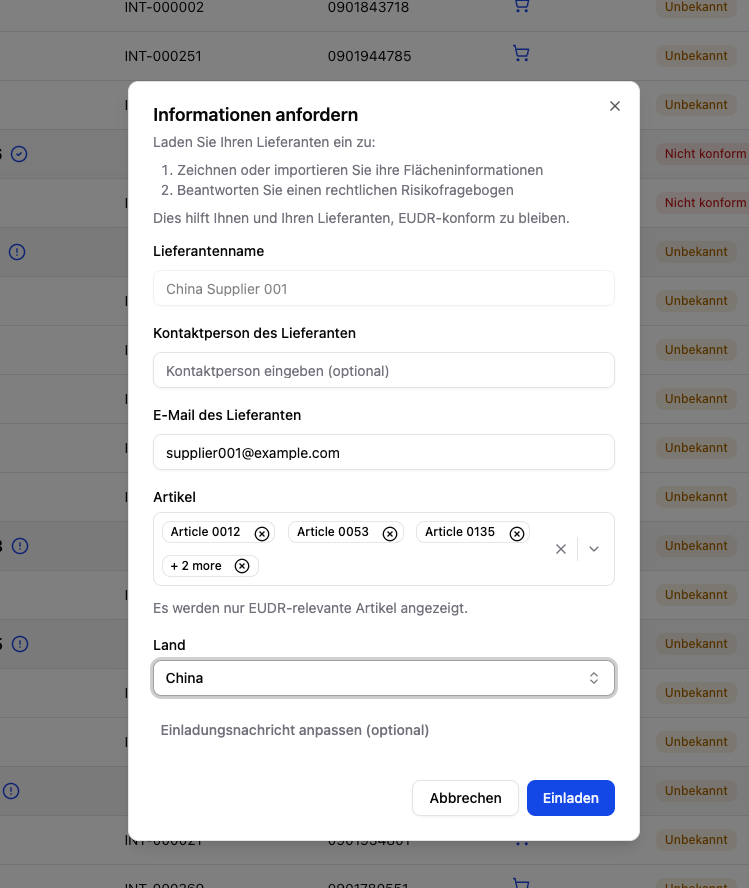
Click “Request information” or “Invite supplier”. Select the EUDR-relevant articles for which data is needed. Optionally, you can add a personal message.
Invitation dialog with article selection and personal message
3
The supplier receives an email
The supplier receives an email with a secure link to the supplier portal. No separate account is required. If you have stored additional contacts on the supplier, those addresses are copied in — see Managing suppliers.
4
Data provision
The supplier provides geodata, documents, and legal information through the workspace and can return later to supply any missing content.
5
Automatic analysis
As soon as data is submitted, Polygon One automatically performs an analysis (satellite imagery evaluation, document validation).
Keep the email address on file current: once a supplier has submitted something, changing it requires a one-time code sent to exactly that address — see Supplier view → One-time code and security contact.
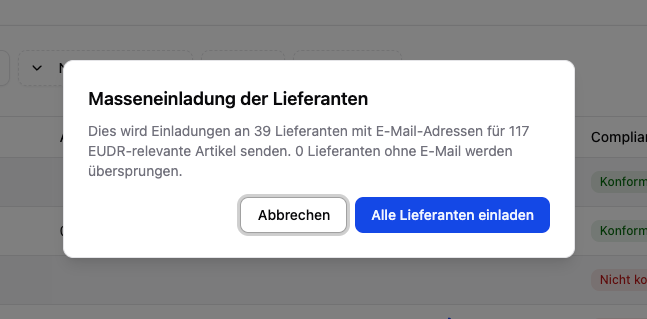
Using the “Invite all suppliers” function, you can invite all suppliers with an email address at the same time. Suppliers without an email are automatically skipped.
Bulk invitation — invite multiple suppliers at once
In the supplier portal, your suppliers go through the following steps:
1. General information
Company name and the supplier’s country or address.
2. Geodata (production locations)
Production locations are specified for each article:
Select the production country
Specify the name of the raw material producer
Draw the areas on the interactive map, upload them as a file (GeoJSON, CSV, Excel), enter coordinates directly, or have them read out of a certificate
Details for the drawn production sites (production period, scientific name of the raw material, etc.)
3. Sub-suppliers (optional)
If the supplier sources materials from additional sub-suppliers, they can invite them in the portal. Incoming articles are recorded with an article number and an HS code; the HS code is mandatory — without it the hand-off cannot be created, because it decides whether the input material is in scope of the EUDR.
Incoming articles are automatically linked to the article you imported, so that the supply chain remains traceable upstream.
4. Legal compliance
A comprehensive questionnaire covering:
Land use rights & ownership
Environmental & nature conservation laws
Forestry law & timber use (for wood products)
Rights of third parties & indigenous communities
Labor & human rights
Tax, trade & customs regulations
Anti-corruption measures
Evidence documents can be uploaded for each category.
Two further steps follow:
Entities in the supply chain — the supplier declares every organisation involved; without that, no certificate issued to a producer or processor rather than to the supplier can be accepted. You confirm the declarations via the row action “Supply-chain parties” in the supplier list.
Material that needs no geo data — material already covered by another operator’s due diligence statement, and post-consumer recycled material, need no plots; see Inbound DDS.
Via the invitation link, the supplier opens the EUDR data request form — without their own user account. The form is divided into several sections:
General information: company name, address, and country
Geo data: draw the production areas for each requested article, upload them as a file, type in coordinates, or have them read out of a certificate — alternatively declare an upstream DDS reference or a recycled share
Sub-suppliers (optional): invite additional sub-suppliers by email
Legal questionnaire: answer country-specific compliance questions and upload evidence documents
The supplier can reopen the link while it remains valid to provide missing data or update their information.
If a required document does not exist in their country at all, the supplier can state that instead of uploading — with a mandatory reason. The statement reaches you as a card in the compliance gaps view, where you accept or reject it. Accepting does not satisfy the requirement; see Risk Mitigation.
Plot Import & Review Workflow
The supplier upload uses the same technical review workflow as your own plot import, but with stricter supplier rules.
For suppliers from FLEGT VPA countries who supply wood products, there is a shortcut: if a valid FLEGT license is available, the detailed legal questionnaire can be skipped. The license can be uploaded directly when inviting the supplier.
Suppliers can also upload sustainability certifications (e.g. FSC, PEFC, ISCC, Rainforest Alliance, RSPO, Fairtrade). The system automatically analyzes which compliance categories are covered as a result.
Your suppliers have an AI assistant available in the EUDR form that answers questions about their specific request — it sees only the data of that one invitation, is read-only, and makes no compliance decision. For step-by-step instructions, use the supplier guide. It is not shown on partner-branded portals.
When a supplier gets stuck, pointing them at the supplier guide is usually faster than explaining it yourself — it is available in five languages.
Step-by-step guide from the supplier’s perspective when completing the EUDR data request.
{"docsConfig":{"theme":"mint","$schema":"https://mintlify.com/docs.json","name":"Polygon One Helpcenter","colors":{"primary":"#15803D","light":"#07C983","dark":"#15803D"},"logo":{"light":"https://mintcdn.com/polygonone/AMoRp9VbcW46gNsT/logo/light.svg?fit=max\u0026auto=format\u0026n=AMoRp9VbcW46gNsT\u0026q=85\u0026s=4a316da81d50e49c7f9f6480a235558e","dark":"https://mintcdn.com/polygonone/AMoRp9VbcW46gNsT/logo/dark.svg?fit=max\u0026auto=format\u0026n=AMoRp9VbcW46gNsT\u0026q=85\u0026s=2f010ff600ff4880f154678933ee7214"},"favicon":"https://mintcdn.com/polygonone/ySkQMGGRhMNkPSTt/favicon.svg?fit=max\u0026auto=format\u0026n=ySkQMGGRhMNkPSTt\u0026q=85\u0026s=90cbe4fd3ee2dbffcb8de6167a8d47f3","api":{"playground":{"display":"simple"}},"navbar":{"links":[{"href":"mailto:help@polygon-one.eu","label":"Support"}],"primary":{"type":"button","label":"App","href":"https://app.polygon-one.com/"}},"footer":{"socials":{"website":"https://polygon-one.com"}},"search":{"prompt":"Suche..."},"integrations":{"posthog":{"apiKey":"phc_uKa9gMArvxxjzGfYWUWS4YLP7yT7gPETBzA3ktR7mUTD","apiHost":"https://eu.i.posthog.com","sessionRecording":false}},"contextual":{"options":["copy","view","chatgpt","claude","perplexity","mcp","cursor","vscode"],"display":"header"},"styling":{"latex":false},"navigation":{"global":{"anchors":[]},"languages":[{"language":"de","default":true,"href":""},{"language":"en","href":"en"},{"language":"fr","href":"fr/lieferanten/start"},{"language":"es","href":"es/lieferanten/start"},{"language":"zh","href":"zh/lieferanten/start"}]}},"deployment":{"deploymentMetadataValue":{"subdomain":"polygonone","hasAudioNarration":false,"actualSubdomain":"polygonone","customDomains":["help.polygon-one.com"],"gitSource":{"type":"github","owner":"polygon-one","repo":"docs","deployBranch":"main","contentDirectory":"","isPrivate":true,"mountPath":"","label":""},"chroma":{"liveDeploymentHistoryId":"6ae0b07ed03bec028f0a63ad","collectionId":"0d95f0d6-0f41-4003-828c-a1abdfd66982","schemaVersion":"v3","latestBuiltDeploymentHistoryId":"6ae0b07ed03bec028f0a63ad"},"entitlements":{},"buildId":"6ae0b07ed03bec028f0a63ad","clientVersion":"0.0.3971","searchFilterCounts":[{"language":"de","tag":"API-Referenz","count":62},{"language":"en","tag":"API Reference","count":62},{"language":"de","tag":"EUDR","count":53},{"language":"en","tag":"EUDR","count":53},{"language":"de","tag":"Für Lieferanten","count":28},{"language":"en","tag":"For suppliers","count":28},{"language":"es","tag":"Para proveedores","count":28},{"language":"fr","tag":"Pour les fournisseurs","count":28},{"language":"zh","tag":"供应商帮助","count":28},{"language":"de","tag":"PPWR","count":25},{"language":"en","tag":"PPWR","count":25},{"language":"de","tag":"API-Dokumentation","count":10},{"language":"en","tag":"API Documentation","count":10},{"language":"de","tag":"PPWR – Verpackungsdaten","count":9},{"language":"de","tag":"Ihr Datenformat","count":9},{"language":"en","tag":"PPWR – Packaging Data","count":9},{"language":"en","tag":"Your data format","count":9},{"language":"es","tag":"Su formato de datos","count":9},{"language":"fr","tag":"Votre format de données","count":9},{"language":"zh","tag":"数据格式指南","count":9},{"language":"de","tag":"Datensammlung (Art. 9 EUDR)","count":8},{"language":"de","tag":"DDS \u0026 Bestellungen (Art. 3 EUDR)","count":8},{"language":"de","tag":"Optional","count":8},{"language":"en","tag":"Data Collection (Art. 9 EUDR)","count":8},{"language":"en","tag":"DDS \u0026 Orders (Art. 3 EUDR)","count":8},{"language":"en","tag":"Optional","count":8},{"language":"es","tag":"Solicitud EUDR","count":7},{"language":"fr","tag":"Demande EUDR","count":7},{"language":"zh","tag":"EUDR 请求","count":7},{"language":"es","tag":"Espacio del proveedor","count":4},{"language":"es","tag":"Solicitud PPWR","count":4},{"language":"fr","tag":"Espace fournisseur","count":4},{"language":"fr","tag":"Demande PPWR","count":4},{"language":"zh","tag":"供应商工作区","count":4},{"language":"zh","tag":"PPWR 请求","count":4},{"language":"es","tag":"Resolver un problema","count":3},{"language":"fr","tag":"Résoudre un problème","count":3},{"language":"zh","tag":"更正、审核和状态","count":3},{"language":"es","tag":"Empiece aquí","count":1},{"language":"fr","tag":"Commencer ici","count":1},{"language":"zh","tag":"从这里开始","count":1}]},"assistantConfig":{"enableAskAiButton":false,"enableStarterQuestions":false,"enableAskAiSearchBar":true},"basePath":"","hasChatPermissions":false,"hasWebMcpPermissions":false,"toggles":[{"name":"kill-isr","enabled":true,"variant":{"name":"disabled","enabled":false,"feature_enabled":true},"impressionData":false},{"name":"agent-mintlify-slack","enabled":true,"variant":{"name":"disabled","enabled":false,"feature_enabled":true},"impressionData":false},{"name":"editor-v7-file-tree","enabled":true,"variant":{"name":"disabled","enabled":false,"feature_enabled":true},"impressionData":false},{"name":"agent-integrations-settings","enabled":true,"variant":{"name":"disabled","enabled":false,"feature_enabled":true},"impressionData":false},{"name":"automations-pr-grouping","enabled":true,"variant":{"name":"disabled","enabled":false,"feature_enabled":true},"impressionData":false},{"name":"custom-prefix","enabled":true,"variant":{"name":"disabled","enabled":false,"feature_enabled":true},"impressionData":false},{"name":"analytics-v7","enabled":true,"variant":{"name":"disabled","enabled":false,"feature_enabled":true},"impressionData":false},{"name":"user-flows-analytics","enabled":true,"variant":{"name":"disabled","enabled":false,"feature_enabled":true},"impressionData":false},{"name":"no-publish-flow","enabled":true,"variant":{"name":"disabled","enabled":false,"feature_enabled":true},"impressionData":false},{"name":"workos-onboarding","enabled":true,"variant":{"name":"disabled","enabled":false,"feature_enabled":true},"impressionData":false},{"name":"llms-txt-v2","enabled":true,"variant":{"name":"disabled","enabled":false,"feature_enabled":true},"impressionData":false},{"name":"pause-universal-search-reconcile","enabled":true,"variant":{"name":"disabled","enabled":false,"feature_enabled":true},"impressionData":false},{"name":"snapshot-serving-live","enabled":true,"variant":{"name":"disabled","enabled":false,"feature_enabled":true},"impressionData":false},{"name":"stripTemperatureMiddleware","enabled":true,"variant":{"name":"disabled","enabled":false,"feature_enabled":true},"impressionData":false},{"name":"per-site-search-delta","enabled":true,"variant":{"name":"disabled","enabled":false,"feature_enabled":true},"impressionData":false},{"name":"support-platform-pylon-zendesk","enabled":true,"variant":{"name":"disabled","enabled":false,"feature_enabled":true},"impressionData":false},{"name":"snapshot-serving","enabled":true,"variant":{"name":"disabled","enabled":false,"feature_enabled":true},"impressionData":false},{"name":"instant-rollback","enabled":true,"variant":{"name":"disabled","enabled":false,"feature_enabled":true},"impressionData":false},{"name":"granular-notifications-server","enabled":true,"variant":{"name":"disabled","enabled":false,"feature_enabled":true},"impressionData":false},{"name":"granular-notifications","enabled":true,"variant":{"name":"disabled","enabled":false,"feature_enabled":true},"impressionData":false},{"name":"editor-private-page-search","enabled":true,"variant":{"name":"disabled","enabled":false,"feature_enabled":true},"impressionData":false},{"name":"automations-fable","enabled":true,"variant":{"name":"disabled","enabled":false,"feature_enabled":true},"impressionData":false},{"name":"fixed-ai-action-pricing","enabled":true,"variant":{"name":"disabled","enabled":false,"feature_enabled":true},"impressionData":false},{"name":"automation-resolve-merge-conflict","enabled":true,"variant":{"name":"disabled","enabled":false,"feature_enabled":true},"impressionData":false},{"name":"scoped-publishing","enabled":true,"variant":{"name":"disabled","enabled":false,"feature_enabled":true},"impressionData":false},{"name":"mintql","enabled":true,"variant":{"name":"disabled","enabled":false,"feature_enabled":true},"impressionData":false},{"name":"page-level-analytics","enabled":true,"variant":{"name":"disabled","enabled":false,"feature_enabled":true},"impressionData":false},{"name":"editor-version-history-v2","enabled":true,"variant":{"name":"disabled","enabled":false,"feature_enabled":true},"impressionData":false},{"name":"editor-nav-generations","enabled":true,"variant":{"name":"disabled","enabled":false,"feature_enabled":true},"impressionData":false},{"name":"billing-page-v2","enabled":true,"variant":{"name":"disabled","enabled":false,"feature_enabled":true},"impressionData":false},{"name":"workspace-projects","enabled":true,"variant":{"name":"disabled","enabled":false,"feature_enabled":true},"impressionData":false},{"name":"assistant-v5","enabled":true,"variant":{"name":"disabled","enabled":false,"feature_enabled":true},"impressionData":false},{"name":"byok-sep-25","enabled":true,"variant":{"name":"disabled","enabled":false,"feature_enabled":true},"impressionData":false},{"name":"fork-pr-previews","enabled":true,"variant":{"name":"disabled","enabled":false,"feature_enabled":true},"impressionData":false},{"name":"revalidation-jwt","enabled":true,"variant":{"name":"disabled","enabled":false,"feature_enabled":true},"impressionData":false},{"name":"vite-origin","enabled":true,"variant":{"name":"disabled","enabled":false,"feature_enabled":true},"impressionData":false},{"name":"editor-agent-model-picker","enabled":true,"variant":{"name":"disabled","enabled":false,"feature_enabled":true},"impressionData":false},{"name":"billing-updated-9-15","enabled":true,"variant":{"name":"disabled","enabled":false,"feature_enabled":true},"impressionData":false},{"name":"workos-sso-scim","enabled":true,"variant":{"name":"disabled","enabled":false,"feature_enabled":true},"impressionData":false},{"name":"hobby-abuse-scan","enabled":true,"variant":{"name":"disabled","enabled":false,"feature_enabled":true},"impressionData":false},{"name":"dashboard-inbox","enabled":true,"variant":{"name":"disabled","enabled":false,"feature_enabled":true},"impressionData":false},{"name":"workos-signup","enabled":true,"variant":{"name":"disabled","enabled":false,"feature_enabled":true},"impressionData":false},{"name":"workos-enabled","enabled":true,"variant":{"name":"disabled","enabled":false,"feature_enabled":true},"impressionData":false}],"isAtlas":false,"googleFontsInlined":false},"customCss":[{"filePath":"style.css","content":"html:has(#content[data-page-href$=\"/lieferanten/start\"]) #pagination,html:has(#content[data-page-href*=\"/lieferanten/\"]) #mobile-nav #navigation-items>div:has(>#localization-select-trigger)>div:has(>button[aria-haspopup=menu]),html:has(#content[data-page-href*=\"/lieferanten/\"]) #navbar div:has(>div>a[href$=\"/lieferanten/start\"]),html:has(#content[data-page-href*=\"/lieferanten/\"]) #navbar li:has(>a[href=\"https://app.polygon-one.com/\"]),html:has(#content[data-page-href*=\"/lieferanten/\"]) [role=dialog] li:has(>a[href=\"https://app.polygon-one.com/\"]){display:none!important}"}],"page":{"pagePath":"en/eudr/datensammlung/supplier-onboarding","slug":"/en/eudr/datensammlung/supplier-onboarding","pageMetadata":{"title":"Supplier Onboarding","description":"Invite suppliers and request information","icon":"users","href":"/en/eudr/datensammlung/supplier-onboarding"},"description":{"compiledSource":"\"use strict\";\nconst {jsx: _jsx} = arguments[0];\nconst {useMDXComponents: _provideComponents} = arguments[0];\nfunction _createMdxContent(props) {\n const _components = {\n p: \"p\",\n ..._provideComponents(),\n ...props.components\n };\n return _jsx(_components.p, {\n children: \"Invite suppliers and request information\"\n });\n}\nfunction MDXContent(props = {}) {\n const {wrapper: MDXLayout} = {\n ..._provideComponents(),\n ...props.components\n };\n return MDXLayout ? _jsx(MDXLayout, {\n ...props,\n children: _jsx(_createMdxContent, {\n ...props\n })\n }) : _createMdxContent(props);\n}\nreturn {\n default: MDXContent\n};\n","frontmatter":{},"scope":{}},"pageType":"default","mdx":{"mdxSource":{"compiledSource":"\"use strict\";const{Fragment:_Fragment,jsx:_jsx,jsxs:_jsxs}=arguments[0];const{useMDXComponents:_provideComponents}=arguments[0];function _createMdxContent(props){const _components={a:`a`,li:`li`,p:`p`,strong:`strong`,ul:`ul`,..._provideComponents(),...props.components},{Accordion,AccordionGroup,Card,Frame,Heading,Info,Note,OptimizedImage,Step,Steps,Tip}=_components;if(!Accordion)_missingMdxReference(`Accordion`,true);if(!AccordionGroup)_missingMdxReference(`AccordionGroup`,true);if(!Card)_missingMdxReference(`Card`,true);if(!Frame)_missingMdxReference(`Frame`,true);if(!Heading)_missingMdxReference(`Heading`,true);if(!Info)_missingMdxReference(`Info`,true);if(!Note)_missingMdxReference(`Note`,true);if(!OptimizedImage)_missingMdxReference(`OptimizedImage`,true);if(!Step)_missingMdxReference(`Step`,true);if(!Steps)_missingMdxReference(`Steps`,true);if(!Tip)_missingMdxReference(`Tip`,true);return _jsxs(_Fragment,{children:[_jsx(Heading,{level:`2`,id:`overview`,children:`Overview`}),`\n`,_jsxs(_components.p,{children:[`If you do not have the required evidence on hand yourself, you can invite your suppliers directly through Polygon One. Suppliers receive secure access to a `,_jsx(_components.strong,{children:`supplier portal workspace`}),` without having to create their own account.`]}),`\n`,_jsx(Heading,{level:`2`,id:`the-invitation-process`,children:`The Invitation Process`}),`\n`,_jsxs(Steps,{children:[_jsx(Step,{title:`Identify the supplier`,children:_jsx(_components.p,{children:`In the compliance dashboard, identify the supplier or the articles for which data is missing.`})}),_jsxs(Step,{title:`Send the invitation`,children:[_jsxs(_components.p,{children:[`Click `,_jsx(_components.strong,{children:`“Request information”`}),` or `,_jsx(_components.strong,{children:`“Invite supplier”`}),`. Select the EUDR-relevant articles for which data is needed. Optionally, you can add a personal message.`]}),_jsx(Frame,{caption:`Invitation dialog with article selection and personal message`,children:_jsx(OptimizedImage,{src:`https://mintcdn.com/polygonone/_SsU3tTjFG0HMvPa/images/helpcenter/datensammlung/supplier-onboarding-einladen.png?fit=max\u0026auto=format\u0026n=_SsU3tTjFG0HMvPa\u0026q=85\u0026s=b6e97dbe3db100ac3ee743a05866c794`,\"data-og-width\":`749`,width:`749`,\"data-og-height\":`888`,height:`888`,\"data-path\":`images/helpcenter/datensammlung/supplier-onboarding-einladen.png`,\"data-optimize\":`true`,\"data-opv\":`3`,srcset:`https://mintcdn.com/polygonone/_SsU3tTjFG0HMvPa/images/helpcenter/datensammlung/supplier-onboarding-einladen.png?w=280\u0026fit=max\u0026auto=format\u0026n=_SsU3tTjFG0HMvPa\u0026q=85\u0026s=b0f267ca0b28770c6ced73861560e72f 280w, https://mintcdn.com/polygonone/_SsU3tTjFG0HMvPa/images/helpcenter/datensammlung/supplier-onboarding-einladen.png?w=560\u0026fit=max\u0026auto=format\u0026n=_SsU3tTjFG0HMvPa\u0026q=85\u0026s=2023d4ce3e50e77a70a39f4cde8b4369 560w, https://mintcdn.com/polygonone/_SsU3tTjFG0HMvPa/images/helpcenter/datensammlung/supplier-onboarding-einladen.png?w=840\u0026fit=max\u0026auto=format\u0026n=_SsU3tTjFG0HMvPa\u0026q=85\u0026s=c05ef8fca4da1abd2d6c9d18d9a52387 840w, https://mintcdn.com/polygonone/_SsU3tTjFG0HMvPa/images/helpcenter/datensammlung/supplier-onboarding-einladen.png?w=1100\u0026fit=max\u0026auto=format\u0026n=_SsU3tTjFG0HMvPa\u0026q=85\u0026s=73ab51f26c03bec7a707ccb352ddf69d 1100w, https://mintcdn.com/polygonone/_SsU3tTjFG0HMvPa/images/helpcenter/datensammlung/supplier-onboarding-einladen.png?w=1650\u0026fit=max\u0026auto=format\u0026n=_SsU3tTjFG0HMvPa\u0026q=85\u0026s=849a2026fc354f41eb45ce9c87df8f0f 1650w, https://mintcdn.com/polygonone/_SsU3tTjFG0HMvPa/images/helpcenter/datensammlung/supplier-onboarding-einladen.png?w=2500\u0026fit=max\u0026auto=format\u0026n=_SsU3tTjFG0HMvPa\u0026q=85\u0026s=078b5164e5e3cc2d9246ec3b7ef47a40 2500w`})})]}),_jsx(Step,{title:`The supplier receives an email`,children:_jsxs(_components.p,{children:[`The supplier receives an email with a `,_jsx(_components.strong,{children:`secure link`}),` to the supplier portal. No separate account is required. If you have stored `,_jsx(_components.strong,{children:`additional contacts`}),` on the supplier, those addresses are copied in — see `,_jsx(_components.a,{href:`/en/eudr/datenhaltung/lieferanten`,children:`Managing suppliers`}),`.`]})}),_jsx(Step,{title:`Data provision`,children:_jsx(_components.p,{children:`The supplier provides geodata, documents, and legal information through the workspace and can return later to supply any missing content.`})}),_jsx(Step,{title:`Automatic analysis`,children:_jsx(_components.p,{children:`As soon as data is submitted, Polygon One automatically performs an analysis (satellite imagery evaluation, document validation).`})})]}),`\n`,_jsx(Info,{children:_jsxs(_components.p,{children:[`Keep the email address on file current: once a supplier has submitted something, changing it requires a one-time code sent to exactly that address — see `,_jsx(_components.a,{href:`/en/eudr/lieferantenansicht#one-time-code-and-security-contact`,children:`Supplier view → One-time code and security contact`}),`.`]})}),`\n`,_jsx(Heading,{level:`2`,id:`bulk-invitation`,children:`Bulk Invitation`}),`\n`,_jsx(Info,{children:_jsxs(_components.p,{children:[`Using the `,_jsx(_components.strong,{children:`“Invite all suppliers”`}),` function, you can invite all suppliers with an email address at the same time. Suppliers without an email are automatically skipped.`]})}),`\n`,_jsx(Frame,{caption:`Bulk invitation — invite multiple suppliers at once`,children:_jsx(OptimizedImage,{src:`https://mintcdn.com/polygonone/_SsU3tTjFG0HMvPa/images/helpcenter/datensammlung/supplier-onboarding-masseneinladung.png?fit=max\u0026auto=format\u0026n=_SsU3tTjFG0HMvPa\u0026q=85\u0026s=a9f35ac68869c10f6eab1a63ae3e2f4b`,\"data-og-width\":`647`,width:`647`,\"data-og-height\":`319`,height:`319`,\"data-path\":`images/helpcenter/datensammlung/supplier-onboarding-masseneinladung.png`,\"data-optimize\":`true`,\"data-opv\":`3`,srcset:`https://mintcdn.com/polygonone/_SsU3tTjFG0HMvPa/images/helpcenter/datensammlung/supplier-onboarding-masseneinladung.png?w=280\u0026fit=max\u0026auto=format\u0026n=_SsU3tTjFG0HMvPa\u0026q=85\u0026s=4cc0ae7a2a9deee2232021ddcca35fd2 280w, https://mintcdn.com/polygonone/_SsU3tTjFG0HMvPa/images/helpcenter/datensammlung/supplier-onboarding-masseneinladung.png?w=560\u0026fit=max\u0026auto=format\u0026n=_SsU3tTjFG0HMvPa\u0026q=85\u0026s=bdaae0eeaed034e02e9a5f505e1bfe50 560w, https://mintcdn.com/polygonone/_SsU3tTjFG0HMvPa/images/helpcenter/datensammlung/supplier-onboarding-masseneinladung.png?w=840\u0026fit=max\u0026auto=format\u0026n=_SsU3tTjFG0HMvPa\u0026q=85\u0026s=26a6fcb134d8e5426bad7adcafe59809 840w, https://mintcdn.com/polygonone/_SsU3tTjFG0HMvPa/images/helpcenter/datensammlung/supplier-onboarding-masseneinladung.png?w=1100\u0026fit=max\u0026auto=format\u0026n=_SsU3tTjFG0HMvPa\u0026q=85\u0026s=a23cfc629f4402a0439b6d54e4e7b3e1 1100w, https://mintcdn.com/polygonone/_SsU3tTjFG0HMvPa/images/helpcenter/datensammlung/supplier-onboarding-masseneinladung.png?w=1650\u0026fit=max\u0026auto=format\u0026n=_SsU3tTjFG0HMvPa\u0026q=85\u0026s=65e998306f3ebe13063146975a94994e 1650w, https://mintcdn.com/polygonone/_SsU3tTjFG0HMvPa/images/helpcenter/datensammlung/supplier-onboarding-masseneinladung.png?w=2500\u0026fit=max\u0026auto=format\u0026n=_SsU3tTjFG0HMvPa\u0026q=85\u0026s=34a35f4b44aecab74d396f095d815f2a 2500w`})}),`\n`,_jsx(Heading,{level:`2`,id:`what-suppliers-provide-in-the-portal`,children:`What Suppliers Provide in the Portal`}),`\n`,_jsx(_components.p,{children:`In the supplier portal, your suppliers go through the following steps:`}),`\n`,_jsxs(AccordionGroup,{children:[_jsx(Accordion,{title:`1. General information`,icon:`building`,id:`1-general-information`,children:_jsx(_components.p,{children:`Company name and the supplier’s country or address.`})}),_jsxs(Accordion,{title:`2. Geodata (production locations)`,icon:`map-location-dot`,id:`2-geodata-production-locations`,children:[_jsx(_components.p,{children:`Production locations are specified for each article:`}),_jsxs(_components.ul,{children:[`\n`,_jsxs(_components.li,{children:[`Select the `,_jsx(_components.strong,{children:`production country`})]}),`\n`,_jsxs(_components.li,{children:[`Specify the `,_jsx(_components.strong,{children:`name of the raw material producer`})]}),`\n`,_jsxs(_components.li,{children:[_jsx(_components.strong,{children:`Draw the areas on the interactive map`}),`, upload them as a file (GeoJSON, CSV, Excel), `,_jsx(_components.strong,{children:`enter coordinates directly`}),`, or have them read out of a `,_jsx(_components.strong,{children:`certificate`})]}),`\n`,_jsx(_components.li,{children:`Details for the drawn production sites (production period, scientific name of the raw material, etc.)`}),`\n`]})]}),_jsx(Accordion,{title:`3. Sub-suppliers (optional)`,icon:`users`,id:`3-sub-suppliers-optional`,children:_jsxs(_components.p,{children:[`If the supplier sources materials from additional sub-suppliers, they can invite them in the portal. Incoming articles are recorded with an article number and an `,_jsx(_components.strong,{children:`HS code`}),`; the `,_jsx(_components.strong,{children:`HS code is mandatory`}),` — without it the hand-off cannot be created, because it decides whether the input material is in scope of the EUDR.\nIncoming articles are automatically linked to the article you imported, so that the supply chain remains traceable upstream.`]})}),_jsxs(Accordion,{title:`4. Legal compliance`,icon:`file-contract`,id:`4-legal-compliance`,children:[_jsx(_components.p,{children:`A comprehensive questionnaire covering:`}),_jsxs(_components.ul,{children:[`\n`,_jsx(_components.li,{children:`Land use rights \u0026 ownership`}),`\n`,_jsx(_components.li,{children:`Environmental \u0026 nature conservation laws`}),`\n`,_jsx(_components.li,{children:`Forestry law \u0026 timber use (for wood products)`}),`\n`,_jsx(_components.li,{children:`Rights of third parties \u0026 indigenous communities`}),`\n`,_jsx(_components.li,{children:`Labor \u0026 human rights`}),`\n`,_jsx(_components.li,{children:`Tax, trade \u0026 customs regulations`}),`\n`,_jsx(_components.li,{children:`Anti-corruption measures`}),`\n`]}),_jsx(_components.p,{children:`Evidence documents can be uploaded for each category.`})]})]}),`\n`,_jsx(_components.p,{children:`Two further steps follow:`}),`\n`,_jsxs(_components.ul,{children:[`\n`,_jsxs(_components.li,{children:[_jsx(_components.strong,{children:`Entities in the supply chain`}),` — the supplier declares every organisation involved; without that, no certificate issued to a producer or processor rather than to the supplier can be accepted. You confirm the declarations via the row action `,_jsx(_components.strong,{children:`“Supply-chain parties”`}),` in the supplier list.`]}),`\n`,_jsxs(_components.li,{children:[_jsx(_components.strong,{children:`Material that needs no geo data`}),` — material already covered by another operator’s due diligence statement, and `,_jsx(_components.strong,{children:`post-consumer recycled material`}),`, need no plots; see `,_jsx(_components.a,{href:`/en/eudr/dds-bestellungen/dds-eingehend`,children:`Inbound DDS`}),`.`]}),`\n`]}),`\n`,_jsx(Heading,{level:`2`,id:`what-the-supplier-completes`,children:`What the Supplier Completes`}),`\n`,_jsx(_components.p,{children:`Via the invitation link, the supplier opens the EUDR data request form — without their own user account. The form is divided into several sections:`}),`\n`,_jsxs(_components.ul,{children:[`\n`,_jsxs(_components.li,{children:[_jsx(_components.strong,{children:`General information`}),`: company name, address, and country`]}),`\n`,_jsxs(_components.li,{children:[_jsx(_components.strong,{children:`Geo data`}),`: draw the production areas for each requested article, upload them as a file, type in coordinates, or have them read out of a certificate — alternatively declare an upstream DDS reference or a recycled share`]}),`\n`,_jsxs(_components.li,{children:[_jsx(_components.strong,{children:`Sub-suppliers`}),` (optional): invite additional sub-suppliers by email`]}),`\n`,_jsxs(_components.li,{children:[_jsx(_components.strong,{children:`Legal questionnaire`}),`: answer country-specific compliance questions and upload evidence documents`]}),`\n`]}),`\n`,_jsx(_components.p,{children:`The supplier can reopen the link while it remains valid to provide missing data or update their information.`}),`\n`,_jsx(Note,{children:_jsxs(_components.p,{children:[_jsx(_components.strong,{children:`If a required document does not exist in their country at all`}),`, the supplier can state that instead of uploading — with a mandatory reason. The statement reaches you as a card in the compliance gaps view, where you accept or reject it. Accepting does `,_jsx(_components.strong,{children:`not`}),` satisfy the requirement; see `,_jsx(_components.a,{href:`/en/eudr/datensammlung/risiko-behebung#when-the-supplier-says-the-document-does-not-exist`,children:`Risk Mitigation`}),`.`]})}),`\n`,_jsx(Card,{title:`Plot Import \u0026 Review Workflow`,icon:`upload`,href:`/en/eudr/datensammlung/parzellenimport-pruefung`,children:_jsx(_components.p,{children:`The supplier upload uses the same technical review workflow as your own plot import, but with stricter supplier rules.`})}),`\n`,_jsx(Heading,{level:`2`,id:`flegt-license-shortcut`,children:`FLEGT License Shortcut`}),`\n`,_jsx(Tip,{children:_jsxs(_components.p,{children:[`For suppliers from FLEGT VPA countries who supply wood products, there is a shortcut: if a valid `,_jsx(_components.strong,{children:`FLEGT license`}),` is available, the detailed legal questionnaire can be skipped. The license can be uploaded directly when inviting the supplier.`]})}),`\n`,_jsx(Heading,{level:`2`,id:`sustainability-certifications`,children:`Sustainability Certifications`}),`\n`,_jsx(_components.p,{children:`Suppliers can also upload sustainability certifications (e.g. FSC, PEFC, ISCC, Rainforest Alliance, RSPO, Fairtrade). The system automatically analyzes which compliance categories are covered as a result.`}),`\n`,_jsx(Heading,{level:`2`,id:`help-inside-the-form`,children:`Help Inside the Form`}),`\n`,_jsxs(_components.p,{children:[`Your suppliers have an `,_jsx(_components.strong,{children:`AI assistant`}),` available in the EUDR form that answers questions about their specific request — it sees only the data of that one invitation, is read-only, and makes `,_jsx(_components.strong,{children:`no`}),` compliance decision. For step-by-step instructions, use the `,_jsx(_components.a,{href:`/en/lieferanten/eudr`,children:`supplier guide`}),`. It is not shown on partner-branded portals.`]}),`\n`,_jsx(Tip,{children:_jsxs(_components.p,{children:[`When a supplier gets stuck, pointing them at the `,_jsx(_components.a,{href:`/en/lieferanten/eudr`,children:`supplier guide`}),` is usually faster than explaining it yourself — it is available in five languages.`]})}),`\n`,_jsx(Heading,{level:`2`,id:`detailed-help-on-the-supplier-view`,children:`Detailed Help on the Supplier View`}),`\n`,_jsx(Card,{title:`Supplier View`,icon:`eye`,href:`/en/eudr/lieferantenansicht`,children:_jsx(_components.p,{children:`Step-by-step guide from the supplier’s perspective when completing the EUDR data request.`})})]})}function MDXContent(props={}){const{wrapper:MDXLayout}={..._provideComponents(),...props.components};return MDXLayout?_jsx(MDXLayout,{...props,children:_jsx(_createMdxContent,{...props})}):_createMdxContent(props)}return{default:MDXContent};function _missingMdxReference(id,component){throw new Error(`Expected `+(component?`component`:`object`)+\" `\"+id+\"` to be defined: you likely forgot to import, pass, or provide it.\")}","frontmatter":{},"scope":{"config":{},"pageMetadata":{"title":"Supplier Onboarding","description":"Invite suppliers and request information","icon":"users","href":"/en/eudr/datensammlung/supplier-onboarding"}}},"mdxSourceWithNoJs":null},"mdxExtracts":{"tableOfContents":[{"title":"Overview","slug":"overview","depth":2,"children":[]},{"title":"The Invitation Process","slug":"the-invitation-process","depth":2,"children":[]},{"title":"Bulk Invitation","slug":"bulk-invitation","depth":2,"children":[]},{"title":"What Suppliers Provide in the Portal","slug":"what-suppliers-provide-in-the-portal","depth":2,"children":[]},{"title":"What the Supplier Completes","slug":"what-the-supplier-completes","depth":2,"children":[]},{"title":"FLEGT License Shortcut","slug":"flegt-license-shortcut","depth":2,"children":[]},{"title":"Sustainability Certifications","slug":"sustainability-certifications","depth":2,"children":[]},{"title":"Help Inside the Form","slug":"help-inside-the-form","depth":2,"children":[]},{"title":"Detailed Help on the Supplier View","slug":"detailed-help-on-the-supplier-view","depth":2,"children":[]}],"codeExamples":{}},"jsLinks":[],"subdomain":"polygonone","siteName":"Polygon One Helpcenter","title":"Supplier Onboarding - Polygon One Helpcenter","navMaps":{"firstHrefInVersion":{},"firstHrefInLanguage":{"de":{"href":"/de/eudr/datensammlung/supplier-onboarding","matchLevel":1},"en":{"href":"/en/eudr/datensammlung/supplier-onboarding","matchLevel":0},"fr":{"href":"/fr/lieferanten/start","matchLevel":4},"es":{"href":"/es/lieferanten/start","matchLevel":4},"zh":{"href":"/zh/lieferanten/start","matchLevel":4}}},"lastModified":"2026-10-13T18:08:02.833Z","originalFileLocation":"en/eudr/datensammlung/supplier-onboarding.mdx","locale":"en"},"headHtml":"\u003cscript data-mint-head>(function(){var d=document.documentElement,p=null;if(!p){try{p=localStorage.getItem(\"isDarkMode\")}catch(e){}if(p==='true')p='dark';else if(p==='false')p='light';if(p!=='light'\u0026\u0026p!=='dark'\u0026\u0026p!=='system')p=\"system\"}var r=p==='system'?(matchMedia(\"(prefers-color-scheme: dark)\").matches?'dark':'light'):p;d.classList.remove(r==='dark'?'light':'dark');d.classList.add(r);d.setAttribute(\"data-theme-preference\",p)})();\u003c/script>\u003cmeta data-mint-head name=\"description\" content=\"Invite suppliers and request information\">\u003cmeta data-mint-head name=\"application-name\" content=\"Polygon One Helpcenter\">\u003cmeta data-mint-head name=\"generator\" content=\"Mintlify\">\u003clink data-mint-head rel=\"icon\" type=\"image/png\" sizes=\"192x192\" href=\"/mintlify-assets/_mintlify/favicons/polygonone/32k2Y3_9P8MpmQgs/_generated/favicon/android-chrome-192x192.png\" media=\"(prefers-color-scheme: light)\">\u003clink data-mint-head rel=\"apple-touch-icon\" type=\"image/png\" sizes=\"180x180\" href=\"/mintlify-assets/_mintlify/favicons/polygonone/32k2Y3_9P8MpmQgs/_generated/favicon/apple-touch-icon.png\">\u003clink data-mint-head rel=\"icon\" type=\"image/png\" sizes=\"16x16\" href=\"/mintlify-assets/_mintlify/favicons/polygonone/32k2Y3_9P8MpmQgs/_generated/favicon/favicon-16x16.png\" media=\"(prefers-color-scheme: light)\">\u003clink data-mint-head rel=\"icon\" type=\"image/png\" sizes=\"32x32\" href=\"/mintlify-assets/_mintlify/favicons/polygonone/32k2Y3_9P8MpmQgs/_generated/favicon/favicon-32x32.png\" media=\"(prefers-color-scheme: light)\">\u003clink data-mint-head rel=\"shortcut icon\" type=\"image/x-icon\" href=\"/mintlify-assets/_mintlify/favicons/polygonone/32k2Y3_9P8MpmQgs/_generated/favicon/favicon.ico\" media=\"(prefers-color-scheme: light)\">\u003clink data-mint-head rel=\"icon\" type=\"image/png\" sizes=\"192x192\" href=\"/mintlify-assets/_mintlify/favicons/polygonone/32k2Y3_9P8MpmQgs/_generated/favicon-dark/android-chrome-192x192.png\" media=\"(prefers-color-scheme: dark)\">\u003clink data-mint-head rel=\"icon\" type=\"image/png\" sizes=\"16x16\" href=\"/mintlify-assets/_mintlify/favicons/polygonone/32k2Y3_9P8MpmQgs/_generated/favicon-dark/favicon-16x16.png\" media=\"(prefers-color-scheme: dark)\">\u003clink data-mint-head rel=\"icon\" type=\"image/png\" sizes=\"32x32\" href=\"/mintlify-assets/_mintlify/favicons/polygonone/32k2Y3_9P8MpmQgs/_generated/favicon-dark/favicon-32x32.png\" media=\"(prefers-color-scheme: dark)\">\u003clink data-mint-head rel=\"shortcut icon\" type=\"image/x-icon\" href=\"/mintlify-assets/_mintlify/favicons/polygonone/32k2Y3_9P8MpmQgs/_generated/favicon-dark/favicon.ico\" media=\"(prefers-color-scheme: dark)\">\u003cmeta data-mint-head property=\"og:title\" content=\"Supplier Onboarding - Polygon One Helpcenter\">\u003cmeta data-mint-head property=\"og:description\" content=\"Invite suppliers and request information\">\u003cmeta data-mint-head property=\"og:site_name\" content=\"Polygon One Helpcenter\">\u003cmeta data-mint-head property=\"og:url\" content=\"https://help.polygon-one.com/en/eudr/datensammlung/supplier-onboarding\">\u003cmeta data-mint-head property=\"og:type\" content=\"website\">\u003cmeta data-mint-head property=\"og:image\" content=\"https://polygonone.mintlify.app/_mintlify/api/og/v2?division=Data+Collection+%28Art.+9+EUDR%29\u0026amp;title=Supplier+Onboarding\u0026amp;description=Invite+suppliers+and+request+information\u0026amp;theme=0c175d962800f7cffd688852\u0026amp;signature=103e4c3ec049515eff1b457c858551f58bc7f9206cc2c53abaca95cf00f8c246\">\u003cmeta data-mint-head property=\"og:image:width\" content=\"1200\">\u003cmeta data-mint-head property=\"og:image:height\" content=\"630\">\u003cmeta data-mint-head name=\"twitter:card\" content=\"summary_large_image\">\u003cmeta data-mint-head name=\"twitter:title\" content=\"Supplier Onboarding - Polygon One Helpcenter\">\u003cmeta data-mint-head name=\"twitter:description\" content=\"Invite suppliers and request information\">\u003cmeta data-mint-head name=\"twitter:image\" content=\"https://polygonone.mintlify.app/_mintlify/api/og/v2?division=Data+Collection+%28Art.+9+EUDR%29\u0026amp;title=Supplier+Onboarding\u0026amp;description=Invite+suppliers+and+request+information\u0026amp;theme=0c175d962800f7cffd688852\u0026amp;signature=103e4c3ec049515eff1b457c858551f58bc7f9206cc2c53abaca95cf00f8c246\">\u003cmeta data-mint-head name=\"twitter:image:width\" content=\"1200\">\u003cmeta data-mint-head name=\"twitter:image:height\" content=\"630\">\u003cmeta data-mint-head name=\"msapplication-config\" content=\"/mintlify-assets/_mintlify/favicons/polygonone/32k2Y3_9P8MpmQgs/_generated/favicon/browserconfig.xml\">\u003cmeta data-mint-head name=\"apple-mobile-web-app-title\" content=\"Polygon One Helpcenter\">\u003cmeta data-mint-head name=\"msapplication-TileColor\" content=\"#15803D\">\u003clink data-mint-head rel=\"canonical\" href=\"https://help.polygon-one.com/en/eudr/datensammlung/supplier-onboarding\">\u003clink data-mint-head rel=\"alternate\" type=\"application/xml\" href=\"/sitemap.xml\">\u003clink data-mint-head rel=\"alternate\" type=\"text/markdown\" href=\"/en/eudr/datensammlung/supplier-onboarding.md\">\u003clink data-mint-head rel=\"alternate\" hreflang=\"en\" href=\"https://help.polygon-one.com/en/eudr/datensammlung/supplier-onboarding\">\u003clink data-mint-head rel=\"alternate\" hreflang=\"de\" href=\"https://help.polygon-one.com/de/eudr/datensammlung/supplier-onboarding\">\u003clink data-mint-head rel=\"alternate\" hreflang=\"x-default\" href=\"https://help.polygon-one.com/de/eudr/datensammlung/supplier-onboarding\">\u003cscript data-mint-head type=\"application/ld+json\">{\"@context\":\"https://schema.org\",\"@graph\":[{\"@type\":\"Organization\",\"@id\":\"https://help.polygon-one.com/#organization\",\"name\":\"Polygon One Helpcenter\",\"url\":\"https://help.polygon-one.com\",\"logo\":{\"@type\":\"ImageObject\",\"url\":\"https://mintcdn.com/polygonone/AMoRp9VbcW46gNsT/logo/light.svg?fit=max\u0026auto=format\u0026n=AMoRp9VbcW46gNsT\u0026q=85\u0026s=4a316da81d50e49c7f9f6480a235558e\"}},{\"@type\":\"WebSite\",\"@id\":\"https://help.polygon-one.com#website\",\"name\":\"Polygon One Helpcenter\",\"url\":\"https://help.polygon-one.com\",\"publisher\":{\"@id\":\"https://help.polygon-one.com/#organization\"}},{\"@type\":\"WebPage\",\"@id\":\"https://help.polygon-one.com/en/eudr/datensammlung/supplier-onboarding#webpage\",\"url\":\"https://help.polygon-one.com/en/eudr/datensammlung/supplier-onboarding\",\"name\":\"Supplier Onboarding\",\"description\":\"Invite suppliers and request information\",\"dateModified\":\"2026-10-13T18:08:02.833Z\",\"isPartOf\":{\"@id\":\"https://help.polygon-one.com#website\"},\"breadcrumb\":{\"@id\":\"https://help.polygon-one.com/en/eudr/datensammlung/supplier-onboarding#breadcrumb\"}},{\"@type\":\"BreadcrumbList\",\"@id\":\"https://help.polygon-one.com/en/eudr/datensammlung/supplier-onboarding#breadcrumb\",\"itemListElement\":[{\"@type\":\"ListItem\",\"position\":1,\"name\":\"Data Collection (Art. 9 EUDR)\",\"item\":\"https://help.polygon-one.com/en/eudr/datensammlung/uebersicht-art9\"},{\"@type\":\"ListItem\",\"position\":2,\"name\":\"Supplier Onboarding\",\"item\":\"https://help.polygon-one.com/en/eudr/datensammlung/supplier-onboarding\"}]},{\"@type\":[\"Article\",\"TechArticle\"],\"@id\":\"https://help.polygon-one.com/en/eudr/datensammlung/supplier-onboarding#article\",\"headline\":\"Supplier Onboarding\",\"name\":\"Supplier Onboarding\",\"description\":\"Invite suppliers and request information\",\"url\":\"https://help.polygon-one.com/en/eudr/datensammlung/supplier-onboarding\",\"mainEntityOfPage\":{\"@id\":\"https://help.polygon-one.com/en/eudr/datensammlung/supplier-onboarding#webpage\"},\"dateModified\":\"2026-10-13T18:08:02.833Z\",\"publisher\":{\"@id\":\"https://help.polygon-one.com/#organization\"},\"isPartOf\":{\"@id\":\"https://help.polygon-one.com#website\"}}]}\u003c/script>\u003cscript data-mint-head type=\"application/ld+json\">{\"@context\":\"https://schema.org\",\"@type\":\"WebSite\",\"name\":\"Polygon One Helpcenter\",\"creator\":{\"@type\":\"Organization\",\"name\":\"Mintlify\",\"url\":\"https://mintlify.com\"}}\u003c/script>","siteName":"Polygon One Helpcenter","nav":{"global":{"anchors":[]},"languages":[{"language":"de","default":true,"pages":[{"title":"de","href":"/de/eudr/datensammlung/supplier-onboarding"}]},{"language":"en","tabs":[{"tab":"EUDR","groups":[{"group":"Help center","pages":[{"title":"What do you need help with?","href":"/en"}]},{"group":"Overview","pages":[{"title":"Overview","icon":"house","href":"/en/eudr/uebersicht"},{"title":"Recommended Workflow","icon":"route","href":"/en/eudr/prozess"},{"title":"EUDR Dashboard","icon":"gauge","href":"/en/eudr/cockpit"},{"title":"EUDR Status Glossary","icon":"list-check","href":"/en/eudr/status-glossar"}]},{"group":"Initial Setup","pages":[{"title":"Company Account","icon":"building","href":"/en/eudr/onboarding/firmenaccount"},{"title":"TRACES Registration","icon":"id-card","href":"/en/eudr/onboarding/traces"},{"title":"IT Approval \u0026 Firewall","icon":"shield-halved","href":"/en/eudr/onboarding/it-freigabe"},{"title":"IT Whitelist \u0026 Firewall","icon":"shield-halved","href":"/en/eudr/onboarding/it-whitelist"}]},{"group":"Collect Master Data","pages":[{"title":"Master Data Overview","icon":"database","href":"/en/eudr/datenhaltung/uebersicht"},{"title":"Suppliers","icon":"truck","href":"/en/eudr/datenhaltung/lieferanten"},{"title":"Which Supplier Address? Country Controls Automation","icon":"location-dot","href":"/en/eudr/datenhaltung/lieferantenland"},{"title":"Articles","icon":"box","href":"/en/eudr/datenhaltung/artikel"},{"title":"Article Import or Bill of Materials?","icon":"layer-group","href":"/en/eudr/datenhaltung/import-oder-stueckliste"},{"title":"Import Errors (EUDR)","icon":"triangle-exclamation","href":"/en/eudr/datenhaltung/import-fehler"},{"title":"Import any file (AI import)","icon":"wand-magic-sparkles","href":"/en/import/beliebige-datei"},{"title":"Weights for Articles Made of Several Materials","icon":"weight-scale","href":"/en/eudr/datenhaltung/gewichte"}]},{"group":"EUDR Relevance Check","pages":[{"title":"EUDR Relevance Check","icon":"magnifying-glass-chart","href":"/en/eudr/eudr-analyse"}]},{"group":"Data Collection (Art. 9 EUDR)","pages":[{"title":"Data Collection Overview","icon":"folder-open","href":"/en/eudr/datensammlung/uebersicht-art9"},{"title":"Upload Evidence","icon":"upload","href":"/en/eudr/datensammlung/evidence-upload"},{"title":"Plot Import \u0026 Review Workflow","description":"Upload, review, and safely import CSV, Excel, and GeoJSON files","icon":"upload","href":"/en/eudr/datensammlung/parzellenimport-pruefung"},{"title":"Supplier Onboarding","icon":"users","href":"/en/eudr/datensammlung/supplier-onboarding"},{"title":"What Is Missing for This Supplier?","description":"Supplier gap labels: what each means and exactly what the supplier needs to provide","icon":"user-check","href":"/en/eudr/datensammlung/lieferanten-luecken"},{"title":"AI Document Review","icon":"file-magnifying-glass","href":"/en/eudr/datensammlung/dokumentenpruefung"},{"title":"Supplier Requests","icon":"arrows-rotate","href":"/en/eudr/datensammlung/update-anfragen"},{"title":"Automatic follow-ups","icon":"robot","href":"/en/eudr/datensammlung/automatische-anfragen"}]},{"group":"Risk Assessment (Art. 10 EUDR)","pages":[{"title":"Risk Assessment Overview","icon":"chart-line","href":"/en/eudr/datensammlung/uebersicht-art10"},{"title":"Risk Assessment","icon":"magnifying-glass-chart","href":"/en/eudr/datensammlung/risikoanalyse"},{"title":"Risk Mitigation","icon":"shield-check","href":"/en/eudr/datensammlung/risiko-behebung"},{"title":"Findings Catalogue","icon":"list-ol","href":"/en/eudr/datensammlung/befund-katalog"},{"title":"Evidence Acceptance","icon":"file-shield","href":"/en/eudr/datensammlung/nachweis-akzeptanz"},{"title":"Reports","icon":"file-lines","href":"/en/eudr/datensammlung/berichte"}]},{"group":"DDS \u0026 Orders (Art. 3 EUDR)","pages":[{"title":"DDS \u0026 Orders Overview","icon":"file-signature","href":"/en/eudr/dds-bestellungen/uebersicht"},{"title":"Incoming or Outgoing?","icon":"arrows-left-right","href":"/en/eudr/dds-bestellungen/eingehend-oder-ausgehend"},{"title":"Import \u0026 Creation","icon":"boxes-stacked","href":"/en/eudr/dds-bestellungen/import-erstellung"},{"title":"Inbound DDS","icon":"arrow-down-to-line","href":"/en/eudr/dds-bestellungen/dds-eingehend"},{"title":"Outbound DDS","icon":"arrow-up-from-line","href":"/en/eudr/dds-bestellungen/dds-ausgehend"},{"title":"Group Head DDS","icon":"layer-group","href":"/en/eudr/dds-bestellungen/sammel-dds"},{"title":"Submit a DDS Directly in TRACES in an Emergency","icon":"life-ring","href":"/en/eudr/dds-bestellungen/traces-notfall-einreichung"},{"title":"Export","icon":"download","href":"/en/eudr/dds-bestellungen/export"}]},{"group":"What suppliers see","pages":[{"title":"Supplier View","icon":"eye","href":"/en/eudr/lieferantenansicht"}]},{"group":"Settings","pages":[{"title":"Settings","icon":"gear","href":"/en/eudr/einstellungen"},{"title":"Own Sending Domain","icon":"envelope-circle-check","href":"/en/eudr/versanddomain"}]},{"group":"Administration","pages":[{"title":"Roles \u0026 Permissions","icon":"shield-halved","href":"/en/eudr/administration/rollen-berechtigungen"},{"title":"Task Routing","icon":"route","href":"/en/eudr/administration/aufgaben-routing"},{"title":"Audit Log","icon":"clock-rotate-left","href":"/en/eudr/administration/audit-log"}]},{"group":"Optional","pages":[{"title":"Outbound Articles \u0026 Traceability","icon":"arrows-turn-right","href":"/en/eudr/optional/outbound-artikel"},{"title":"Supply Chain Overview","icon":"link","href":"/en/eudr/optional/supply-chain"},{"title":"Documents","icon":"folder","href":"/en/eudr/optional/dokumente"},{"title":"Map","icon":"map","href":"/en/eudr/optional/karte"},{"title":"Manage Plots","icon":"table-cells","href":"/en/eudr/optional/plots"},{"title":"Notifications","icon":"bell","href":"/en/eudr/optional/benachrichtigungen"},{"title":"Messages","icon":"comments","href":"/en/eudr/optional/contact-center"},{"title":"Search and assistant","icon":"magnifying-glass","href":"/en/eudr/optional/suche-und-assistent"}]}]},{"tab":"PPWR","pages":[{"title":"PPWR","href":"/en/ppwr/uebersicht"}]},{"tab":"API Reference","pages":[{"title":"API Reference","href":"/en/api-reference/introduction"}]},{"tab":"For suppliers","icon":"truck","pages":[{"title":"For suppliers","href":"/en/lieferanten/start"}]}]},{"language":"fr","pages":[{"title":"fr","href":"/fr/lieferanten/start"}]},{"language":"es","pages":[{"title":"es","href":"/es/lieferanten/start"}]},{"language":"zh","pages":[{"title":"zh","href":"/zh/lieferanten/start"}]}]},"title":"Supplier Onboarding - Polygon One Helpcenter","buildId":"dpl_DFJrtvUi8HS5F9nkooKuDJsuD5BM","deploymentId":"dpl_DFJrtvUi8HS5F9nkooKuDJsuD5BM","dynamics":["07c022d89b","a74be98ba7"],"chunks":["Frame-COGkNuA6.js","DynamicMarkdown-85clUA0i.js","zoom-image-lightbox-BZxD9MAj.js","lightbox-handle-r17bVUz3.js"]}