

Overview
The Outbound dashboard shows all your sales articles and their compliance status. Here, you can link inbound articles (input) to outbound articles (output) as needed, in order to cleanly represent traceability for downstream operators.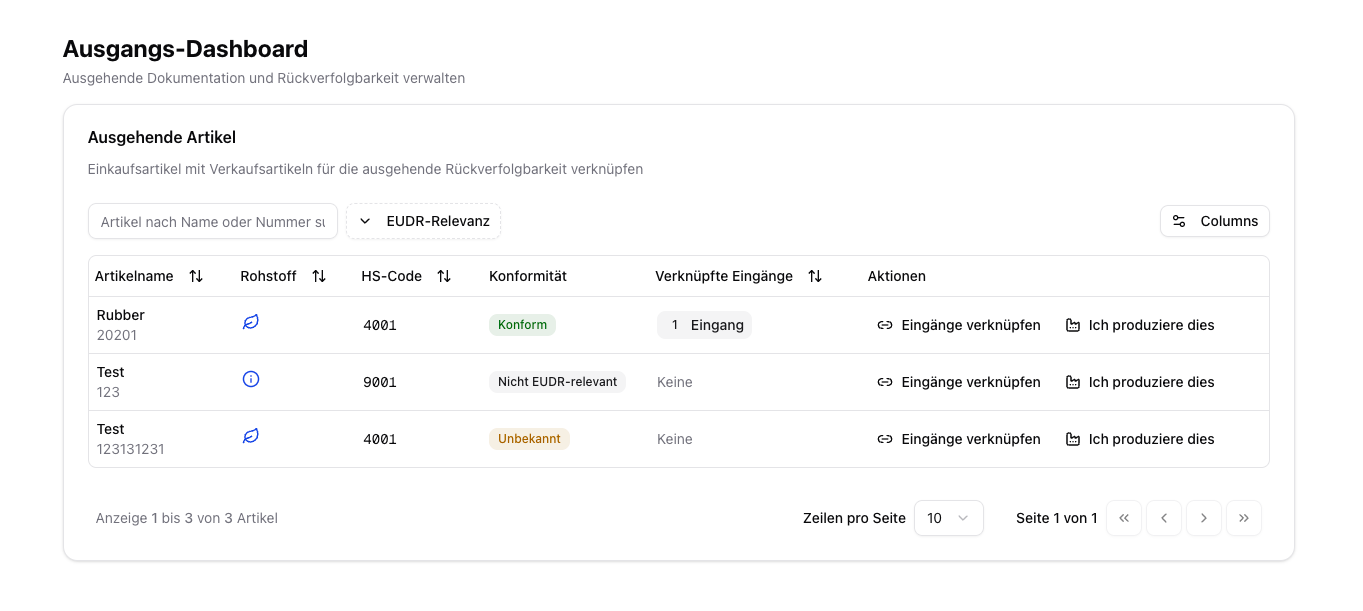
Outbound dashboard with sales articles
Linking input and output articles is especially important if you process or resell goods and want to transfer existing evidence to your sales articles. In addition, you can store EU production information for domestic production here.
When Is This Linking Useful?
Examples:- Cocoa beans (purchase article) → chocolate (sales article)
- Several raw materials are combined into a finished product
- An article is repackaged and sold under a new article number
Link Input Articles (BOM Linking)
1
Select a sales article
In the Outbound dashboard, navigate to the sales article you want to assign input articles to.
2
Link input articles
Click “Link Inputs”. A dialog opens in which you can select from your purchase articles.
3
Select purchase articles
Search by name or article number and select the articles used as input for this sales article.
4
Save the Bill of Materials
Click “Save Bill of Materials”. The compliance evidence of the input articles is automatically transferred to the sales article.
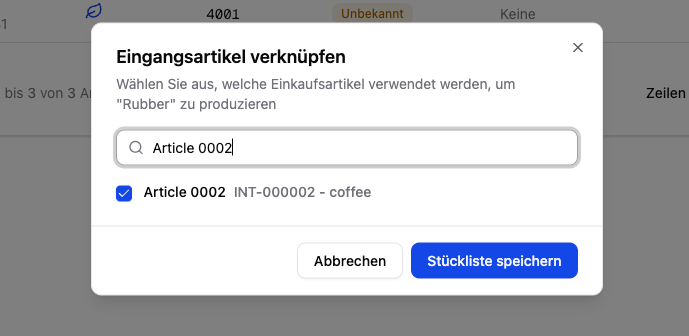
BOM dialog
An input article with no supplier relationship fails the save — create the supplier on the article first.
Per-order Copies of a Sales Article
If a sales article has the origin per order option set, every order gets its own copy of the article with its own origin. Those copies do not appear as separate rows in the table. Instead, the article row carries a chip under the name and number: “{count} order copies”. Clicking it opens the “Order copies” side panel with the subtitle “Per-order copies of {article}”. Per copy you see the order number (or “No order”), the compliance state, the creation date, the system reference, and the number of linked input articles. Available actions:- “Open” — show the copy in the detail view.
- “Link inputs” — maintain a bill of materials for that one copy. The same dialog as for the regular rows opens; after saving, both table and panel refresh.
- “Delete” — only possible when no order hangs off it. Otherwise it says “Delete the order first”.
The template row’s bill of materials is not the copies’ bill of materials. The Linked Inputs column in the table shows the template’s inputs; a per-order copy’s inputs live only in the side panel. The chip appears in the EUDR module only, and only when copies actually exist.
EU Production (Domestic Production)
If you produce goods in the EU yourself, you can store the EU production information directly in the Outbound dashboard:1
Specify the production country
Select the production country and save.
2
Add a production area
Draw the area on the map or upload a GeoJSON file.
3
Create a DDS
Enter the quantity (kg), accept the statement, and submit the DDS for domestic production.
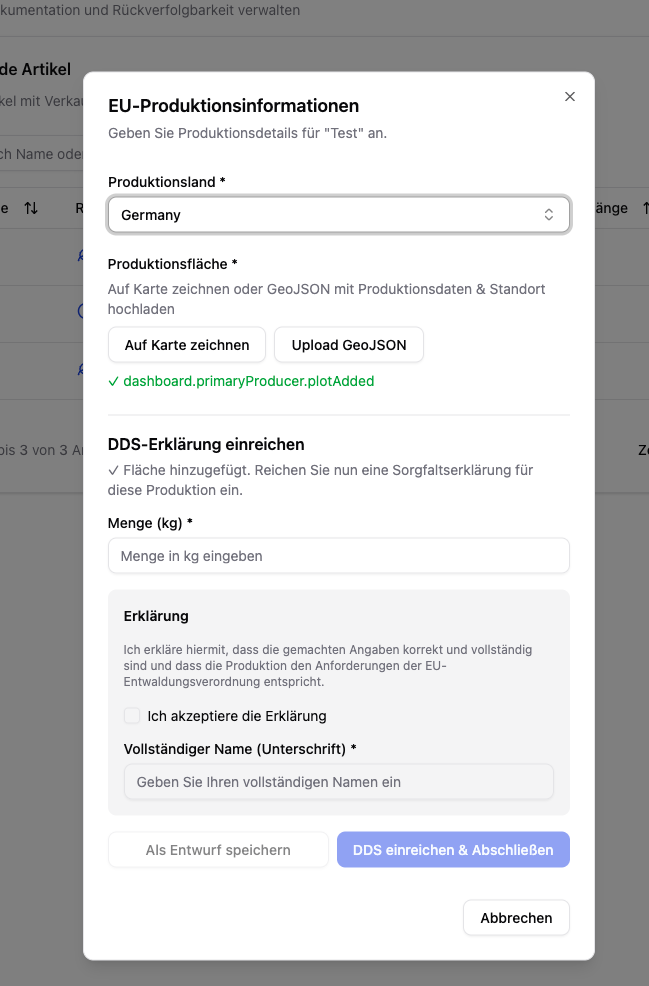
Domestic production
The compliance evidence of the input articles must be complete before linking to sales articles makes sense.
External DDS from suppliers can also be transferred automatically to sold articles through this linking.