

Quick path
1
Open the review panel
Open the evidence from Documents, a Compliance gap, or the article detail page. If the values list is missing, first enable Settings → Automations → AI document review.
2
Check the source and open items
Read the briefing. Compare each open value with the original using its quote, page reference and Show in document.
3
Complete the decisions
Accept or reject proposed category coverage. Confirm or correct open values, then close the panel with Done.
Overview
Every document you or your supplier upload is read, classified and evaluated field by field. The result is no longer only a finding in an analysis report — it is a worklist right next to the document: a document viewer with the file on the left and every value read on the right, each with its source. Values the system is sure about are applied on their own; they permanently carry the note “automatically applied” (automatisch übernommen). Everything else waits for your decision: Confirm, Correct or — for category coverage — Reject.
Nothing is claimed without evidence. Every value read names the document, the page and the passage it came from. Where the analysis finds nothing, it says “missing” — it does not guess.
Switching it on
The review panel is a company setting: Settings → Automations → AI document review, toggle “Enable AI document review”. It is off by default. While it is off, nothing changes: documents are still analysed, but the individual values read do not appear as a reviewable list. Switch it on and values read earlier appear too — nothing has to be re-uploaded. See Settings → Automations.Opening the document viewer
You reach it everywhere a piece of evidence appears:- Documents (
/documents) — click a document card, see Documents - Compliance gaps — from a gap, see Resolve risk
- Article detail — from the article’s evidence list
The briefing: why this document needs attention
At the very top, in plain language, is what needs doing — before you look at a single field.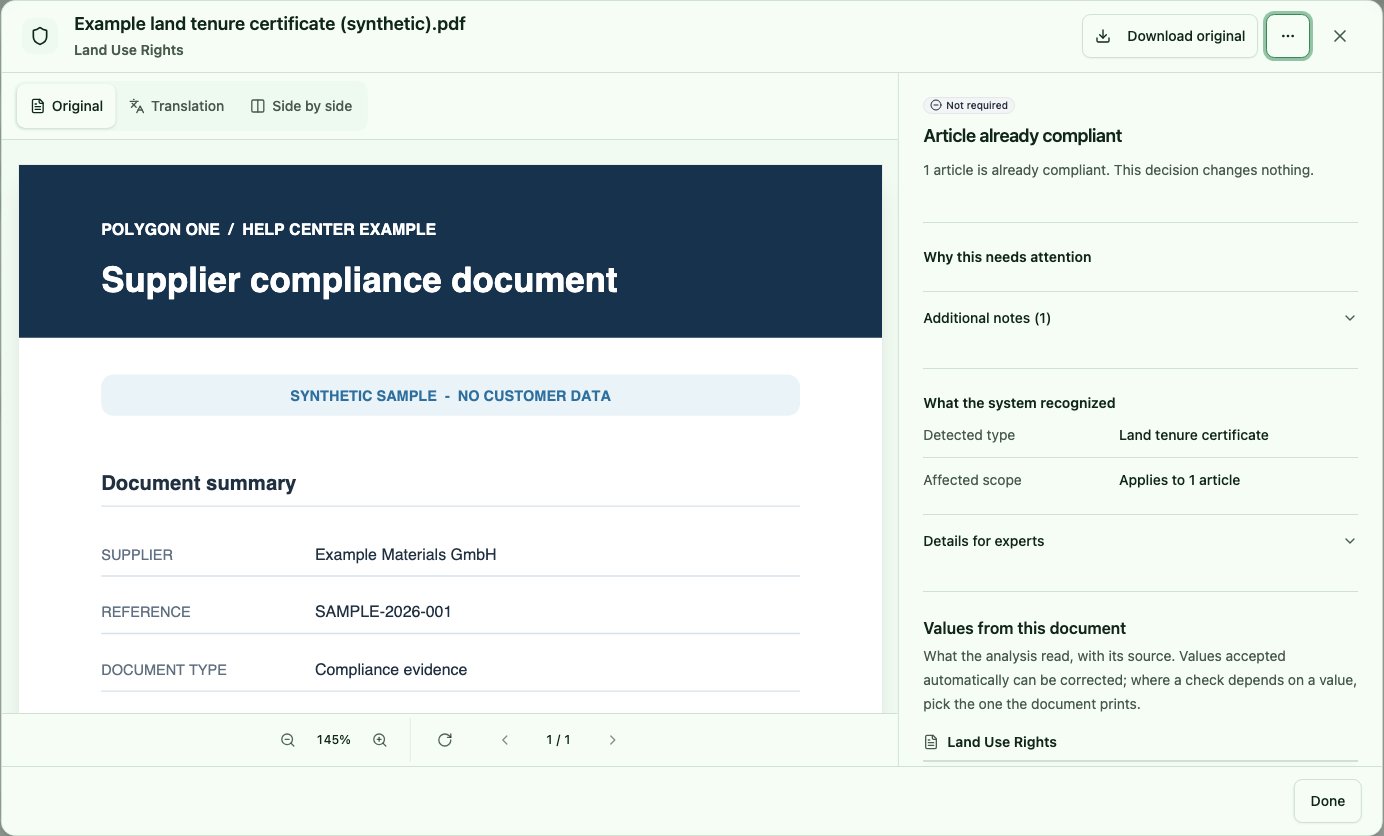
Review workspace with a synthetic land-use document and recognised status
A document can be read correctly and still not satisfy a category. “Supporting evidence” and “Chain of custody only – no legality coverage” are end states, not rejections; there is nothing to decide there. The full status list is under Documents.
Category coverage: accept or reject proposals
Under Category coverage the analysis proposes which legality categories this document actually supports — regardless of the category it was filed under. The line “Currently filed under: …” names the current filing, the counter on the right (“2 categories open”) the proposals still open.
Category coverage with proposals to accept or reject
- Accept — the document counts as evidence for that category from now on.
- Reject — the proposal disappears; the category stays open and still waits for a covering document.
Plot-level evidence and certificates take a second step. They only cover the category once they reach the article’s plots in the production country concerned. For land-use rights and environmental protection in low- and standard-risk countries, those are only the plots the geo analysis flagged (for example high or medium risk, invalid, or not yet analysed); the remaining plots count as covered once a verified document of that category exists for the country. In every other category, in high-risk countries, and when the questionnaire raised the category, every plot still has to be reached. Which plots those are is shown on the document under Plot coverage; you confirm open links there, or collected under the task “Confirm plot coverage” in the compliance gaps view. See Evidence Upload.
Values from this document
The second block is the actual field review: “Values from this document — what the analysis read, with its source. Confirm, correct, or pick a value where they differ.” The counter per section (“3 to clarify”) says how many rows are still open.
Field list with quote, page reference and 'automatically applied'
The states of a row
Settled rows move into the collapsible group “Confirmed values (n)” so the list stays short. “Apply n open values” confirms every open row of a section at once.
When the supplier says “it is not on this document”
For a row held as missing, the supplier can give a statement instead of a value — with a mandatory reason. The row then shows the state not applicable and the answer in plain text: “Not applicable (Supplier): …”. You decide on it like any other value, only with a different effect:- Accept — you take the statement. The row is settled and asks for nothing further.
- Reject — “Reject this answer” opens, and it names the field: The supplier said … is not on this document. Rejecting re-opens the request — your note is what they will see. The field “Note to the supplier (required)” must be filled in; the button reads “Reject and re-open”.
Only the supplier can declare a field not applicable — you cannot mark one yourself. Your role is to decide about it.
Quote, page and “Show in document”
Below each value read is the passage it came from, next to it the chip “Document p. n”. “Show in document” jumps the left-hand pane to exactly that page — so you can check a value without searching the file. If the analysis found only the page but no quotable passage, the page chip appears without a quote. That is not a fault but the honest answer: it was read on this page, and nothing there is quotable verbatim.Translating a foreign-language quote
If the passage is not in your language, “Translate this text” appears. One click translates it in place; below it then reads “Machine translation – the original text above is authoritative.” The original is never replaced, and the translation is cached, so the second call is instant. No translation is offered for names and place names — it does not help there. If translation fails, the panel says “Translation is not possible at the moment. The original text above is unchanged.”Provenance chips: where a value came from
Every value visibly keeps its origin — later in the form, too:
Clicking the chip opens the provenance in detail: Source, Page, Person, Date, Passage read and the note “Machine-read”.
What the supplier sees
In the portal your supplier sees the same values read against their own fields — with Correct and a confirm action instead of your Confirm. Values you have already set cannot be overwritten by them; there it says “Your customer has already set this value; it cannot be changed here.” See Supplier view.FAQ
How do I correct a value that was read?
Open the evidence in the document viewer, find the row and click Correct. Enter the right value and click Save. The value then carries the chip “Buyer · your name” — proving for any later audit that a person, not the analysis, decided it. The original value read, quote included, stays in the provenance. If the value changed in the meantime — because the document was re-read, say — the panel reports “The value has changed in the meantime — the view has been refreshed.” and shows the new state. Your entry never blindly overwrites.What does “automatically applied” mean?
The analysis was confident enough about this value to write it into the record without asking. Dates, parties, reference numbers and areas count as certain only when the document prints them under a recognised label or in a certifying sentence (“X certifies that …” names X as the issuer); a printed value whose shape the rules cannot confirm is checked by the AI against the passage and applied only when the passage states it explicitly. That does not make it human-confirmed: the chip stays Document, not Buyer. You can confirm or correct it at any time. Conversely, “to review” does not mean the value is wrong — only that the analysis would not take sole responsibility for it.I cannot see the value list
Then AI document review is not enabled for your company (Settings → Automations), or the document has not been analysed yet. On “Analysing…” wait for the run; on “Analysis failed” restart it via Re-analyse.Next steps
- Supplier update requests — ask the supplier about open points
- Automatic follow-ups — send detected gaps without an approval click
- Documents — the central evidence overview
- Evidence documents (PPWR) — the same review panel in the PPWR module